Featured Story
Grandstand News & Ideas
Explore new features, customer stories, and practical ideas to help you get more from your app.
Featured Story
Product Updates
Published September 23, 2026
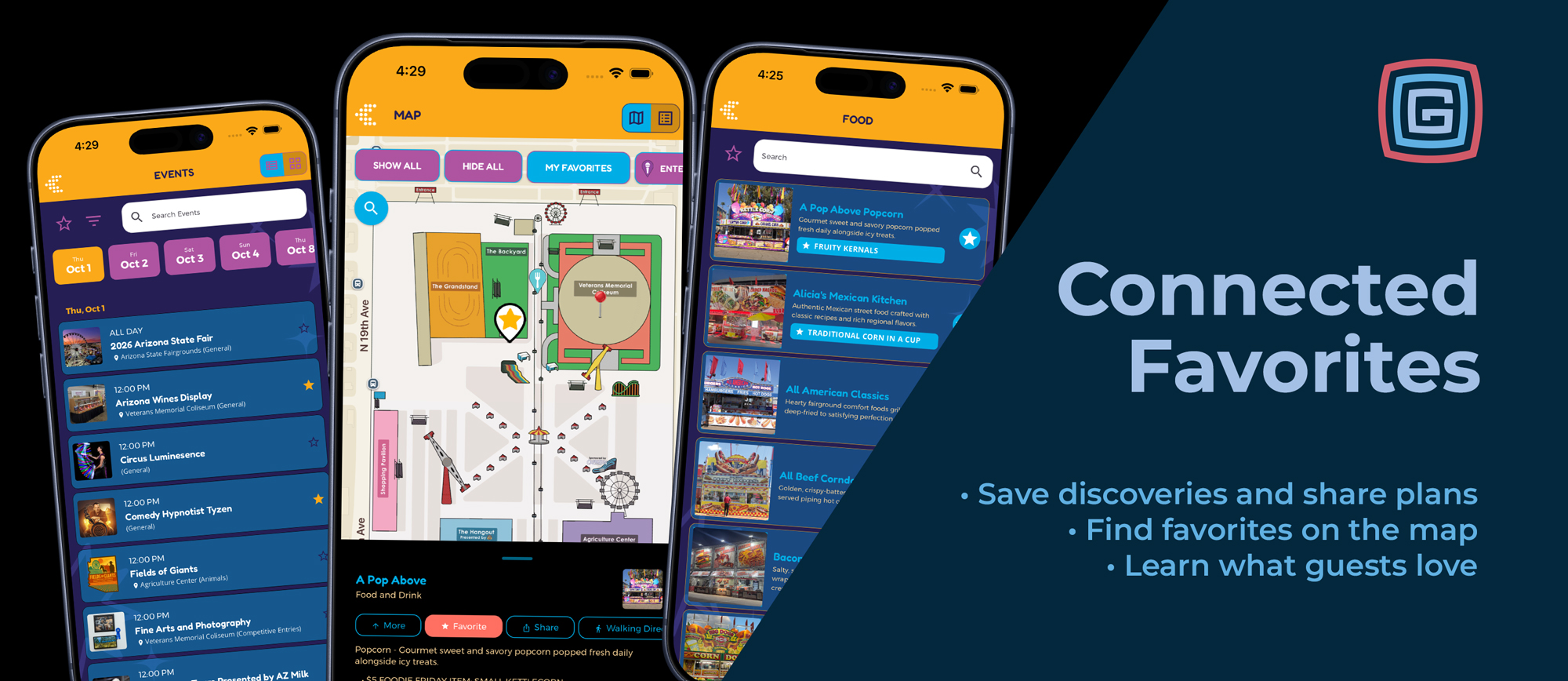
The concert you can’t miss. The dessert you spotted three weeks ago. The exhibitor you promised yourself you’d visit. There’s a lot to keep track of at an event. Grandstand’s favorites help guests remember the good stuff—and turn those discoveries into a plan. Saving a favorite fits naturally into exploring the app. Guests can save an event while browsing the schedule, a menu item while checking out food options, or a vendor while exploring the map. Their choices connect throughout the app, ready when they need them. And guests put those stars to work. At some Grandstand events, activity reaches hundreds of thousands of vendor favorites and hundreds of thousands of individual food-item favorites. That’s a lot of “let’s try this”—and valuable insight for organizers. See It. Save It. Keep Exploring. When something catches a guest’s attention, saving it should be easy. Grandstand puts favorites where those discoveries happen: schedule listings, event details, vendor listings, vendor details, and vendor locations on the map. The Arizona State Fair app offers a great example. A guest browsing the schedule can star Comedy Hypnotist Tyzen or Arizona Wines Display directly from the event listing, with the time and available location information right there. There’s no need to interrupt browsing to start a separate plan. Guests keep exploring, and their favorites grow along the way. Remember Exactly What Looked So Good “Which booth had that dessert?” Individual item favorites help guests remember the details. They can save specific food, menu, or other items within a vendor’s listing. Their saved selections now appear right on the list page, making it easy to remember both where they wanted to go and what caught their eye. In the Arizona State Fair app, for example, a guest can save Traditional Corn in a Cup from Alicia’s Mexican Kitchen and see that selection displayed directly beneath the vendor. The next time they browse the food list, their must-try item is easy to spot. Saving an individual item also automatically favorites its vendor, keeping the food and the place to find it together. A vendor favorite says, “Let’s stop here.” An individual item favorite adds, “And this is what I’m getting.” One Place for the Must-Sees and Must-Tries Grandstand’s enhanced unified Favorites page brings saved schedules and lists into one place. A festival guest might collect performances, food vendors, and a few must-try dishes. A conference attendee might save sessions and exhibitors. A family visiting a fair might build a collection of activities and stops everyone has picked out. Planning can start as soon as the content is available. Guests can browse in the weeks before an event, save their discoveries, and pull up those favorites when they arrive. Schedule reminders help keep the plan on track. Depending on the app’s configuration, guests can choose a reminder for a saved event, or favoriting can automatically schedule one before it begins. Remove the event from favorites, and its reminder is canceled, too. Because it’s easy to lose track of time when you’re having a good time. Put Your Favorites on the Map Grandstand’s Filter by Favorites connects the map with saved events and vendors. Guests can narrow the map to locations associated with favorites from both schedules and lists, helping them spot the places that matter to their visit. In the Arizona State Fair app, the My Favorites map filter brings those saved selections into the fairgrounds view. Guests can also open a vendor location such as A Pop Above and use the Favorite button directly in its map detail panel. A vendor saved from the map also appears in vendor favorites. Whether the discovery starts with a food listing or a spot on the map, it becomes part of the same personal plan. Send the “Here’s What I Want to Do” List Every group has someone collecting ideas. Favorites sharing gives that person a head start. Expanded sharing lets guests pass along their selections from schedule and vendor Favorites views. Shared schedules can include event names, dates, times, and locations. Shared vendor collections include vendor information and the individual food or other items the guest has saved. That means friends and family can see the details that make a plan useful: which show, what time, which vendor, and which menu item is worth a stop. It’s an easy way to get the “What should we do?” conversation started before everyone arrives. Every Favorite Tells Organizers Something For guests, a favorite is a handy way to remember. For organizers, it’s a signal of interest. Page views show what people explored. Favorites help reveal what they wanted to come back to. Individual item favorites go a step further, showing interest in specific dishes, products, or offerings within a vendor’s listing. Grandstand now includes full tracking of individual item favorites in Admin, alongside analytics for schedule and vendor favoriting. Sharing and reminder interactions provide additional context about how guests use their plans. Those insights can help organizers identify popular offerings, choose what to feature in promotions, and have more informed conversations with vendors and programming teams. Favorites reflect interest rather than confirmed purchases or attendance. But when guests are making hundreds of thousands of selections, those choices offer a valuable picture of what has their attention. More Ways to Make Favorites Work Recent improvements bring even more of the experience together: An enhanced combined Favorites page. Expanded sharing across favoriting areas. Saved individual items displayed directly on list pages. Full tracking of individual item favorites in Admin. Vendor favoriting directly from the map. Each improvement makes it easier to move from “that looks interesting” to “let’s make it part of our day.” Find Your Favorites Fit Silver and higher: Basic schedule favoriting helps guests save the events they want to attend. Gold and higher: List item favoriting adds vendors and other list entries to their saved discoveries. Platinum and Titanium: Individual item favorites, unified Favorites, schedule reminders, map filtering based on schedule and list favorites, and vendor favoriting directly from the map create a more connected planning experience. Feature availability within an app also depends on its configuration. Help guests collect their must-sees, find their must-tries, and share the plan. Along the way, learn more about what makes your event worth exploring. Contact Grandstand to put favorites to work in your app.
Read More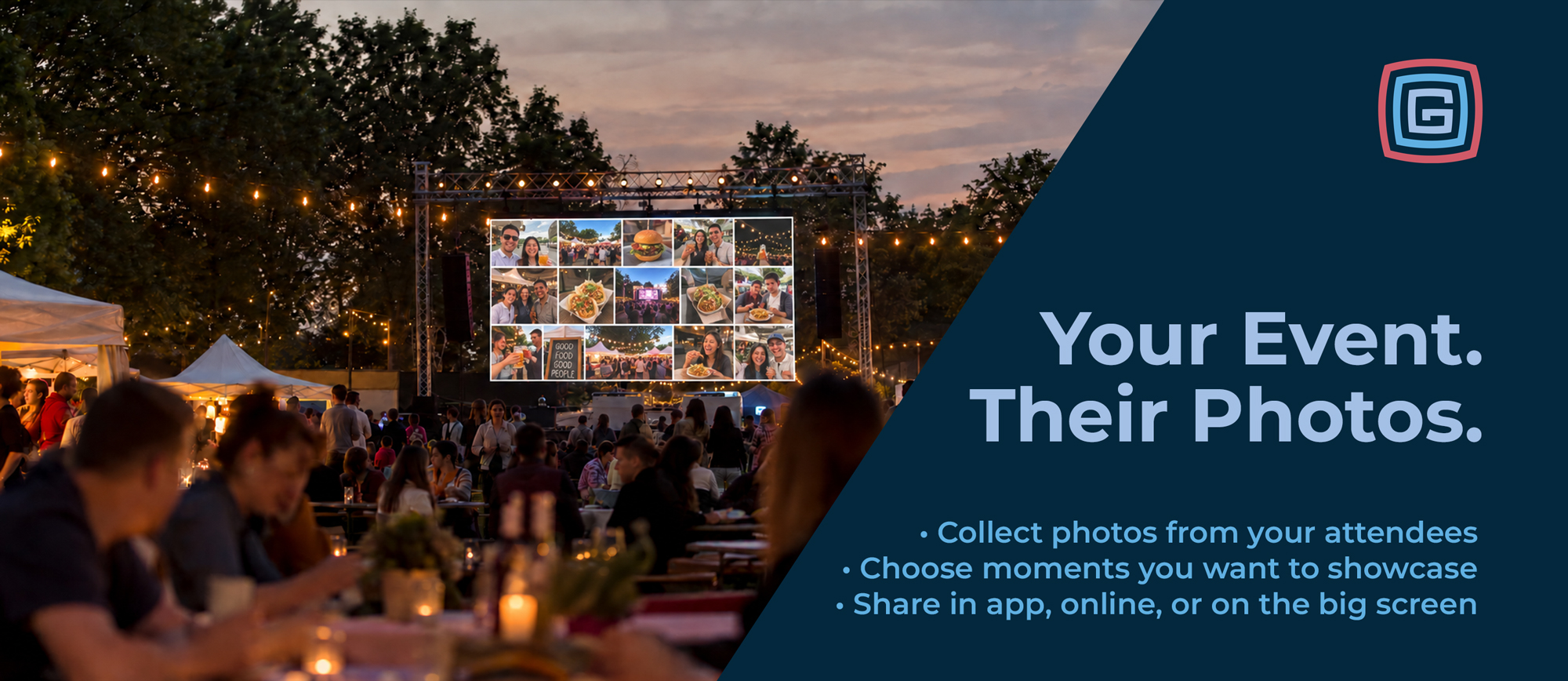
Product Updates
Published September 16, 2026
Some of the best event photos come from the people experiencing it. A family capturing their favorite fair tradition. Friends completing a scavenger hunt. A visitor sharing a discovery from around the grounds. Grandstand helps you bring those moments together, giving your team control over which photos become part of your event’s story. Start with a Photo Gallery in Your App Photo galleries are available with Gold packages and higher, giving you a place inside your app to showcase selected photos and celebrate your event. The in-app gallery is the starting point. Website widgets, kiosk displays, and big-screen gallery options are separate offerings that can extend your collection beyond the app. Collect Photos Through Your App Make photo collection part of the attendee experience through these options: Forms and Surveys, Platinum and higher: Add a photo upload option to a form or survey. Invite visitors to share their favorite moment, submit a photo for an event activity, or contribute to a community gallery. Scavenger Hunts, Gold and higher: With photo collection enabled, collect photos at some or all hunt stops. Those submissions can become gallery content, extending the value of the activity beyond the hunt itself. Photo Booth, coming soon for Gold and higher: Attendees will be able to take a photo, choose their photo skin, and optionally upload it for your team to consider for a gallery. Choose What Gets Shared Your team controls which submissions appear in a gallery. From the results area in the Grandstand Admin, administrators can select photos to add to a photo gallery list for use in the app and, with the appropriate additional options, on the web or event screens. Highlight memorable moments, feature completed challenges, or build a collection around a particular theme. You also have options for which accompanying information carries over with each photo, helping you provide context or keep the focus on the image. Extend Your Gallery to Your Website Available separately, Grandstand’s Photo Gallery Web Widget brings your collection to your website in a responsive, photo-focused layout. Choose a consistent grid with square, landscape, or portrait thumbnails, or use a mixed-photo layout that arranges images according to their natural proportions. Vertical phone photos and wide event shots can sit together in rows that adapt to the available screen space. Visitors can select a thumbnail to open a larger view, with optional titles and descriptions adding context. Larger collections initially show 50 photos, with a button to reveal the rest. The web widget is separate from the in-app gallery included with Gold and higher packages. Web widget fees apply. Bring the Gallery onto Event Screens Make your selected photos part of the experience on the grounds with optional kiosk and big-screen display settings. Kiosk mode refreshes the embedded web gallery every two minutes, making it useful for venue screens, lobby displays, check-in areas, and event photo walls. As your team adds selected submissions to the gallery, those updates can appear on the next refresh. Imagine visitors seeing photos from a scavenger hunt on a nearby screen, or families spotting their submitted fair memories in a shared gallery. It gives attendees another reason to participate and another place to see their contributions celebrated. Kiosk and big-screen gallery options carry an additional fee on top of any web widget fees. These options are separate from the photo gallery included in your app. Keep the Memories Working After the Event Your collection can continue telling your story after the gates close. Use it to recap the event, celebrate participants, highlight activities, or build excitement for next year. Start with an in-app photo gallery on Gold or higher, then add website or event-screen options to give those moments more places to shine. Contact Grandstand to explore photo collection and gallery options for your event.
Read More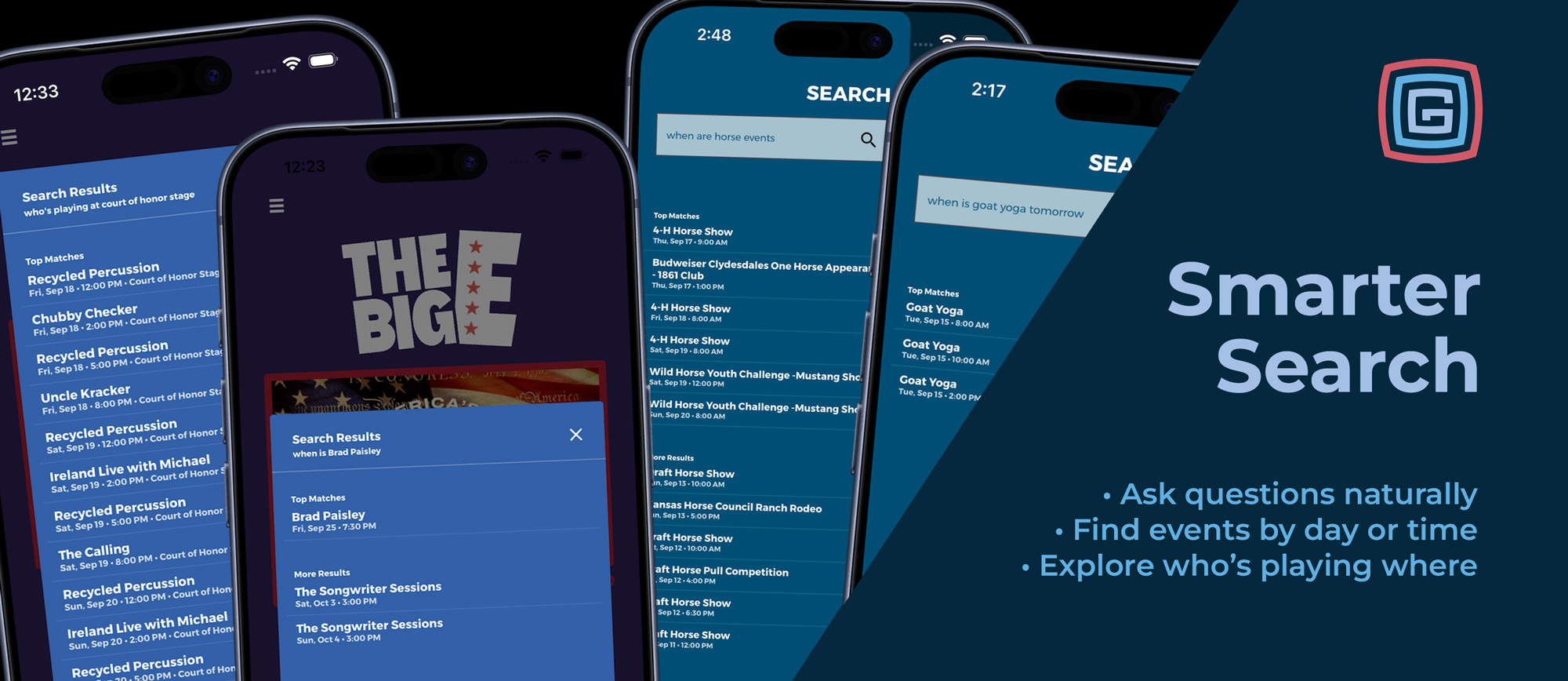
Product Updates
Published September 9, 2026
Find a performer, explore an interest, or plan your evening—all through Home Search. Visitors often know what they want without knowing which page to open. They may be looking for a concert, wondering what’s happening tomorrow, or exploring the lineup at a particular stage. Grandstand’s upgraded Home Search connects those questions with the content in your app. Improved matching, clearer results, and expanded natural-language support help visitors search using familiar words and questions. Examples from The Big E and Kansas State Fair show five ways visitors can turn a simple question into useful event information. Find a Specific Performer “When is Brad Paisley?” In The Big E app, that question brings Brad Paisley’s event into Top Matches, with its date and time displayed directly beneath his name. Visitors can see the key details before opening the full listing. It’s a straightforward way to find a performance without browsing the entire schedule or knowing its exact listing title. Additional matches remain available under More Results, keeping the strongest match prominent while allowing visitors to explore further. Explore an Interest “When are horse events?” Visitors don’t always have a specific show in mind. They may simply want to find activities related to an interest. In the Kansas State Fair example, this question returns horse shows, a Clydesdales appearance, and other relevant activities. Upcoming matches appear prominently, while past matching events remain available under More Results. Search can match event titles, categories, tags, locations, and descriptions, helping visitors discover activities without knowing their names in advance. Plan for Tomorrow “When is goat yoga tomorrow?” This question combines a specific activity with a timeframe. In the Kansas State Fair example, the results show three Goat Yoga sessions for the following day, with each start time clearly displayed. Visitors can compare those options and decide which session fits their plans without sorting through occurrences on other dates. Home Search also supports requests for today, this weekend, and written dates, such as “Show me concerts on September 20.” That makes it useful both before arrival and while planning another day at the event. Discover What’s Happening Tonight “What events are tonight?” Sometimes visitors want options rather than a particular event. In the Kansas State Fair example, this search brings together evening activities ranging from performances and demonstrations to pig races and the demolition derby. Search considers event timing to keep these results useful. Evening events and shorter activities continuing into the evening can qualify, while long-running daytime listings are kept from crowding the results simply because they end late. Visitors can also narrow the request with a subject, such as “Show me concerts tonight,” or explore current activities by asking “What’s happening now?” Explore a Stage’s Lineup “Who’s playing at Court of Honor Stage?” In The Big E app, this question returns performances associated with that stage, with dates, times, and the venue shown in the results. It gives visitors another starting point for discovery. They can explore a familiar venue without needing to know who is performing there. Location questions can also include a timeframe, such as “What’s happening at the main stage tonight?” or “What events are at the arena tomorrow?” Search works in the other direction, too. Questions such as “Which arena is the rodeo in?” help visitors find where an event takes place. Find Food, Vendors, and Facilities Too The improvements extend beyond schedule discovery. Home Search can find vendors through their names, tags, subcategories, subtitles, and descriptions. Questions such as “Who sells lemonade?” or “Where can I buy a hat?” help visitors find listings based on what they offer. For facilities and destinations, visitors can ask “Where are the restrooms?” or “Find the information booth.” Matching map results open the relevant map and pin. These connections help visitors reach useful information without first deciding which section of the app to browse. Clearer Results and More Forgiving Matching Visitors type quickly, especially during a busy event. Home Search now handles common variations more effectively, including capitalization, accents, punctuation, simple singular and plural differences, and minor typos. Top Matches and More Results help organize the results so visitors can identify the strongest matches first. Schedule results also account for timing, keeping past events out of the top-match group. Together, these improvements help visitors find useful content even when their wording does not exactly match a title in the app. Put Discovery on the Home Page Making search easy to reach matters. At the Minnesota State Fair, adding embedded search to the home page made a major difference in how visitors used the app. It gave them a prominent starting point for discovery alongside the familiar navigation. The expanded natural-language capabilities shown in The Big E and Kansas State Fair build on that approach, giving visitors more ways to express what they want to find. Help Your Content Get Found Useful, accurate content gives search more to work with. A few thoughtful updates can make a difference: Describe what vendors offer. Include specific foods, products, and services. Use meaningful tags and subcategories. Choose terms visitors are likely to search. Keep event dates, times, and locations accurate. These details support questions about when and where activities happen. Use clear map-location names. Name facilities and destinations in language visitors will recognize. Try common visitor questions. Search for a performer, an interest, a food, and a location to see how your content appears. Choose How Visitors Access Home Search Home Search and its improved natural-language features are available with Silver packages and higher, accessible through a slide-out menu from the home page. With Gold packages and higher, you can alternatively embed the search box directly on the home page through Home Builder, giving visitors an immediately visible starting point for discovery. Both options provide the same smarter matching and natural-language capabilities. Choose the placement that works best for your app’s design and visitors. From finding a favorite performer to discovering something unexpected, smarter Home Search helps visitors make more of the content your team has prepared. Interested in using Grandstand for your event? Schedule a demo to see how search, schedules, maps, and vendor listings work together.
Read More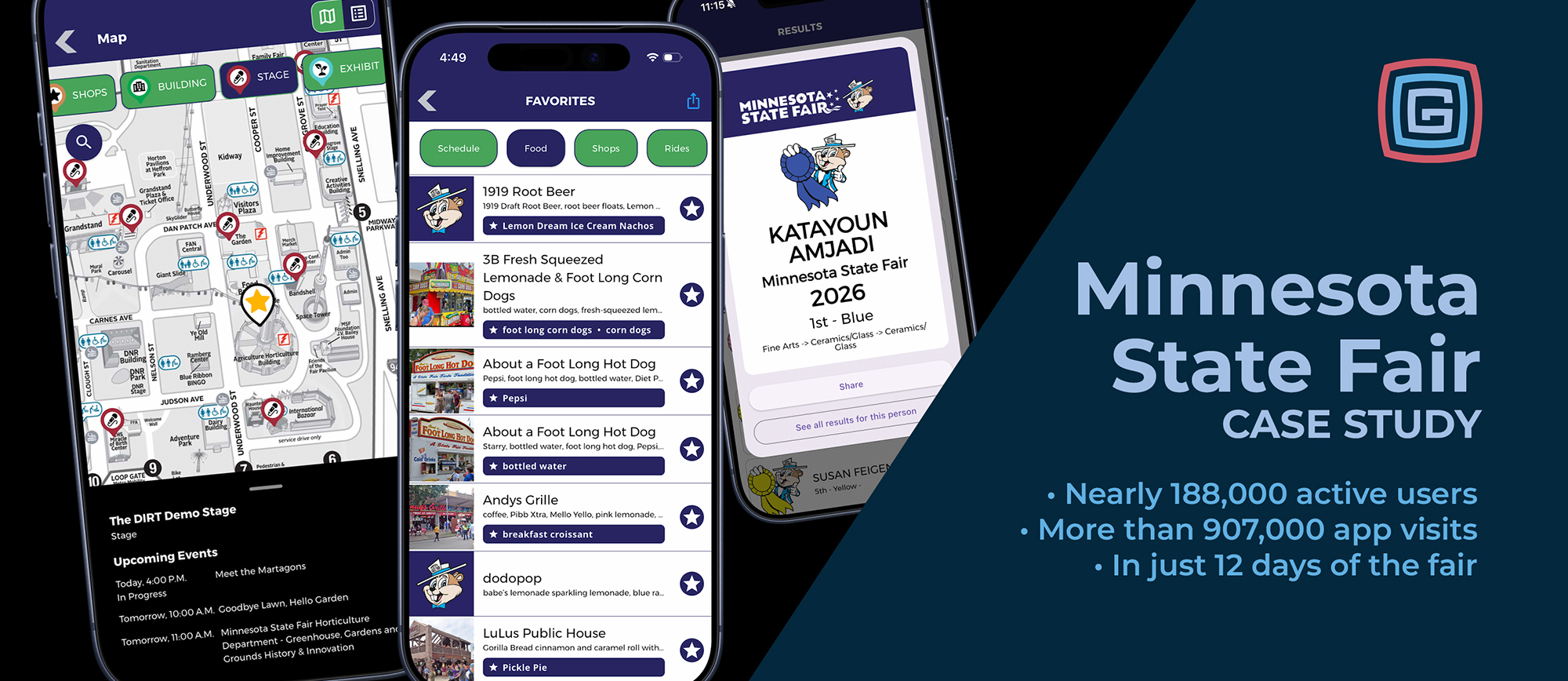
Product Updates
Published September 8, 2026
Nearly 188,000 active users and more than 907,000 app visits during the 12-day fair, with substantial growth over last year. In our third year powering the Official MN State Fair App, Grandstand helped visitors explore the fair through a familiar design, connected content, and new ways to find what they wanted. During the 2026 Minnesota State Fair, August 27 through September 7, nearly 188,000 active users generated more than 907,000 app visits. Both the number of active users and overall app usage increased considerably over last year. Those figures cover only the 12 days of the event. They do not include the browsing, discovery, and planning that happened in the days, weeks, and months before the gates opened. Building on a Familiar Experience Three years of working together has provided opportunities to refine the app while preserving the experience returning visitors recognize. Minnesota does not use a changing annual theme for its app design. Its visual identity stays consistent from year to year, creating a familiar starting point for visitors as new schedules, foods, vendors, and features arrive. That consistency gives improvements a clear purpose: make the app more useful while building on what visitors already know. This year, one of the most meaningful changes was placing search directly on the home page. Bringing Search to the Front Embedding search on the home page made a major difference in how visitors used the app. Visitors could begin looking for something as soon as they opened the app. Whether they had a food, vendor, event, or location in mind, search offered a direct starting point alongside the app’s established navigation. That placement mattered. It made search a more prominent part of the experience and helped visitors discover content across the app without first deciding which section to browse. Improvements to search relevance supported that change. Searches could find matches through vendor descriptions, tags, and subcategories, while clearer Top Matches and better handling of typos helped surface useful results. Together, the prominent search box and improved matching gave visitors more ways to reach the information they wanted—and made the content maintained by the fair more discoverable. The Experience Starts Before Opening Day For many visitors, the fair begins with anticipation: exploring new foods, checking entertainment schedules, and deciding which familiar favorites to visit again. The app gives that planning a home. Visitors can browse available listings, explore the grounds, and save favorites ahead of their visit. When fair day arrives, those saved choices are ready to help guide their day. The nearly 188,000 active users and more than 907,000 visits measure activity during the fair itself. Advance planning extends the app’s usefulness beyond that reporting window. Connecting Discovery With Location At a large fair, knowing what you want to see is only part of the planning process. Knowing where to find it matters just as much. Minnesota’s app connects schedules and vendor information with the fairgrounds map. Visitors can select a location to explore associated vendors and see current or upcoming events, then open those listings for more detail. Favorites make those connections personal. Visitors can save vendors while browsing and filter the map to show only locations associated with their favorites. A list of foods discovered before opening day becomes a set of places to find across the grounds. These capabilities bring planning and exploration closer together, helping visitors move from an idea to their next stop. Celebrating the People Behind the Fair The app also connected visitors with another important part of Minnesota’s fair: competition results. Minnesota became the first major rollout of Grandstand’s Open Class Results experience, giving participants, families, and other visitors a way to explore results within the app. Shareable result graphics offered a way to celebrate accomplishments with others. Results gave visitors another reason to use the app and connected it with the exhibits, achievements, and traditions that make the fair meaningful to them. A Partnership That Keeps Improving The third year of the Official MN State Fair App brought considerable growth in users and usage, alongside improvements that made information easier to discover. A consistent design provided familiarity. Embedded home-page search changed how visitors found content. Connected maps, favorites, and results expanded what they could do once they found it. We’re proud to continue our partnership with the Minnesota State Fair and build on that experience year after year. Planning your next event app? Contact Grandstand to explore how a familiar design and thoughtful improvements can support your visitors before and during your event. Grandstand respects our clients’ data privacy. We only share client usage statistics that the client has already made public. The usage totals featured here were included in the Minnesota State Fair’s official 2026 wrap-up press release.
Read More
Product Updates
Published September 4, 2026
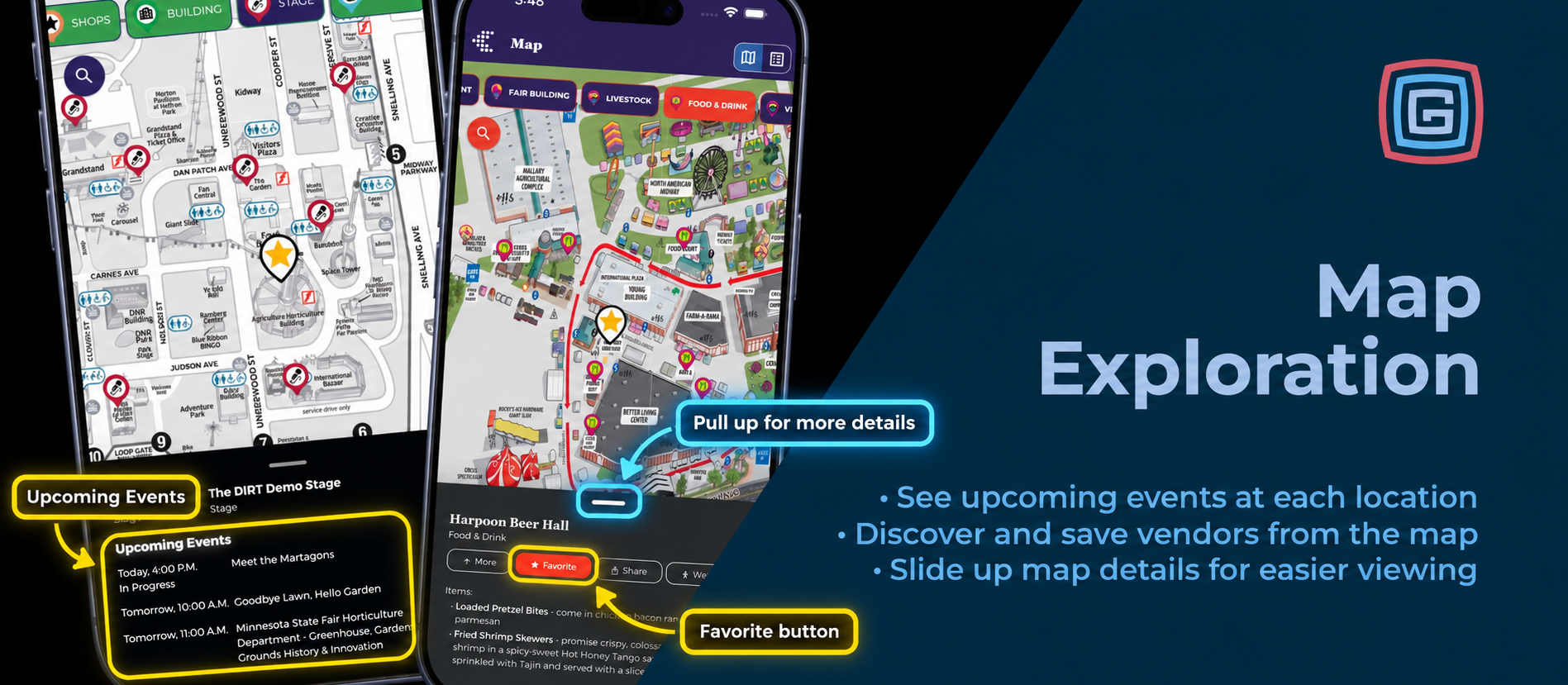
At a busy fair or festival, finding a location is often just the beginning. Visitors also want to know what is happening there, which vendors are nearby or inside, and whether they should add it to their list of places to visit. Grandstand’s latest map updates bring more of those answers together. Now available in the Minnesota State Fair and The Big E apps, these improvements connect map locations with schedules, vendor information and favorites. This helps visitors explore the grounds and decide what to do next. See What’s Happening at a Location A stage, building or attraction becomes more useful on the map when visitors can also see what is happening there. Map location details can now display up to three current or upcoming events within the next 24 hours, with direct links to the full event details. Someone exploring the grounds can select a location, see what is coming up and learn more about an event without searching through the complete schedule. For fairs and festivals with multiple stages, exhibit buildings or demonstration areas, this brings schedule information into the moment when visitors are deciding where to go. Upcoming events at map locations are available with all Grandstand packages. Discover the Vendors Behind a Map Pin A single building or area can contain plenty to explore. Map locations can now connect visitors with associated vendors, making it easier to discover what is there and open individual vendor pages. Visitors can move directly from a location on the map to details about its food, shopping or other offerings. When multiple vendors are associated with one location, visitors can browse those options without beginning a separate search. For organizers, this gives vendor content another useful place to appear while creating a clearer connection between a vendor listing and its physical location on the grounds. Linked vendors at map locations are available with all Grandstand packages. Save Your Favorites and See Where to Find Them Finding something interesting does not always mean visiting it immediately. Visitors may be planning lunch, browsing before they arrive or saving a stop for later in the day. Users can now favorite a linked vendor directly from a map location without first opening the full vendor detail page. Favorites remain synchronized whether they are saved from the map or the vendor’s page. Those saved choices become even more useful with the map’s Favorites filter. Visitors can narrow the map to show only locations associated with their favorite vendors, making it easier to see where their must-visit stops are located across the grounds. A visitor could save several food vendors before arriving, then use the Favorites filter at the fair to find those locations. As they discover and save more vendors, their personal view of the map grows with them. Vendor favoriting from the map is available with Gold packages and higher. Browse Locations Your Way Some visitors want to explore visually. Others would rather scan a list or search for a specific destination. The Map/List switcher makes it easy to move between the interactive map and a list of locations. Visitors can browse the grounds on the map, then switch to the list when that is a more convenient way to find their next stop. Location search also reaches deeper into map content, including descriptions and menu information. This helps visitors find places using details beyond the location’s name. Clearer filters and Show All controls make it easy to return to the complete map after focusing on a particular location or group of pins. Map/List switching is available with all Grandstand packages. More Useful Details in One Place Expanded location panels give descriptions, links, vendors and upcoming events more room. Visitors can open a location and explore its information in a readable view, with formatted descriptions that can include useful details such as lists and links. For locations with geographic coordinates, a walking-directions option can also open an external mapping service with the starting point and destination entered and the route set to walking mode. Together, these updates make the map a more useful part of the visit, from discovering what is happening at a location to finding favorite vendors and choosing the next stop. Explore the Possibilities for Your Event These features are available in both the Minnesota State Fair and The Big E apps, bringing schedules, vendors and visitor planning together within the map experience. Already using Grandstand? Contact us to explore the features available with your package and the setup needed to connect your map, schedule and vendor content. Planning a new app? Schedule a demo to see how Grandstand can help visitors discover more of your event.
Read More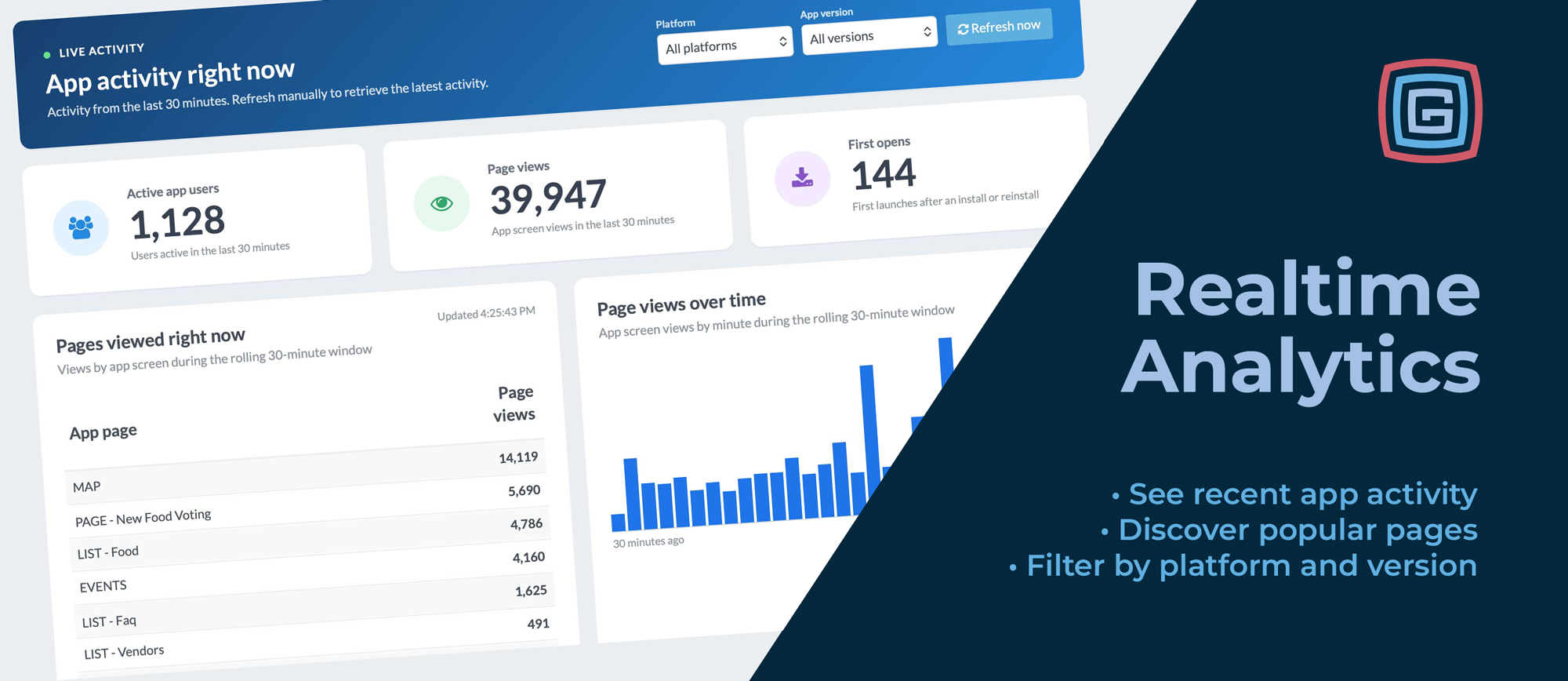
Product Updates
Published August 26, 2026
During an event, your visitors’ interests change throughout the day. They may be checking schedules before arriving, exploring food options around lunchtime, or looking for entertainment later in the evening. Grandstand’s new Realtime Analytics gives organizers a view of that activity directly inside Admin. Available with Platinum packages and higher, it shows a rolling window of the last 30 minutes of app activity, helping your team see what visitors are exploring. Open Analytics → Realtime and select Refresh now to retrieve the latest activity. Your Last 30 Minutes at a Glance The dashboard brings several useful measures together: Active app users: Users who were active within the last 30 minutes. Page views: App screen views during that same window, including repeat views. First opens: First launches after an installation or reinstallation. Pages viewed: The specific app pages receiving views, including individual event and vendor detail pages. Page views over time: A minute-by-minute chart showing how activity changes across the window. The active-user total reflects activity throughout the last 30 minutes, rather than a count of people with the app open at that exact instant. Together, these measures help organizers understand both the volume of recent activity and the content attracting attention. See What Visitors Are Exploring Overall activity tells you how busy the app has been. The page list helps explain what visitors are looking at. You can see activity across any page in the app, from maps and schedules to individual vendors, event details, FAQs, and custom pages. Is a featured food vendor getting attention? Are visitors opening the information page you just promoted? Which event details are being viewed as the afternoon gets underway? Realtime Analytics gives your team a current view of content interest to complement your broader event reporting. Put Recent Activity to Work Realtime Analytics can support the decisions and conversations happening throughout your event. Check activity after a push notification. After sending a message about an upcoming performance or featured attraction, refresh the dashboard to see whether views of the related content increase. Follow interest in voting and promotions. If you are encouraging visitors to explore a fan-favorite voting page, a special offer, or a featured vendor, watch for activity on that page. Page views show interest; voting or survey reports provide the separate picture of completed participation. Monitor first opens during app promotion. When you promote the app through social media, signage, or announcements, first opens provide a useful signal of installation activity. These include first launches after both installations and reinstallations. Check whether new content is being discovered. After adding or highlighting a page, see whether visitors are finding it. That can help your team decide whether it needs a more prominent home-screen placement or another mention. Notice interest in practical information. Increased views of parking, transportation, or FAQ pages can prompt your team to review whether that information is clear, current, and easy to reach. Watch planning activity before the gates open. The dashboard is useful before the event, too. See which schedules, food listings, and other pages are attracting attention as visitors prepare for their day. These patterns can help guide follow-up decisions. A change after a promotion is a useful signal to investigate, even when the dashboard alone cannot establish what caused it. Filter by Platform and App Version You can view activity across all platforms and versions or narrow the dashboard to a specific platform, app version, or combination of the two. The filters apply across the summary cards, page list, and activity chart, making it easier to focus on recent iOS or Android activity or explore usage from a particular release. After an app update, for example, your team can see activity coming from the new version and which pages those users are visiting. Available in Grandstand Admin Realtime Analytics brings recent app activity into the same Admin where you manage your event content. For clients with Platinum packages and higher, visit Analytics → Realtime to explore the dashboard. It displays the last 30 minutes of activity and refreshes when you select Refresh now. Interested in adding these insights to your event toolkit? Contact Grandstand to learn more about availability and package options. Dashboard images in this article use sample data for illustration.
Read More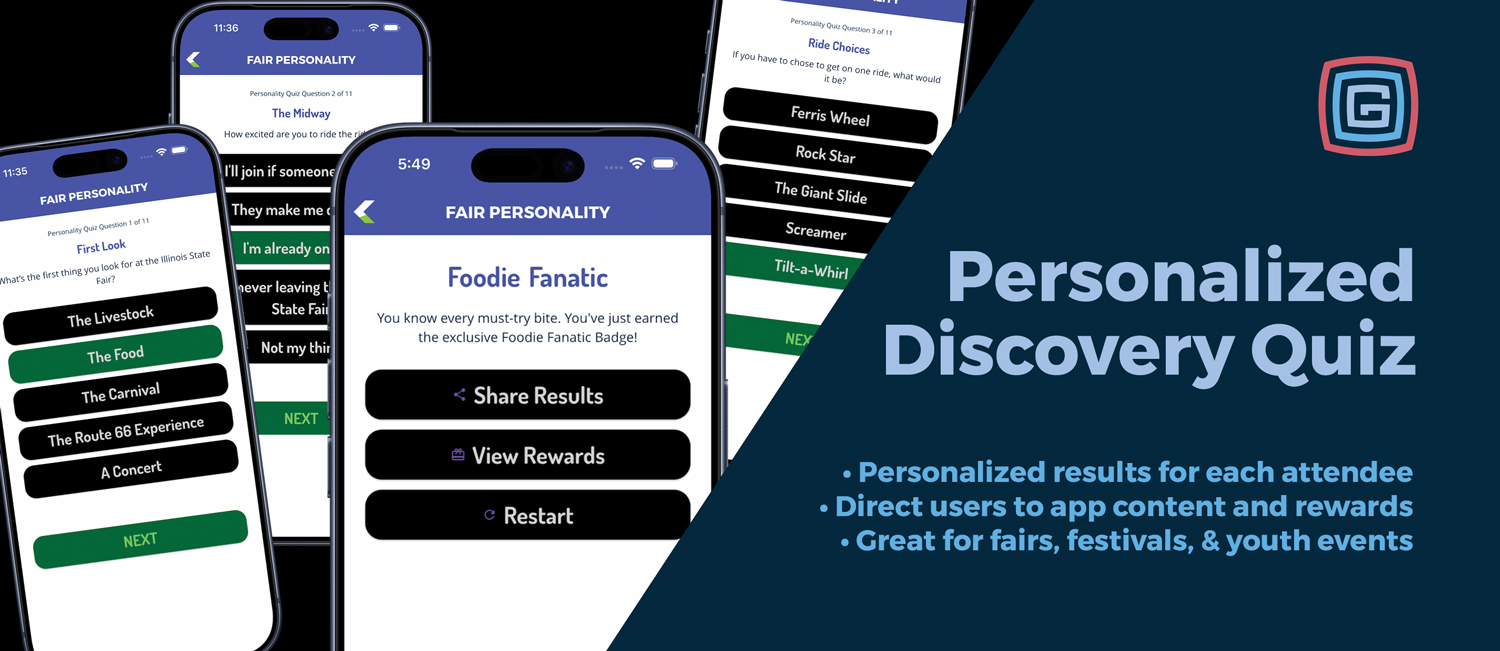
Product Updates
Published June 27, 2026
Grandstand apps now support Personalized Discovery Quizzes, a new way to turn quick attendee answers into custom results, recommended app content, and result-based rewards. Instead of testing what users know, these quizzes help attendees discover where to go, what to do, what to eat, what to watch, or which experience best fits their interests. More Than a Trivia Quiz Traditional quizzes are built around right and wrong answers. Personalized Discovery Quizzes are built around matching users with the parts of your event they are most likely to enjoy. A fair might ask, What kind of fairgoer are you? A music festival might ask, What is your festival vibe? A tourism app might ask, What should you explore today? Based on the user’s answers, the app can return a custom result such as Foodie Fanatic, Concert Chaser, Midway Maverick, Ag Explorer, or Family Tradition Keeper. Turn Results Into App Discovery Each result can include a description, optional image, and action buttons that send users directly to related app content. A Foodie Fanatic could be sent to food vendors, featured items, or food locations on the map. A Concert Chaser could be directed to live music, free stages, or tonight’s entertainment. A Family Tradition Keeper could be guided to kid-friendly activities, classic attractions, and family events. This turns a simple quiz into a personalized starting point for the attendee experience. Built to Feel Natural Personalized Discovery Quizzes use hidden result scoring behind the scenes. Users do not see obvious answer patterns like mostly A’s or mostly B’s. Answer choices can also be shuffled, so the quiz feels more natural and less predictable. The attendee simply answers fun questions. The app quietly tallies the result category and reveals the best match at the end. Animated Result Reveals The final result screen can include a countdown-based reveal that builds anticipation before showing the result. After the countdown, the app can display the result title, description, optional image, call-to-action buttons, and reward links. The result title can also animate word by word for a more polished and memorable finish. Rewards and Sponsor Opportunities Results can also unlock specific rewards, making this feature useful for giveaways, prize programs, sponsor activations, scavenger hunts, and special offers. For example, a food-focused result could unlock a vendor offer, while an entertainment-focused result could unlock a sponsor promotion tied to a stage or featured attraction. Useful Reporting Personalized Discovery Quizzes also connect to existing quiz reporting tools. Results can include selected answers, answer IDs, result categories, final result titles, and reward information. This gives organizations a better look at what users are interested in and how they are engaging with the app. Available for Platinum and Titanium Apps Personalized Discovery Quizzes are available for Platinum and Titanium Grandstand apps submitted after June 25, 2026. This feature is a great fit for fairs, festivals, conferences, schools, tourism apps, and community events that want to make their app feel more interactive, more helpful, and more fun.
Read More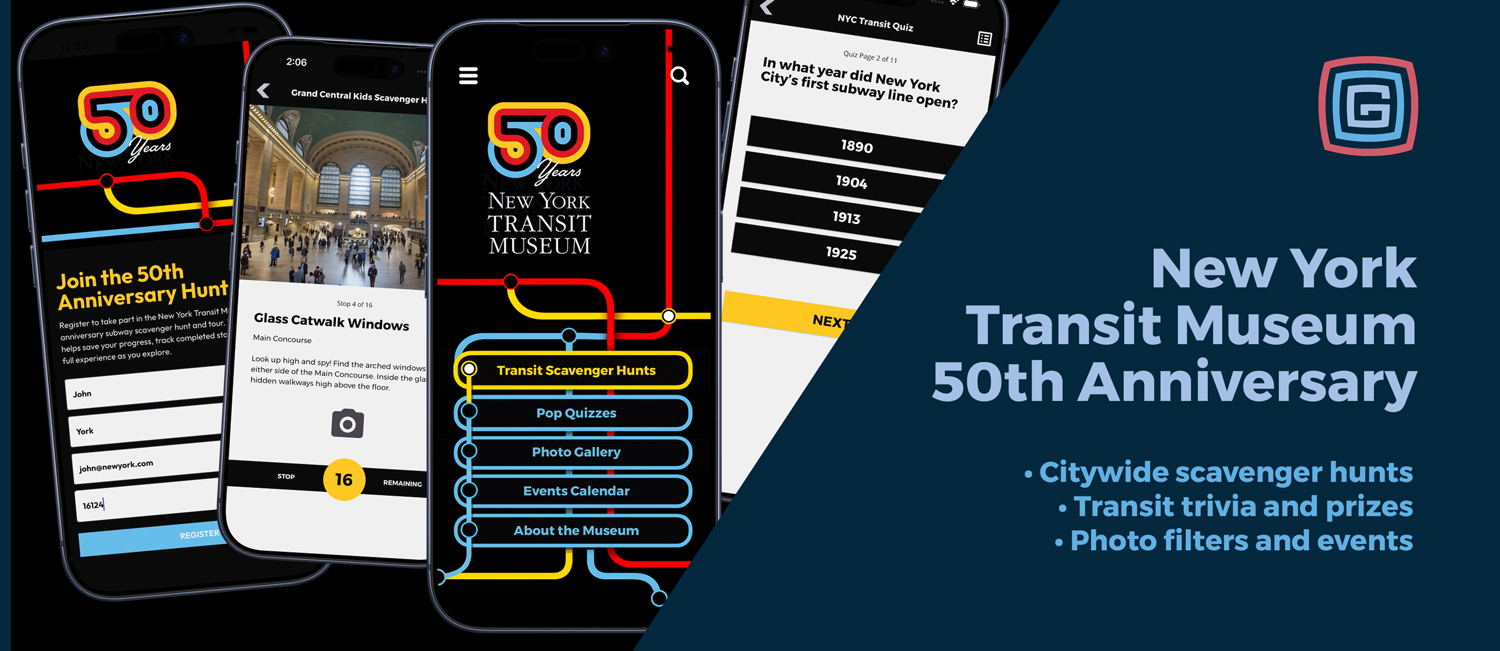
Product Updates
Published June 26, 2026
Turning Museum History Into an Interactive Experience For its 50th anniversary, the New York Transit Museum wanted a mobile experience that could do more than share visitor information. The goal was to give people a fun, accessible way to explore transit history, connect with the Museum’s mission, and discover stories across New York City. Grandstand helped create a custom mobile app that brings together scavenger hunts, pop quizzes, photo filters, event information, and Museum content in one branded experience. The Challenge The New York Transit Museum’s story reaches far beyond one physical location. Its history is connected to stations, bridges, tunnels, terminals, public art, vehicles, neighborhoods, and the people who keep the city moving. The Museum needed an app that could support in-person exploration, appeal to families and transit fans, and make educational content feel active instead of passive. The Solution The New York Transit Museum app turns transit history into something users can participate in. Visitors can complete scavenger hunts, answer trivia questions, use custom photo filters, browse events, and learn more about the Museum from their phones. Key app experiences include: A 50th Anniversary Scavenger Hunt with transit history stops across New York City. A Grand Central Kids Scavenger Hunt designed for younger explorers and families. Transit Trivia Pop Quizzes covering MTA agencies, bridges, tunnels, railroads, buses, subways, and public art. Custom photo filters that let users capture and share their transit-inspired adventures. An events calendar and Museum information section that keep users connected after the game experience ends. Why It Works The app succeeds because it gives users a reason to engage. Instead of simply reading about transit history, they can go find it, photograph it, answer questions about it, and track their progress along the way. For museums and cultural institutions, this is where a mobile app becomes especially valuable. It can extend the experience beyond the building, create repeat engagement, support educational programming, and make historic content feel relevant to modern audiences. A Branded Experience From Start to Finish The app design reflects the New York Transit Museum brand through bold contrast, transit-line colors, route-inspired shapes, and clear navigation. The result feels connected to New York’s transportation system while still being simple enough for visitors of all ages to use. The Impact The New York Transit Museum app gives the Museum a flexible platform for ongoing engagement. New hunts, trivia categories, photo moments, events, educational programs, and anniversary experiences can be added over time. Most importantly, it gives visitors and transit fans a new way to explore the stories, places, and people that keep New York moving.
Read More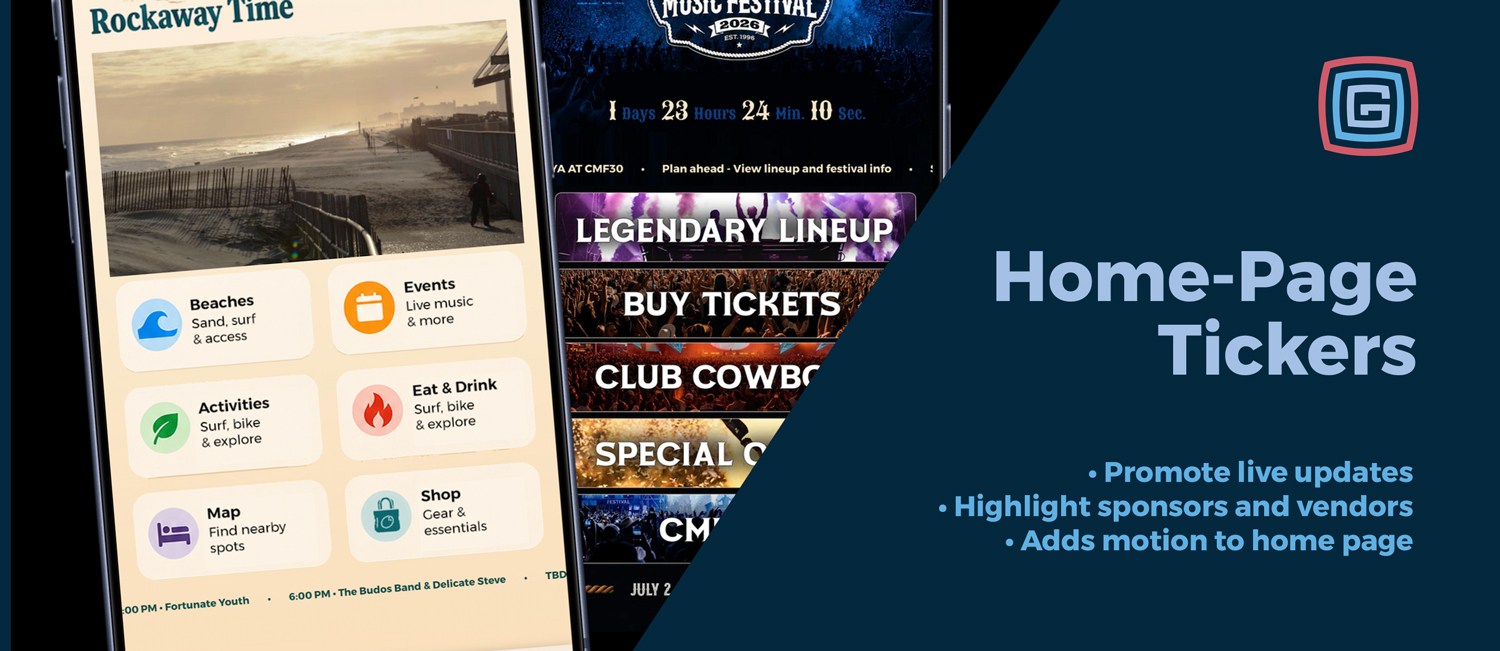
Product Updates
Published June 24, 2026
Home Page Tickers are now included in all Platinum and higher app packages, giving events a flexible new way to communicate with guests directly from the app home screen. The ticker appears as a configurable strip within the home page layout and can be used for announcements, schedule reminders, sponsor visibility, vendor promotion, app navigation, news feeds, and timely event updates. Instead of relying on guests to search through the app for every important detail, the ticker brings useful content forward the moment someone opens the app. What Home Page Tickers Can Do Share static announcements: Promote gate times, parking reminders, ticket information, featured attractions, weather notes, or general event updates. Rotate multiple messages: Highlight several items throughout the day, such as a concert, sponsor, contest, vendor, or important reminder. Show live and upcoming schedule content: Automatically surface what is happening now or what is coming up next from a selected schedule. Feature sponsors and vendors: Give sponsors, food vendors, marketplace booths, and featured partners more visibility from the home screen. Link directly into the app: Send guests to schedules, vendors, custom pages, rewards, scavenger hunts, alerts, results, photo booth features, web URLs, and more. Pull from RSS or Atom feeds: Display recent news posts, public announcements, blog updates, press releases, or other published content from a remote feed. Match the event brand: Use rotating messages, fade or slide animations, no animation, or a continuous marquee with configurable styling. Track engagement: Ticker clicks can be tracked so organizers can see which messages and destinations are getting attention. Practical Ways Events Can Use Tickers Guide guests through the day. A fair could use the ticker in the morning for gate times and parking information, then later promote live schedule items like “Happening Now: Swine Show” or “Up Next: Kids Pedal Pull.” In the evening, it could highlight grandstand events, concerts, fireworks, or sponsor messages. Promote high-value app features. Many event apps include interactive tools guests may not notice right away. The ticker can point people to scavenger hunts, voting, photo booths, rewards, contest results, maps, alerts, and favorites. Add sponsor visibility without interrupting guests. Sponsor messages can rotate naturally alongside event updates. Examples include “Tonight’s Main Stage presented by ABC Bank” or “Today’s Kids Zone activities are sponsored by Lincoln Pediatrics.” Highlight vendors, food, and shopping. Events can feature a food vendor of the day, promote merchandise tents, send guests to a marketplace, or encourage visitors to explore sponsor booths and local businesses. Share useful reminders without overusing push notifications. Not every update needs to interrupt guests. The ticker is a good place for lost and found information, shuttle reminders, clear bag policies, restroom locations, cooling stations, or parking tips. Support live event changes. If a show moves indoors, an entrance closes, a parade route changes, or a parking lot fills up, the ticker can help guests adjust quickly. When linked to a map, alert, schedule item, or custom page, the message becomes even more useful. Keep website news fresh inside the app. With RSS and Atom feed support, organizations that already publish updates on their website can bring those updates into the app ticker without duplicating content entry. Useful Before, During, and After the Event Before the event: Promote tickets, volunteer signups, vendor applications, schedule planning, app downloads, and early announcements. During the event: Highlight live schedule items, sponsor messages, vendor promotions, contests, maps, alerts, and timely reminders. After the event: Link to surveys, contest results, photo galleries, thank-you messages, and save-the-date announcements. A Small Home Screen Space with a Big Job Home Page Tickers give Platinum+ apps a new way to keep the home screen active, timely, and useful. They can guide guests, promote key app features, support sponsors, highlight vendors, share operational updates, and connect to live or published content. For events that need to communicate clearly and keep people engaged, the ticker turns a small strip of home screen space into a practical tool for better navigation, stronger sponsorship, and more timely communication.
Read More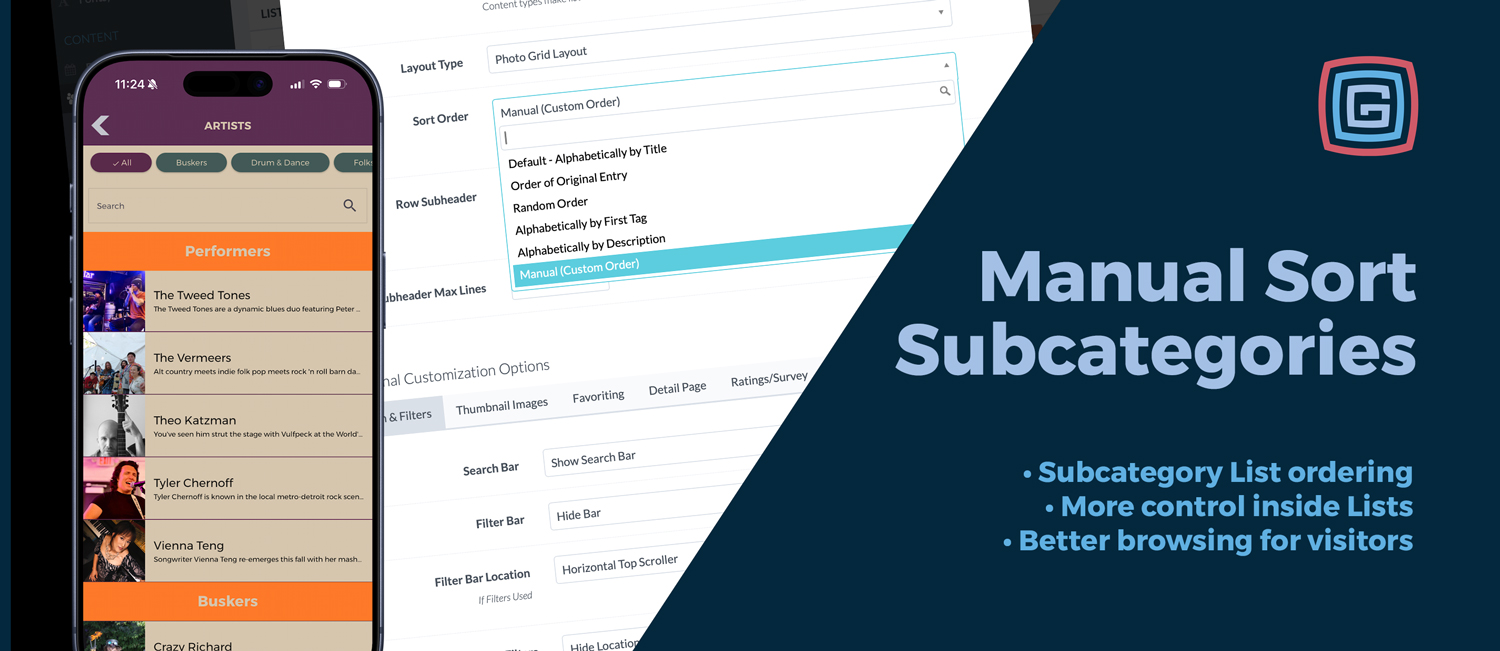
Product Updates
Published June 23, 2026
Lists have always been one of the most flexible parts of every Grandstand app package. They can be used for food, shopping, exhibitors, attractions, sponsors, businesses, performers, departments, resources, and more. Earlier this spring, Grandstand added manual ordering for standard Lists, giving events more control over how those items appeared in the app. Now that same control has been expanded to subcategories for apps submitted after June 30, 2026. More Control Inside Larger Lists Many events use Lists with subcategories to keep content organized. A fair might separate food by type. A festival might group shopping, sponsors, and activities. A business district might organize listings by neighborhood, service, or category. In those cases, alphabetical order is not always the best fit. Sometimes certain items need to appear first. Sometimes the order should match a printed guide, booth layout, sponsor priority, or the way visitors naturally move through an event. Manual Ordering Now Works in Subcategories With this update, Grandstand can now apply manual List ordering inside subcategories, not just on standard non-subcategory Lists. That gives organizers a more consistent way to control the visitor experience across larger, more detailed List sections. Feature important listings at the top of a subcategory Match app content to printed maps or booth layouts Organize food, shopping, sponsors, exhibitors, or businesses more intentionally Keep larger Lists easier to browse Use the same ordering approach across more List types Useful Across Every Package This is not a new package upgrade or premium-only feature. Lists are available across Grandstand packages, and this improvement helps make them more useful at every level. For smaller events, it adds simple control. For larger events, it helps keep complex List sections organized. For visitors, it creates a cleaner browsing experience that better reflects how the event is actually arranged. This subcategory sorting expansion is available for apps submitted after June 30, 2026. A Practical Improvement for Everyday App Content Manual subcategory ordering is a small update, but it solves a very practical problem. It helps events make their Lists feel less automatic and more intentional, especially when the order of content matters just as much as the content itself.
Read More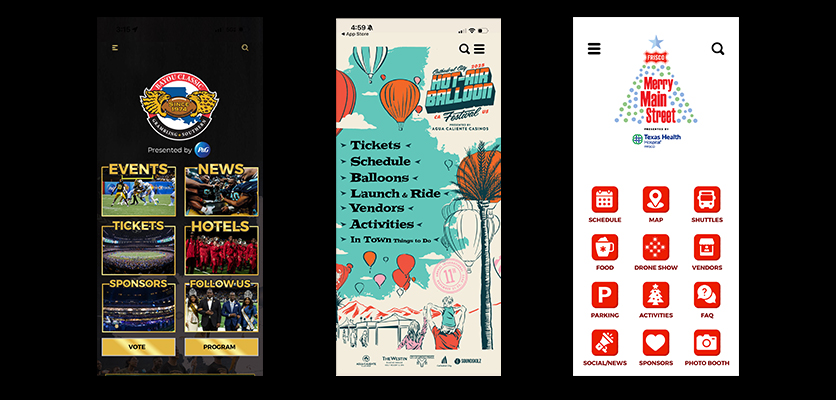
Product Updates
Published April 30, 2026
A sponsor can be featured prominently on the main page of the app with language such as Presented by United Wireless or Powered by United Wireless. This high-traffic area gives the sponsor strong visibility every time attendees open the app.
Read More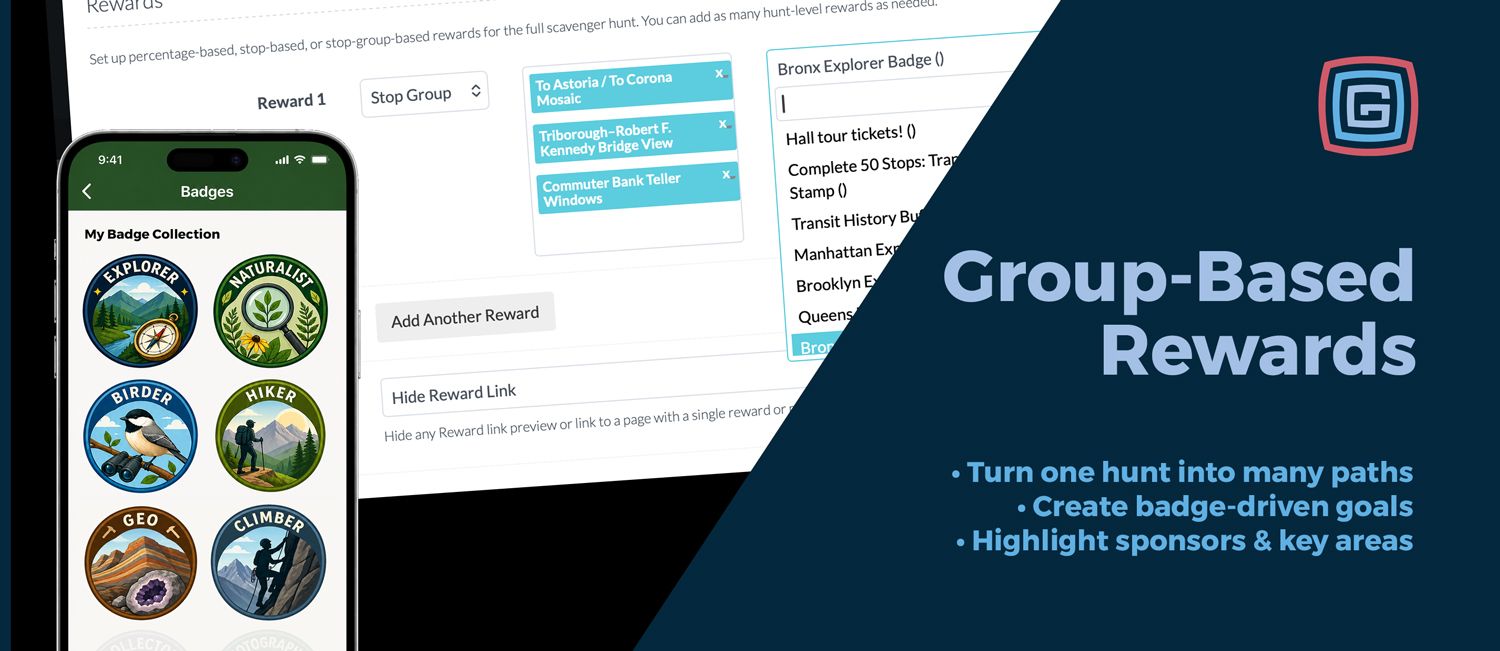
Product Updates
Published April 23, 2026
Scavenger hunts can now support more structured reward paths inside one larger hunt. With Group-Based Reward Unlocks, you can define a specific set of stops that users must complete to earn a reward, badge, or other unlock. This means you no longer need to create separate hunts for every sponsor trail, food path, kids activity, or themed challenge. Instead, those smaller experiences can live inside the main scavenger hunt. How Group-Based Rewards Work Group-based rewards are designed for complete-the-set challenges. Users must finish every stop in the defined group to unlock the reward. These are not “complete any 4” challenges. They are best used when you want users to visit a specific curated set of stops. Great Use Cases Sponsor Trails: Reward users for visiting all featured sponsor booths. Food Features: Create a dessert trail, taco path, or featured vendor badge. Zone Completion: Encourage users to complete every stop in a Kids Zone, Beer Garden, or themed area. VIP Experiences: Reward users for completing a premium or exclusive set of stops. Badge Paths: Let users earn badges like Foodie, Explorer, Naturalist, or Sponsor Champion by completing specific groups. The biggest advantage is that everything stays inside one scavenger hunt. You can create multiple structured paths, rewards, and badges without making the experience feel fragmented for users. Group-Based Reward Unlocks are available on Platinum packages and above. Additional Enhancements This release also includes improvements available across all packages. Rewards can now appear in a cleaner popup, reward names can be shown when available, success messages are more specific to each action, the stop list is easier to access, final scores are clearer, and rewards pages can now show how many points each reward requires. These upgrades are available for apps submitted after April 23, 2026.
Read More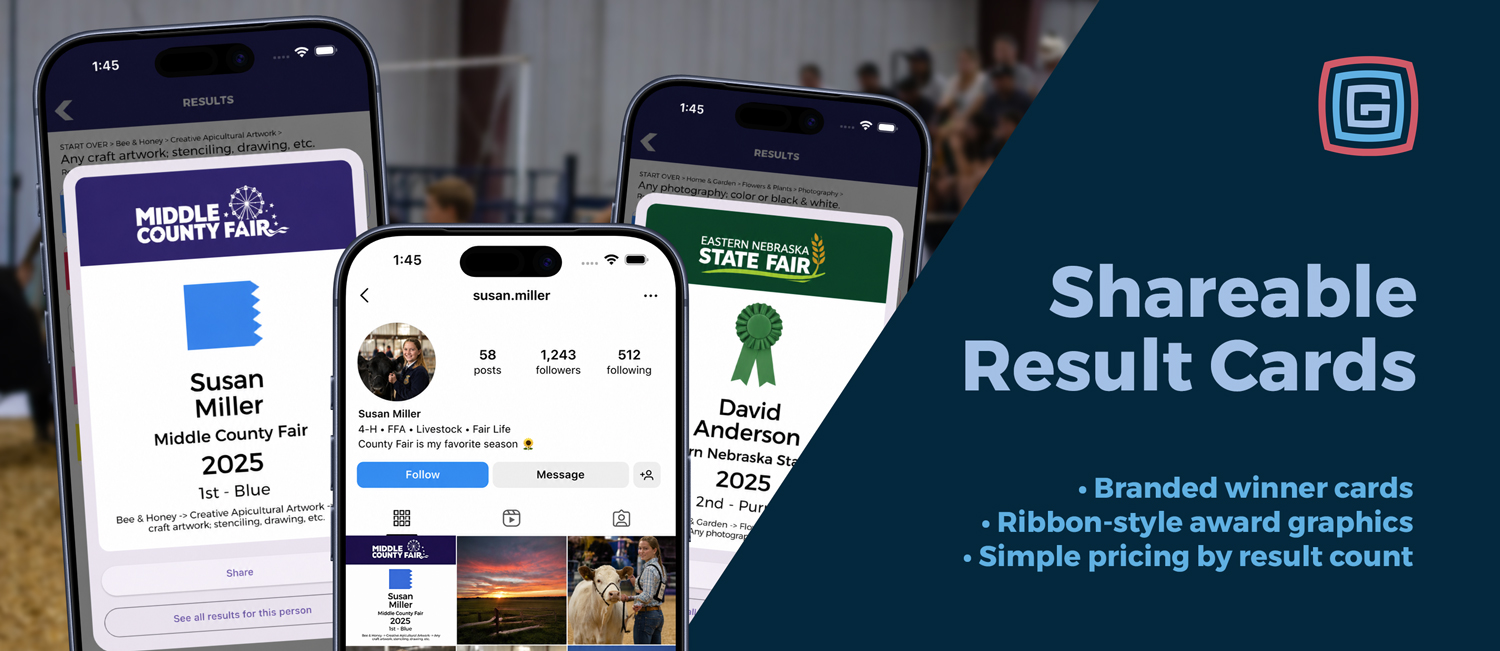
Product Updates
Published April 16, 2026
Competitive results are now easier to celebrate and share directly from the app.With the new Shareable Award Graphics feature, results pages can generate a designed winner card that highlights the app name, ribbon graphic, winner name, year, place, and full category context.What It IncludesBranded award card with the app or event nameRibbon-style graphic tied to the resultWinner name, year, place, and category detailsQuick access to see all results for that personWhy It MattersInstead of results living only as a list, winners now have a polished graphic they can save, post, or share with others.This gives fairs, festivals, and competitions an easy way to recognize participants while helping promote the event through organic sharing.Availability & SetupThis feature is available for all apps submitted after March 20, 2026.To enable Shareable Award Graphics, contact melissa@grandstandapps.com to add it to any package.$250 for up to 5,000 individual results$500 for up to 10,000 individual results$750 for 15,000+ individual resultsThe feature works with Showorks, FairEntry, or any other results system that can export data via CSV.
Read More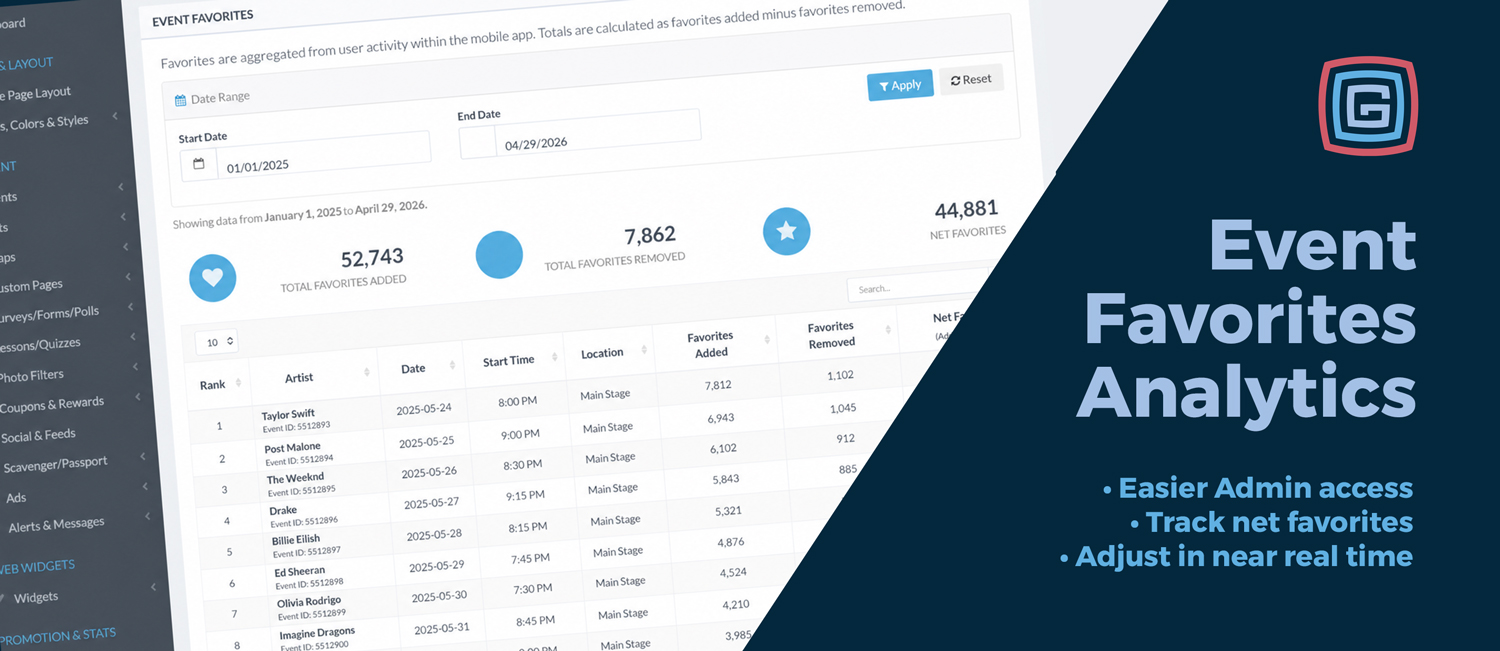
Product Updates
Published April 12, 2026
Favorites Analytics has always been available in Grandstand, but it previously lived inside the broader analytics area. Now, it is easier to find, easier to filter, and built directly into the Events section of the Admin.For Silver+ clients, this update makes it faster to see what attendees are saving inside the app and use that information while your event is still happening.What You Can TrackTotal Favorites AddedTotal Favorites RemovedNet FavoritesRanked event performanceCustom date rangesWhy It MattersFavorites are a strong signal of attendee interest. When someone favorites an event, they are often planning their day, building a personal schedule, or showing intent to attend.With this data now available directly from the Events area, teams can make quicker adjustments to promotions, scheduling, sponsor reporting, and on-site messaging.Available NowThe updated Favorites Analytics experience is available to all Silver, Gold, Platinum, and Titanium clients.
Read More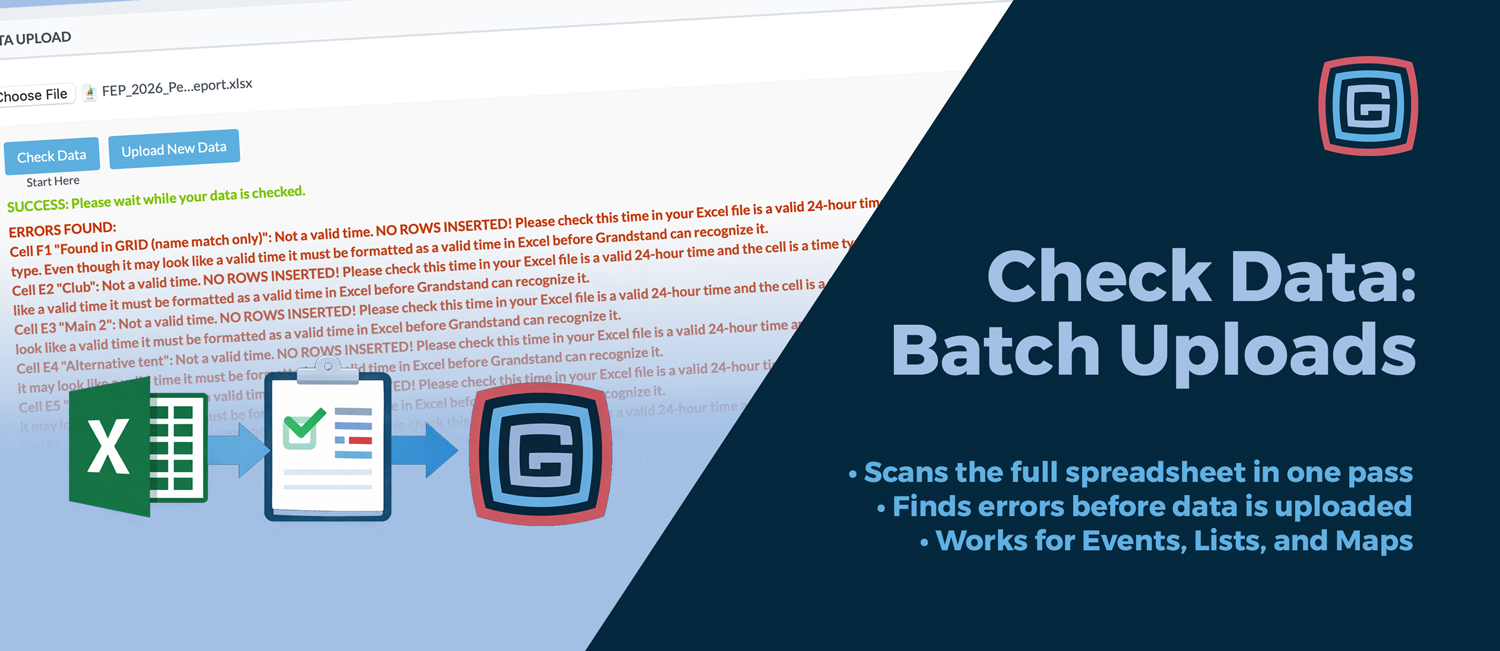
Product Updates
Published March 23, 2026
Uploading spreadsheets should not feel like trial and error. If you have ever uploaded a file, fixed one issue, uploaded it again, and repeated that cycle several times, you know how frustrating it can be. That is exactly why we built Check Data.A Smarter Way to Upload DataAcross your Events, Lists, and Maps/Locations batch upload pages, you will now see a simple workflow: Start Here, Check Data, then Upload New Data.This is more than a button update. It creates a true validate-first process so you can review your spreadsheet before any bulk upload happens.How Check Data WorksThe process is simple:Select your Excel fileClick Check DataThe system scans the full documentYou receive a complete list of issues to fix before uploadAs it runs, the page communicates progress clearly, including messages like Processing file for validation... and Checking Data....When the check is complete, users see one of three results:Success: No data validation errors were foundErrors Found: A full list of validation issuesError: A fallback message if something unexpected happensSee Everything in One PassOne of the biggest benefits of Check Data is that it does not stop at the first error. It continues scanning the spreadsheet and returns all issues it finds in one run.That means fewer repeated upload attempts, less back-and-forth, and a much faster cleanup process. Instead of fixing one row at a time, you can correct everything at once and move forward confidently.Clear, Actionable Error MessagesWhen something needs attention, Check Data tells you exactly what is wrong. Validation messages can identify missing categories, invalid date or time formats, malformed URLs, numeric formatting problems, missing map references, and other field-specific issues.Messages are designed to be precise, often including the row, cell reference, submitted value, and reason for the error. That makes it easier to find the problem and fix it quickly.Required Columns Are Checked FirstBefore deeper validation begins, each upload page confirms that your spreadsheet includes the minimum required columns.Events: Calendar Group, Event Title, Date, Start Time, CategoryLists: List Group, TitleLocations: Map Tag/Pin, Title, MapIf one of these required fields is missing, the page immediately tells the user what needs to be added before continuing.Check Data Does Not Insert Your Uploaded RowsCheck Data is intentionally designed as a validation step only. In check mode, it scans the spreadsheet, collects errors, and reports them back without inserting the uploaded rows into the database.That gives admins a safe way to test files, catch formatting issues early, and confirm everything is ready before running the full upload.
Read More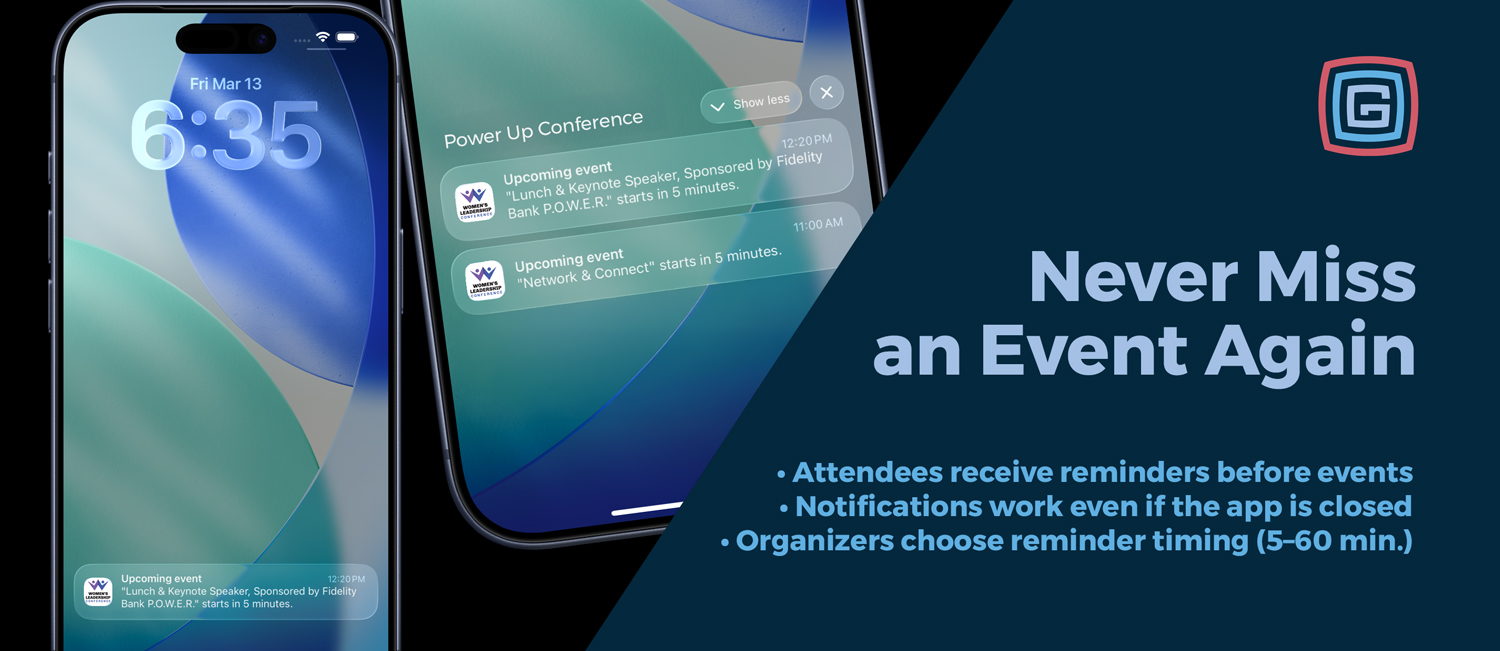
Product Updates
Published March 12, 2026
Never miss an event again We have introduced a new event reminder system that allows attendees to receive a notification before an event begins. Whether they are browsing the schedule or viewing event details, users can now easily set a reminder and return right when the event is about to start. Set reminders directly from the schedule Attendees can now set reminders in two convenient places: From the schedule list next to an event From the event detail screen If an attendee favorites an event, the app can also automatically schedule a reminder depending on the configuration chosen by the event organizer. Flexible reminder modes for organizers Event organizers can choose how reminders behave within the schedule. Manual Mode: Attendees can favorite events and optionally set reminders using the reminder button. Auto Reminder Mode: When an attendee favorites an event, a reminder is automatically scheduled. This allows each event to decide whether reminders should be optional or automatically created when users build their personal schedule. Organizer-controlled reminder timing Event organizers can also choose how far in advance reminders are sent. The reminder timing is set at the calendar level and applies to all reminders within that schedule. Available reminder timing options include: 5 minutes before the event 10 minutes before the event 15 minutes before the event 30 minutes before the event 60 minutes before the event This ensures notifications arrive at the right moment for attendees to make their way to the session, performance, or activity. Reminders work even if the app is closed Reminders are delivered as system notifications on the user’s device, meaning attendees will still receive them even if the app is closed. Tapping the notification takes the user directly to the event details inside the app. Reminders stay accurate if schedules change If an event time is updated after a reminder has been set, the app automatically adjusts the reminder to match the new start time the next time the schedule refreshes. This helps ensure attendees still receive reminders at the correct time. If the change is significant, the app can also notify attendees that the event time has been updated so they stay informed about schedule changes. Smart scheduling logic Reminders are only scheduled when they are still helpful. If an event is already about to begin, the app will not send a last-second notification. Optional performer and speaker reminders Reminders can also work when events are connected to performers, speakers, or other list items. For example, if a band or speaker page is linked to a single event in the schedule, favoriting that item can automatically set a reminder for the associated performance. This feature is optional and can be enabled independently of standard event reminders. Automated reminders linked to favoriting of performers and speakers are available with Platinum packages and above. Reminder analytics for event insights Reminder activity is also tracked to help organizers better understand attendee engagement. The system records when reminders are set, canceled, and opened. This provides insight into which sessions attendees are most interested in and planning to attend. Multi-language support Reminder labels have been localized across all supported languages including English, Spanish, French, German, Dutch, Italian, and Faroese, ensuring a consistent experience for international audiences. Availability Event reminders will be available for Gold packages and above for all apps submitted after March 19, 2026.
Read More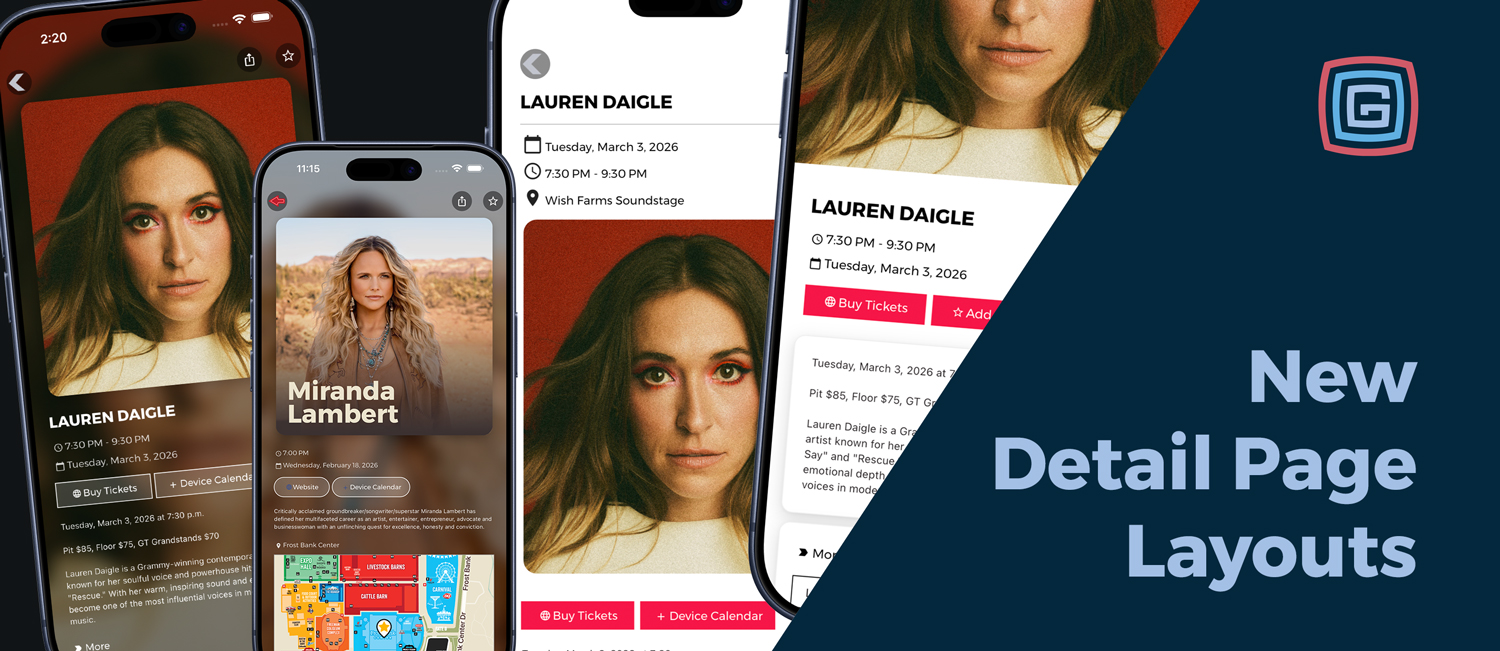
Product Updates
Published February 28, 2026
Detail pages are where attendees learn, decide, and engage. Now you can choose from four layout styles for both event detail pages and list detail pages to better match the tone of your content.Meet the layout stylesEditorial A clean, light style that prioritizes readability and structured content flow.Modern Our refreshed and renamed current layout option, bright and versatile for nearly any event or listing.Layered A softly structured style that groups content into sections for a more curated feel.Immersive A bold, high impact style that uses contrast and imagery to create atmosphere and personality.
Read More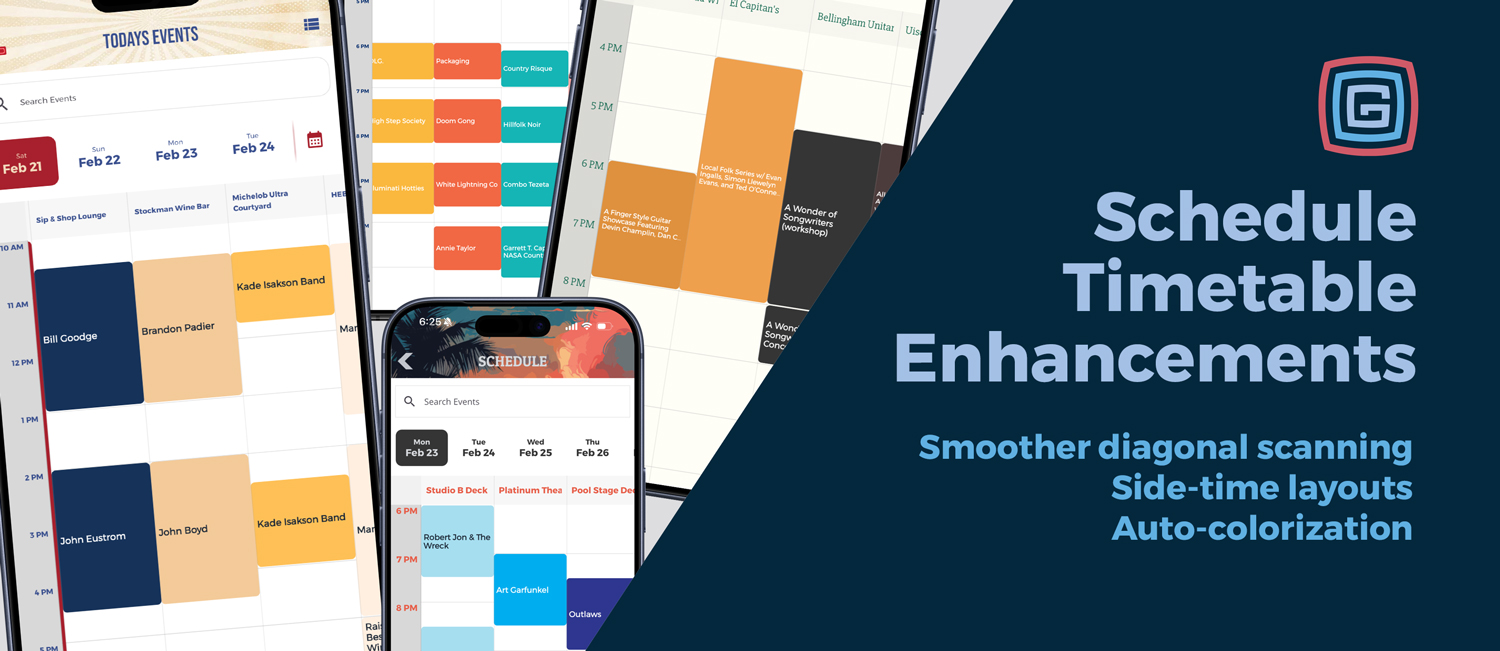
Product Updates
Published February 27, 2026
Your schedule is one of the most used parts of your app. These Timetable Enhancements make it easier for attendees to scan, compare, and move through busy timetables, while giving admins more control over readability and layout. Smoother diagonal exploration The timetable now supports smoother diagonal exploration, helping attendees naturally compare what’s happening across times and locations without losing their place. Flexible time-axis layouts Choose the timetable structure that fits your event style. The improved default uses times on the side with locations on top for a cleaner scan path, while still supporting classic top-time mode when needed. Scalable headers and spacing controls Dial in readability for your exact content mix with new tuning options, including: Relative size of each hour grouping Timetable header font size Left padding for cleaner spacing Time-column width to match your layout density Gold+ view switching option All packages can set the default schedule experience (Schedule Feed or Timetable). Gold and above packages can also enable a view switcher so attendees can toggle between both views. Availability: Applies to all apps submitted after February 25, 2026. Timetable Enhancements are included in all packages, with the view switcher available in Gold and above.
Read More
Product Updates
Published February 25, 2026
Our app platform keeps getting better year after year. Even if you stay in the same package, your app continues to evolve as new features and improvements roll out over time. The February 2026 release adds new tools focused on smarter onboarding, stronger home screens, and better content control. This release applies to the attendee-facing app experience and is separate from recent admin updates. Please note: Enabling any of these new app-platform features after February 25, 2026 will require an app resubmission to Apple and Google. Below is a breakdown of what’s new, organized by package level.Titanium PackageCity or Location Selector During OnboardingMulti-location events can now allow users to select their city or location during onboarding.This is especially powerful for events like the Great Outdoors Comedy Festival, which takes place in multiple Canadian cities throughout the summer.Once a user selects their location:The app clearly identifies which city they are viewingThe user is automatically subscribed to that city-specific alert groupSwitching locations is simple and accessiblePreviously, organizers often created separate custom pages for each city. Now, you can keep one consistent home page for all locations while dynamically personalizing the content experience.One home page. One set of graphics. Location-specific content handled intelligently behind the scenes.Platinum and AboveOnboarding Alert Group Opt-InUsers can now opt into specific alert groups during onboarding.Rather than relying on attendees to find alert preferences later, this feature captures subscriptions at the moment of first engagement. It mirrors the functionality of the full alert management screen but places it where it will be seen and acted on.Home Page Dynamic Ticker for Events and ListsAdd a dynamic, clickable ticker to the home screen to keep attendees informed in real time.The ticker can:Highlight a single key messageRotate through live and upcoming eventsPull titles and subtitles from any listThis is ideal for live schedule highlights, sponsor visibility, featured announcements, or real-time updates.Home Page Embedded Search BarSearch is now embedded directly into the home page.Users can instantly search events, vendors, sponsors, or custom lists without navigating deeper into the app. Faster discovery improves engagement and usability, especially at larger events.
Read More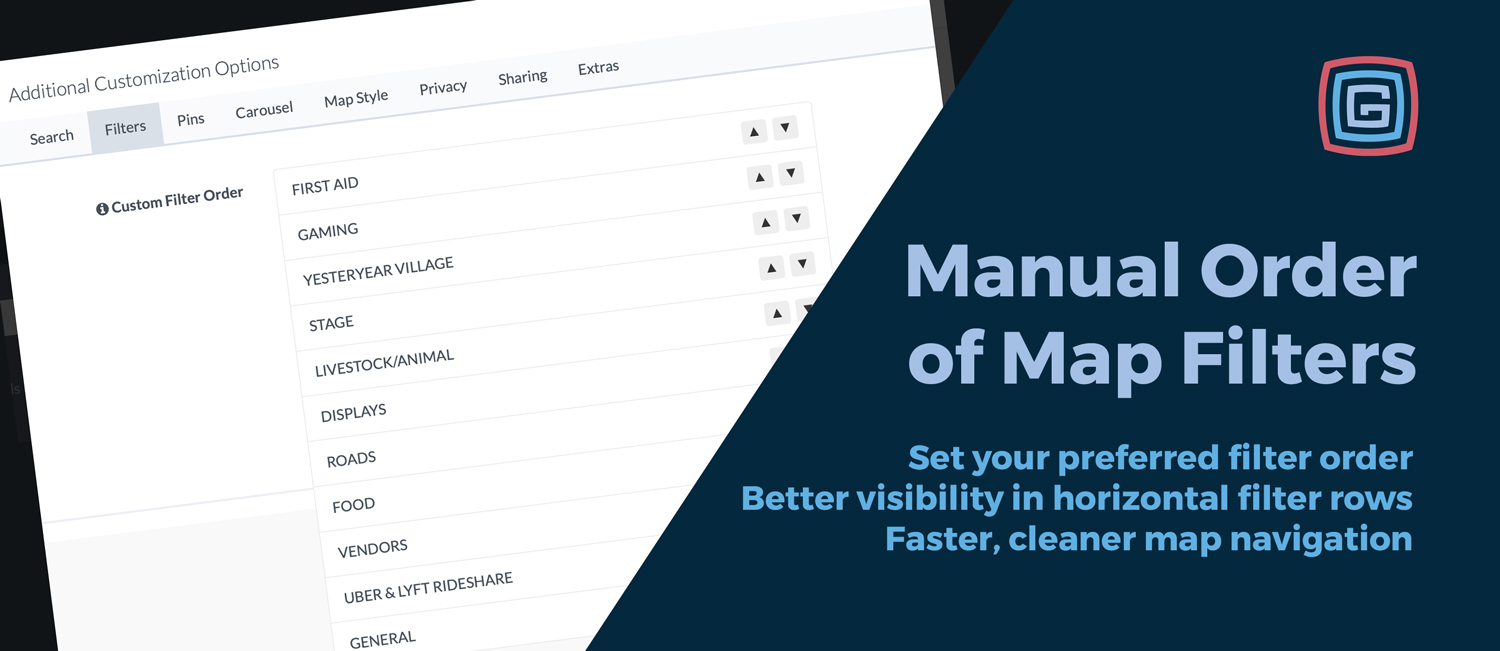
Product Updates
Published February 24, 2026
We’ve added a new Manual Order of Map Filters option in Map Setup under Additional Customization Options on the Filters tab. This gives admins the power to choose exactly how map filters appear in the app. Why it matters Filter order guides how attendees explore your event. Putting the most important categories first helps users find what they need faster and encourages taps on your highest-priority items. Especially helpful with horizontal filter buttons This is most impactful when you’re using always-on horizontal scroll filter buttons, where only a few filters are visible at first glance. The first filters in the row naturally get the most attention. Highlight what matters most by placing key categories first Reduce scrolling by surfacing the most-used filters immediately Improve map usability for busy, multi-category events Where to find it Go to Map Setup → Additional Customization Options → Filters, then use the up and down controls to reorder your active filters. All active filters remain available; you’re only changing their display order. Examples of smart ordering Fairs: Food → Stages → Vendors → Restrooms Festivals: Main Stage → Food → Merch → Info Conferences: Sessions → Sponsors → Expo → Help Small change, big impact: The right filter order makes your map easier to scan, faster to use, and better aligned with how attendees actually navigate your event.
Read More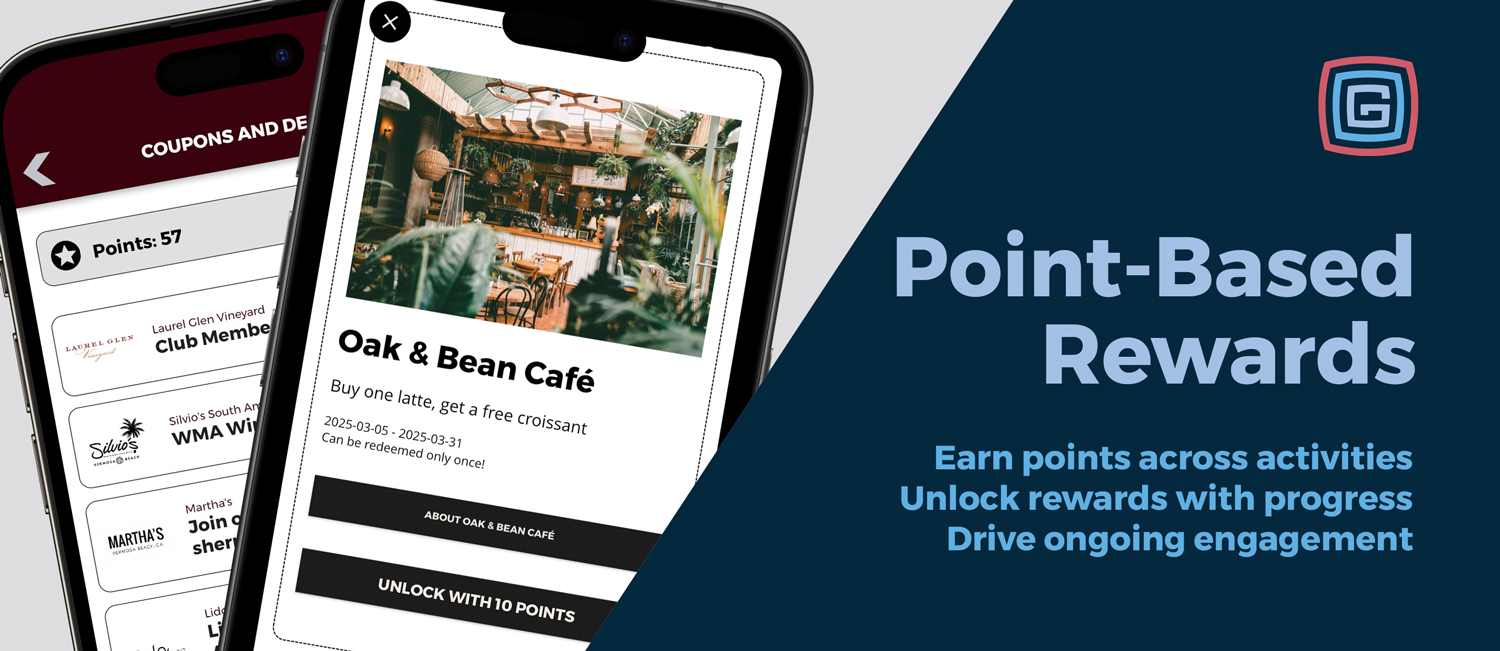
Product Updates
Published January 20, 2026
Engagement does not have to end when a scavenger hunt is completed or a quiz is finished. Points-Based Rewards is a new system in Grandstand that lets events turn participation into progress, and progress into real rewards. This feature connects scavenger hunts, quizzes, and surveys into a single points economy where users earn points across the app and redeem them for prizes, coupons, or exclusive experiences. How it works Points-Based Rewards are built around a simple, flexible flow. 1. Define how users earn points Admins choose which activities award points, such as scavenger hunts, quizzes, or surveys, and assign a point value to each one. 2. Points accumulate automatically As users complete activities, points are added to their overall balance. Points can be earned across multiple days, activities, and areas of the app. 3. Points unlock rewards Admins create rewards and set how many points are required to unlock them. Users can preview locked rewards and see exactly what they are working toward. Once unlocked, rewards can be redeemed as single-use offers, repeatable rewards, or external online redemptions. What admins control The Points-Based Rewards system is fully configurable and designed to fit a wide range of event styles. Admins can: Choose which activities award points Set how many points each activity is worth Enable or disable point-earning activities at any time Define how many points are required to unlock each reward Offer locked reward previews to motivate participation Track redemptions at the user level This allows events to start simple and grow into more advanced engagement strategies over time. Real-world examples Points-Based Rewards work just as well for small incentives as they do for larger engagement goals. Complete one scavenger hunt to earn a free cookie Earn points by visiting multiple locations across the fairgrounds Finish a passport-style experience to unlock VIP seating Complete a daily quiz to earn entries into a giveaway Because points carry across activities, users are encouraged to keep exploring instead of stopping after a single task. Why this matters Scavenger hunts, quizzes, and surveys are powerful tools, but on their own they are often one-time experiences. Points-Based Rewards create continuity. Every activity contributes to a larger goal. Every interaction feels meaningful. Engagement becomes intentional, measurable, and rewarding. For events, this means longer session times, stronger participation, and clearer incentives for exploration. For users, it feels like progress instead of tasks.
Read More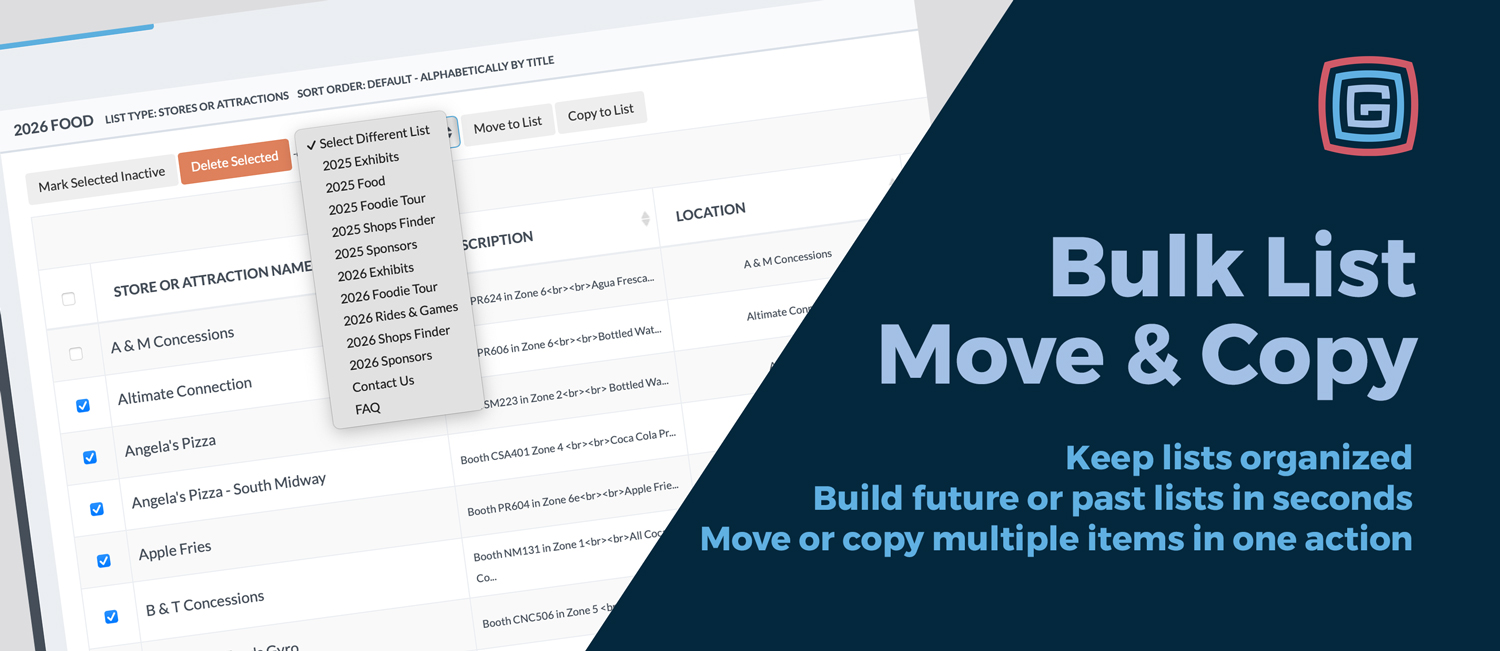
Product Updates
Published January 15, 2026
Managing content inside an event app is never one and done. Vendors rotate, artists change year to year, and lineups evolve as planning moves forward. To make this easier, we have added two new bulk tools inside the List managers: Bulk Move to Different List and Bulk Copy to Different List. These updates let you reorganize multiple entries at once, without opening or editing each item individually. What’s new Inside any List manager, you can now select multiple items and choose one of two actions: Bulk Move to Different List removes the selected items from the current list and places them into another list Bulk Copy to Different List duplicates the selected items into another list while keeping them in the original list This gives you flexibility depending on whether content should live in one place or appear in multiple collections. Artist lineup example After an event wraps, a team may already have a 2025 Artists list with dozens of performers. As planning begins for the following year, staff can select the handful of artists they want to bring back and copy them into a 2026 Artists list in one step. The original 2025 list stays intact for historical reference, while the new list starts with a curated set of returning favorites. When to move vs. when to copy Both bulk actions are useful, but they solve different problems. Use Bulk Copy when the same items should appear in more than one list. This is ideal for planning ahead or highlighting returning favorites. For example, copying select artists from a 2025 Artists list into a 2026 Artists list lets you start next year’s lineup without losing your historical record. Use Bulk Move when items should no longer live in the original list. This works best for cleanup and transitions. For example, once an event is over, you might move all artists from a current year list into a Past Artists list to keep active lists focused and uncluttered. Why this matters Reorganize large groups in seconds Build featured and curated lists without duplicate work Maintain clean year over year archives Keep content visible in multiple places when needed Whether you are managing artists, vendors, or any other list based content, these bulk tools make it faster to keep everything organized. Where to find it Both Bulk Move to Different List and Bulk Copy to Different List are available directly inside the List managers. Select multiple items, choose the action you need, and apply it to any other list in your app. It is a simple addition that delivers real time savings and more flexibility across your entire app.
Read More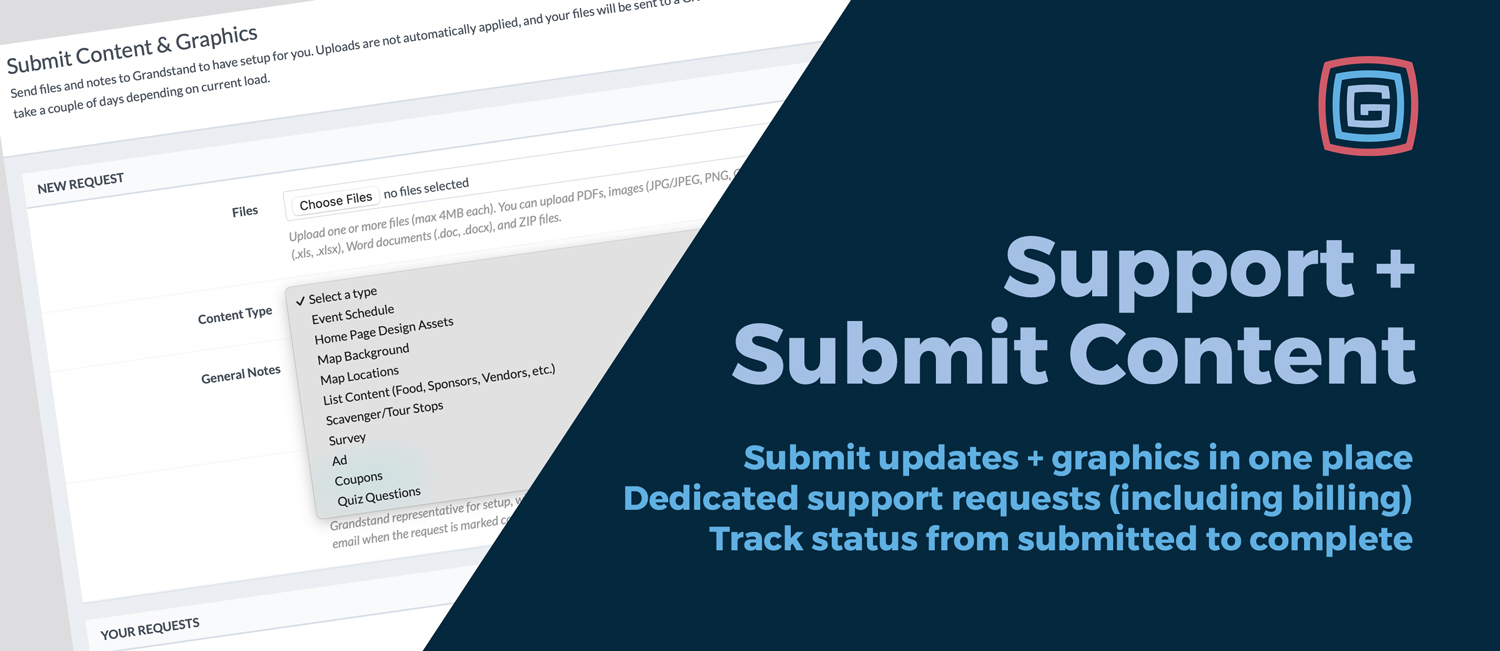
Product Updates
Published January 10, 2026
We’ve redesigned how you send updates and get help inside the Grandstand Admin. These improvements replace the previous basic support feature and make it easier to share files, add context, and track progress in one place. Submit Content & Graphics Use Submit Content & Graphics when you have updates you want Grandstand to apply to your app—plus a new option for Home Page Design Assets. Send schedules, map updates, list content (vendors, sponsors, food), coupons, ads, surveys, and quiz questions Upload graphics and branding files using Home Page Design Assets Keep files and notes together so updates are clear from the start Support Requests Use Support Requests when you need help, have a question, or want to report an issue—now with better structure and visibility. Report bugs or unexpected behavior Ask how-to questions or submit feature requests Send billing questions to the right place Clear status and better visibility Both tools make it easy to see what’s happening with each request—without relying on scattered email threads. You can track progress, respond if more info is needed, and know when something is complete. Same team, same turnaround—just more organized Response times aren’t changing. In most cases, if you typically work with Melissa or Jeff, they’ll still be the ones handling your requests. This update simply streamlines how information gets to us, so everyone spends less time chasing details.
Read More
Product Updates
Published December 7, 2025
One of the hallmarks of Grandstand has always been the level of control we give customers over the look and feel of their app. From the beginning, we have believed that events, venues, and organizations should never feel boxed into a single design style. Your app should reflect your brand, your audience, and the experience you are creating. As the platform has evolved, that commitment to customization has stayed at the center of how we build. The latest updates to our Background and Logo tools continue that approach by expanding what is possible visually while keeping the workflow simple and approachable. These tools are designed to make visual customization part of the natural build process, not a separate design task. A More Flexible Approach to Background Design Backgrounds play a major role in setting the tone of an app. They influence readability, mood, and how branding elements come together on the screen. With the new Background Settings panel, background design is no longer limited to a single image upload or static choice. You can now choose from a variety of background sources depending on the look you are aiming for: Upload your own custom artwork or imagery Auto-generate backgrounds using your logo and theme colors Select from the Grandstand Stock Library of patterns and gradients Browse Unsplash for real-world photography Explore Freepik for illustrations, textures, and graphic styles Use solid color backgrounds for a clean, minimal look All of these options live directly inside the Background Settings panel, making it easy to test ideas and refine your design without switching tools or managing files externally. Fine-Tuning How Backgrounds Behave Choosing a background is only part of the process. How that background behaves across different screen sizes matters just as much. The updated tools give you more control over presentation, including: Fill modes that determine how images scale and crop Anchoring options to control vertical positioning Padding controls to create breathing room around content Instant previews so you can see changes as you make them These controls help ensure that backgrounds remain visually balanced and readable across devices. Cleaner Logos With Less Friction Logos often arrive in less-than-ideal formats. Extra padding, solid backgrounds, or inconsistent sizing can make otherwise strong branding feel unpolished in an app context. The updated Logo tools are designed to solve these common issues quickly: Crop logos to remove unnecessary spacing Remove logo backgrounds for a clean, transparent appearance Adjust placement visually in context with the layout These tools are intentionally lightweight and focused on solving practical problems without turning setup into a design project.
Read More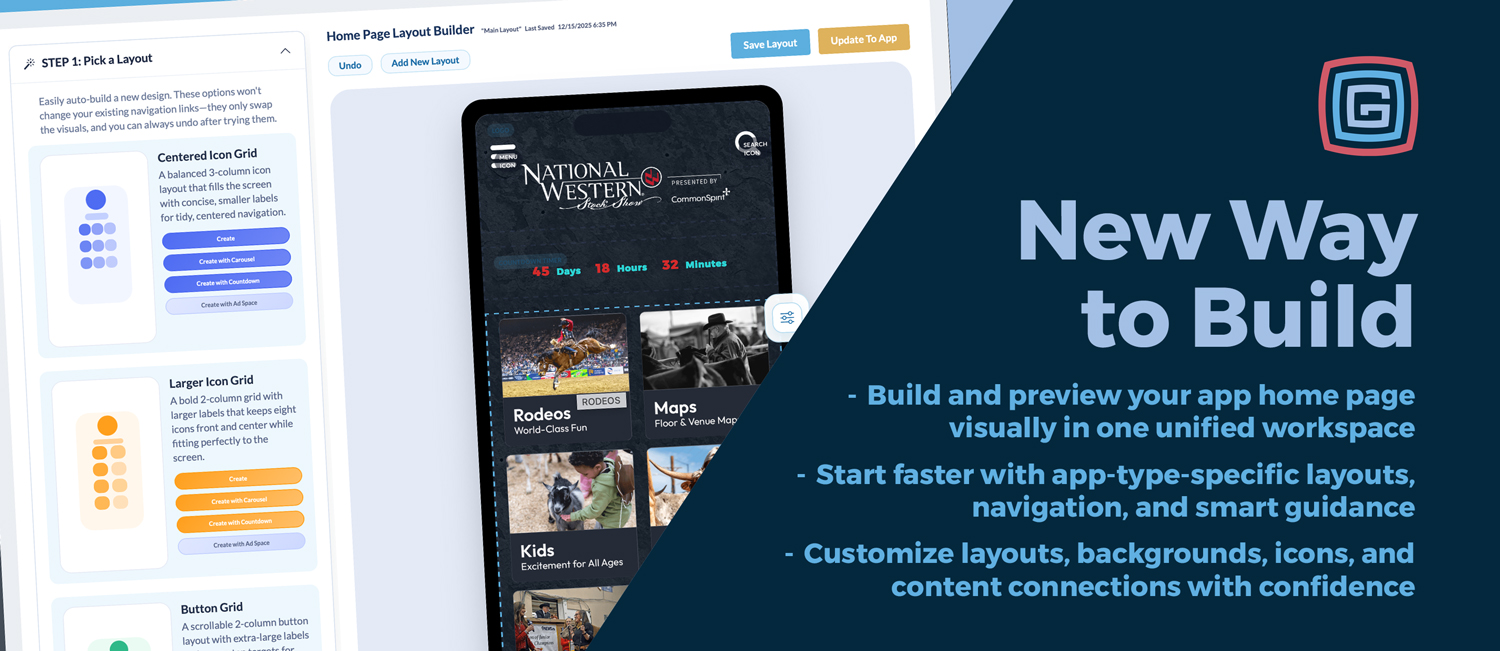
Product Updates
Published December 5, 2025
Creating a strong app home page just got easier—and more enjoyable. We’re introducing a new Home Page Builder that brings layout, navigation, and design into one visual workspace inside the Grandstand Admin. A More Unified Way to Build Previously, building a home page meant moving between several admin pages and previewing changes in pieces. The new builder brings everything together—layout, icons, backgrounds, and content connections—so you can see your app take shape as you work and publish updates with confidence. For new users, the builder offers optional guided steps: Step 1: Pick a Layout Step 2: Fill Your Navigation Step 3: Add Home Page Blocks Experienced users can skip these steps and build freely, while first-time users benefit from a clear starting point. What’s New 1. All-in-One Visual Builder Design directly on a live phone preview using drag-and-drop blocks and real-time updates. Layout changes, spacing, and structure are all handled visually, with instant feedback. 2. Premium Block Catalog Add logos, hero sections, navigation grids, countdowns, spacers, banners, and other content blocks from a single catalog. Each block includes previews and clear availability indicators. 3. Smart Icon & Content LibrariesYour toolbox now comes preloaded with curated icon types and suggested navigation options tailored to your app category. With Fill Your Navigation, Fairs automatically see options like Schedules, Maps, Vendors, and Food & Drink, while Shopping Centers see Stores, Dining, Deals, and Events. Each app type starts with navigation that makes sense for its audience. When creating a new icon or menu item, you can now auto-start and link new lists or custom pages immediately. This removes an extra step from the setup process and makes it clear right away what content still needs to be updated. Every icon also clearly shows where its content is managed in the Admin, creating a direct connection between design and content. Together, these improvements make navigation setup faster, more intuitive, and easier to understand, especially for first-time users.4. Pick a Layout Start with a layout designed specifically for your app category. These layouts combine logos, hero placements, and navigation patterns that align with common goals for each type of experience. It’s a practical way to begin with a clean, well-structured foundation.
Read More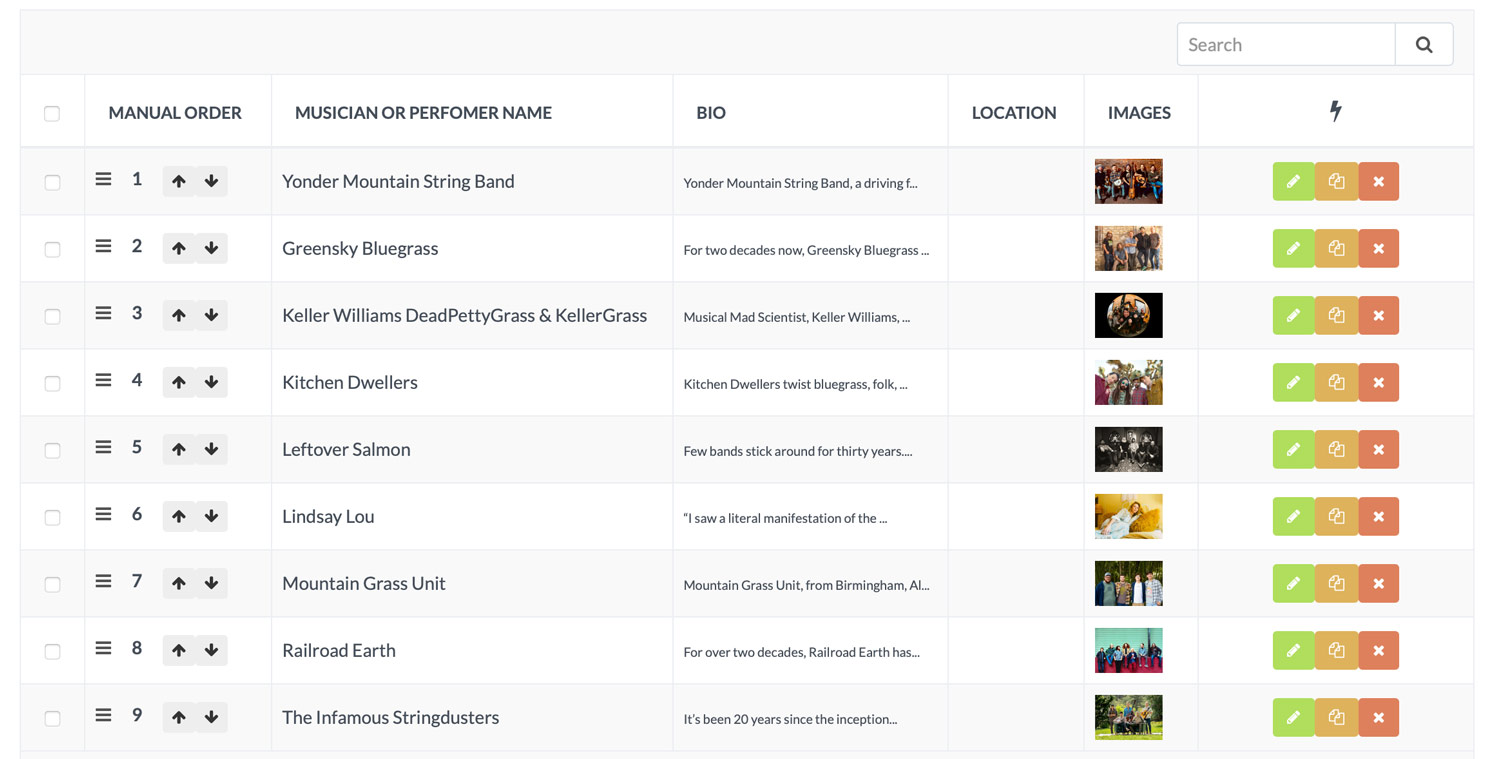
Product Updates
Published November 20, 2025
Getting your lists just right matters. Maybe you want headline sponsors at the top, local favorites grouped together, food trucks arranged by popularity, or bands organized by who is most popular. Until now, list order was locked to standard sort rules—alphabetical, by date added, and so on. Helpful, yes, but not always flexible enough.Today, that changes—for everyone.We’re excited to introduce Manual (Custom Order) sorting: a smarter, more intuitive way to curate lists so they appear exactly as you want across your app and web tools. And best of all, this feature is available today for every client, every package level, and every version of the platform. No upgrades or add-ons required.A New “Manual (Custom Order)” List SettingWhen creating or editing a list, you’ll now see a new option in the Sort Order dropdown: Manual (Custom Order).Choose this when you want full control of the order instead of relying on alphabetical or date-based sorting. Your custom sequence is saved with the list settings and stays in place until you change it.List Pages That Truly Respect Your OrderOnce manual sorting is turned on, every view of that list—public pages, app content, and the admin grid—follows your custom lineup:Lists with a set manual order value appear first, in the exact order you arranged.Lists without a manual value are neatly placed afterward in alphabetical order.If you stick with alphabetical or date-based sorting, those list types continue working the same as always.Easy, Flexible Tools for Managing the OrderWhen a list uses Manual (Custom Order), the List Manager becomes a true curation tool:Draggable handles let you grab and move any list item to a new spot—even hauling the 25th vendor up to the number 3 position with one quick motion.Up/Down arrows allow simple, single-step adjustments.Editable position numbers let you set an exact spot when precision is needed.The add/edit popup includes a Manual Order field that automatically suggests the next open position so you can drop new vendors right where they belong.Everything updates immediately, so your list is always current and perfectly structured.And Coming Soon… Manual Sorting for Priority ListsBasic Lists are only the first step.We’re actively building the same drag-and-drop, manual-sorting tools for Priority Lists, allowing you to control the order of featured items, sponsors, or highlighted partners with the same flexibility and ease.More details coming soon.Why This MattersThis update gives you:Total control over how your list is presented.Faster editing with intuitive drag-and-drop tools.Consistent ordering across the entire app and web ecosystem.Universal access—every client can use it right now.Build the Perfect Lineup—Every TimeManual (Custom Order) sorting lets you showcase vendors intentionally, guide guests more effectively, and present your event the way you envision it.Your event. Your order. Your control—starting today.
Read More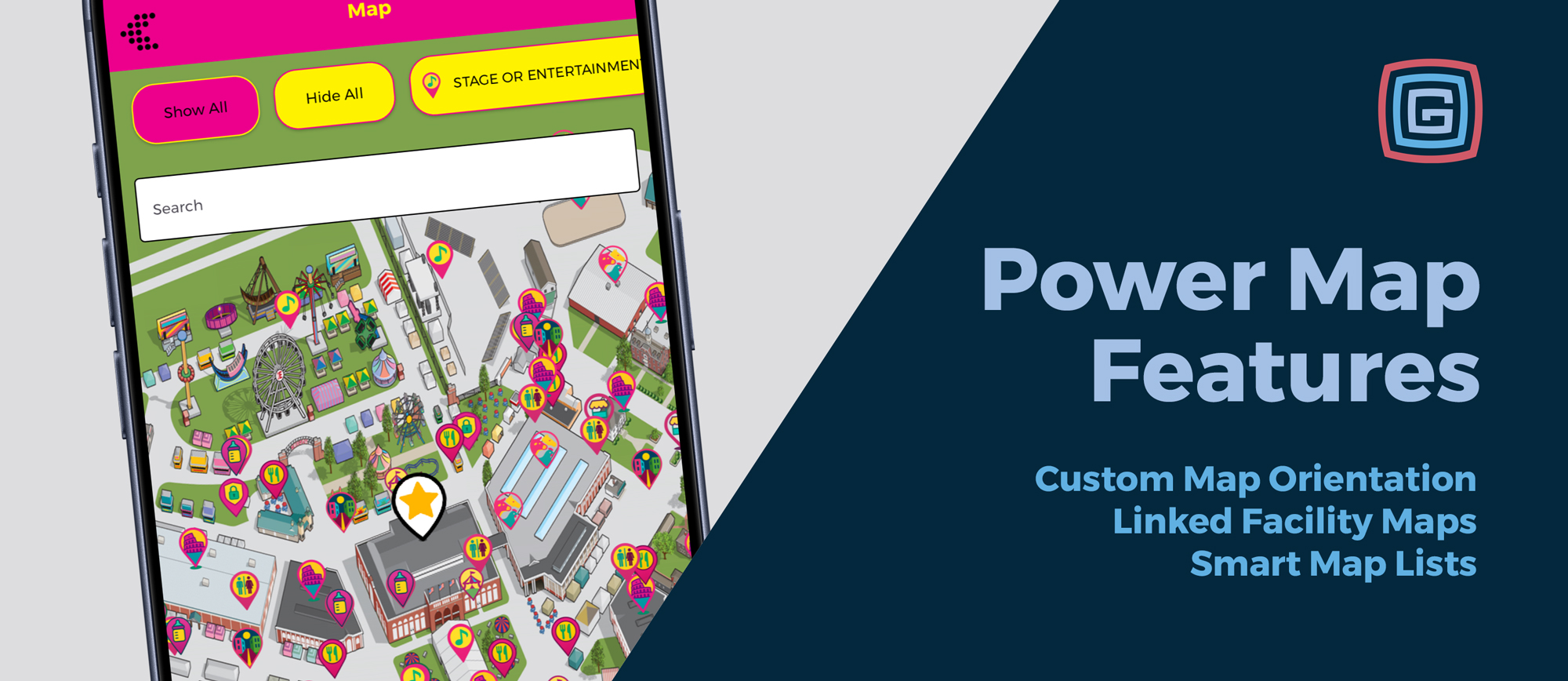
Product Updates
Published October 28, 2025
We’ve added several new map features designed to make navigation and exploration in your app even more intuitive. From better orientation to deeper facility linking, these updates continue to make Power Maps one of the most flexible tools for events, venues, and communities of all sizes. Custom Map Headings Availability: All packages for apps created after August 18, 2025 If your custom-designed map was created facing east, south, or any direction other than north, users previously had to rotate their view to match. With the new Custom Map Heading option, maps can now open to any chosen direction, matching your artwork and eliminating confusion right from the start. This is especially helpful for hybrid overlays and complex layouts where “north” isn’t the most natural view. Linked Facility Maps Availability: Platinum+ packages for apps created after September 16, 2025 With Linked Facility Maps, clicking on a building or area can open a dedicated map of that facility (when a detail map exists). It’s ideal for large fairgrounds, campuses, or venues that want to provide detailed interior layouts—helping visitors move seamlessly between the big picture and the details. Alphabetical & Distance-Based Lists Availability: Silver+ packages Our recently introduced Map Lists now let users view all map locations alphabetically or by distance, even when filters are applied. This gives visitors an easier way to find what they’re looking for, no matter how big your map gets. Read more in last month’s post: https://grandstandapps.com/blog/map-lists Why it matters Clear orientation: Open to the direction that matches your artwork, so users don’t have to rotate to get started. Deeper context: Jump from site-wide maps to detailed facility maps in a single tap. Faster wayfinding: Scan locations by name or proximity—even with filters on. These updates keep maps clear, connected, and consistent—just one more way Grandstand helps your visitors get where they want to go.
Read More
Product Updates
Published October 3, 2025
If you’ve ever spent hours uploading and attaching photos one by one, this update is for you. We’ve added a brand-new SnapMatch tool for all Gold and higher partners, making it faster than ever to connect your uploaded images to your content. Save Hours When Loading Vendors, Artists, or Performers SnapMatch is a game-changer for anyone building out large lists of: Food Vendors – assign logos or booth images in minutes. Artists or Performers – pair headshots or promo photos with event schedules. Sponsors or Exhibitors – link logos for polished list and detail views. Event Schedules – connect performers, activities, or attractions with the right images for easy recognition. What used to take hours of repetitive uploading and assigning can now be done in just minutes. The Missing Piece of the Batch Workflow For years, admins have been able to batch upload content (events, vendors, schedules) and batch upload images. But until now, the two processes never connected — leaving admins to assign images one at a time. With SnapMatch, that gap is finally closed. Now you can manage the entire batch workflow from start to finish: Batch upload your events or lists – including titles, descriptions, and links. Batch upload your images – in groups of 10, 20, or 30 depending on your package. Use SnapMatch – match images to content in one streamlined dashboard. Push the new content to your app – polished, complete, and ready for attendees. This workflow finally makes true batch setup possible. Key Features Instant Assignment – Match images directly to lists or event schedules in seconds. Unassigned vs. Used Images – See which images are still unassigned, alongside a panel of Currently Used Images from the past two years for quick reuse. Fresh Uploads Highlighted – Newly uploaded images are called out separately for easy matching. Flexible Display Options – Assign as a list thumbnail, detail photo, or event image. Hover Previews – Confirm the right photo before assigning. Inline Delete – Clean up unused images directly from the same screen. Category-Friendly – Works across all content types: food, entertainment, FAQs, schedules, and more. Why It Matters Admins no longer have to settle for half the solution. With SnapMatch, the batch workflow is finally complete — content, images, and publishing now flow together seamlessly. The result? Faster launches, cleaner libraries, and better-looking apps for your attendees. SnapMatch is already live for all Gold and higher partners. Head to your Image Manager in Fonts, Colors & Styles and start connecting images to content today!
Read More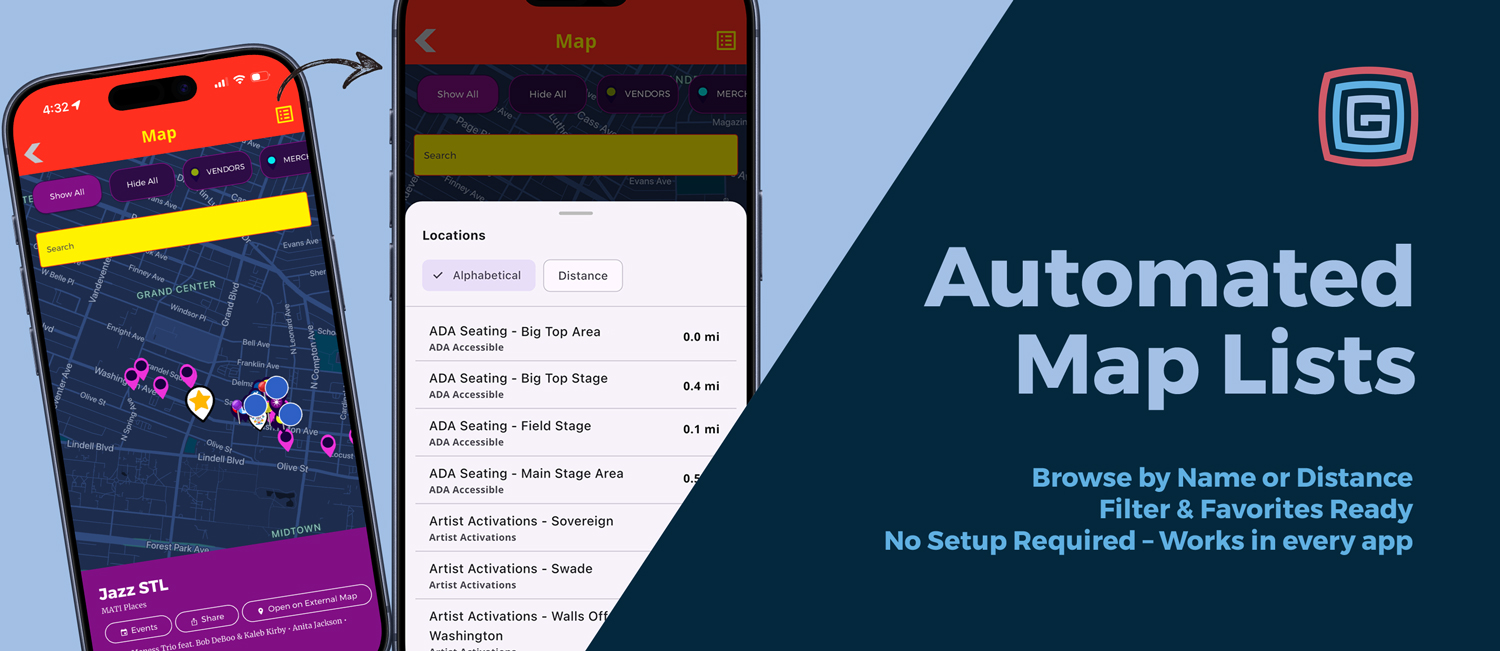
Product Updates
Published September 30, 2025
Finding your way around an event just got easier. Our new Map List View displays all pins in a clean list you can sort alphabetically or by distance. It is enabled automatically for new and newly submitted apps after September 29, 2025 and available on Silver and above. Browse by Name or Nearby The list always includes an Alphabetical sorter. When a user is within 20 miles, a Distance sorter appears to surface the closest locations first. Selecting a list item highlights the same pin on the map, so users can scroll, tap, and orient instantly without excessive zooming and panning. Filter-Friendly The list respects map filters. If a user filters to Food, only food vendors appear. The same applies to categories like stages, rides, or buildings. Shows only items that match the active filter Updates instantly as filters change Works with favorites to show only starred places Favorites at Your Fingertips Users can open a list of all their favorited locations on the map for quick, personalized navigation. Hands-Free for Organizers Automatic setup with no extra work required On by default for new and newly submitted apps after September 25, 2025 Configurable and can be turned off if needed Why It Matters Faster discovery with alphabetical or distance-based browsing Better planning by saving favorites and viewing them as a list Smoother navigation as tapping a list item mirrors tapping its pin No extra setup for admins or content teams Try It Out If you are an existing Grandstand client and want to check out this feature, open your app inside Grandstand – Events & Guides using your preview code. Example Use Cases Find the nearest stage like Family Fair Stage without hunting on the map Filter to Food and sort by distance to plan lunch stops Open Favorites to see your saved booths and exhibits in one list
Read More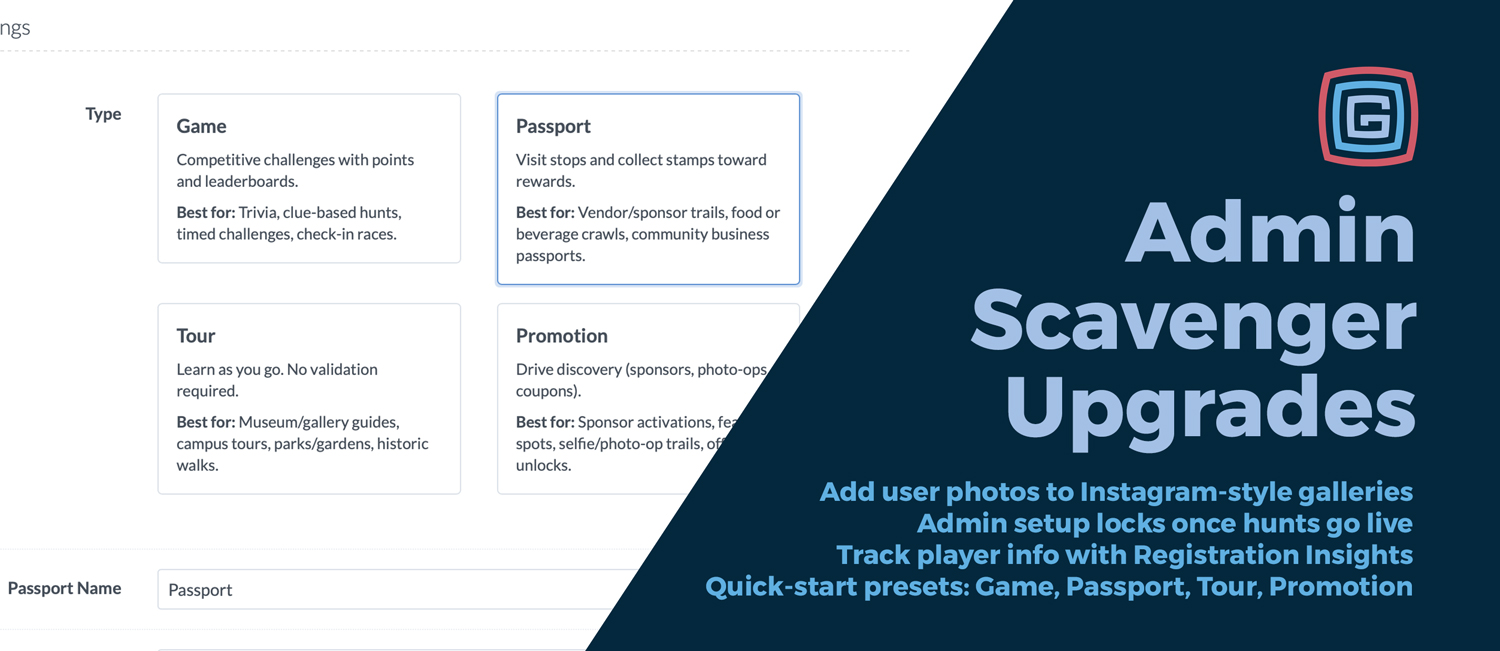
Product Updates
Published September 15, 2025
We’ve rolled out a series of powerful admin tools and upgrades that make it easier to capture data, showcase engagement, and protect the integrity of your activities. These updates give organizers more control and insights while keeping the in-app player experience smooth and consistent.Scavenger Hunt Photos in Your Instagram-Style Galleries Our apps have long featured Instagram-style photo galleries—a favorite for presenting event moments in a familiar, modern format. Now you can go a step further by pulling user-submitted images from scavenger hunt stops directly into those galleries. Example Food festival: Participants snapping pictures at BBQ stands can have their images featured in your app’s gallery, giving everyone a taste of the action in real time. Locked Hunts for Fair Play Once a scavenger hunt is live, the admin setup is automatically locked to keep the experience consistent for everyone playing in the app. Admins can’t add new stops or change the order of stops after the hunt has started, which prevents behind-the-scenes tweaks that could cause issues or confusion. If a change is truly needed, admins can manually unlock the hunt. Registration Insights Data capture just got smarter. With Registration Insights, you can easily view and export participant details collected before the hunt begins. Current registration fields include Name, Initials, Email, Phone Number, and Location—giving you meaningful data on who’s playing and where they’re coming from. Build participant contact lists for follow-up communication. Understand geographic reach and audience demographics. Segment participants for targeted marketing campaigns. Create smarter event strategies backed by real data. Example County fair: Quickly see how many participants are coming from neighboring towns and use that insight to guide future marketing campaigns. Login Through App Onboarding (Select Packages Only) For organizations that want deeper data capture, scavenger hunts can tie into your app’s General Onboarding. This login happens once per user and connects participation to a unique profile, depending on your package level. Example Tourism passport: A tourism group sells access in person and provides unique codes. Attendees use those codes to log in once during onboarding, unlocking exclusive scavenger hunts and passport rewards available only to paid participants. Archiving & Copying Made Simple Managing multiple hunts just got easier with new Archiving and Copying tools: Archive past hunts to clean up your dashboard while preserving all data for reference. Copy hunt settings (time limits, scoring, rules) to spin up a new hunt quickly—note that copying brings over settings only, not the stops. Example Holiday lights tour: Copy last year’s hunt settings—such as scoring and registration rules—while updating this year’s stops, saving hours of setup time and keeping prior results archived for comparison.
Read More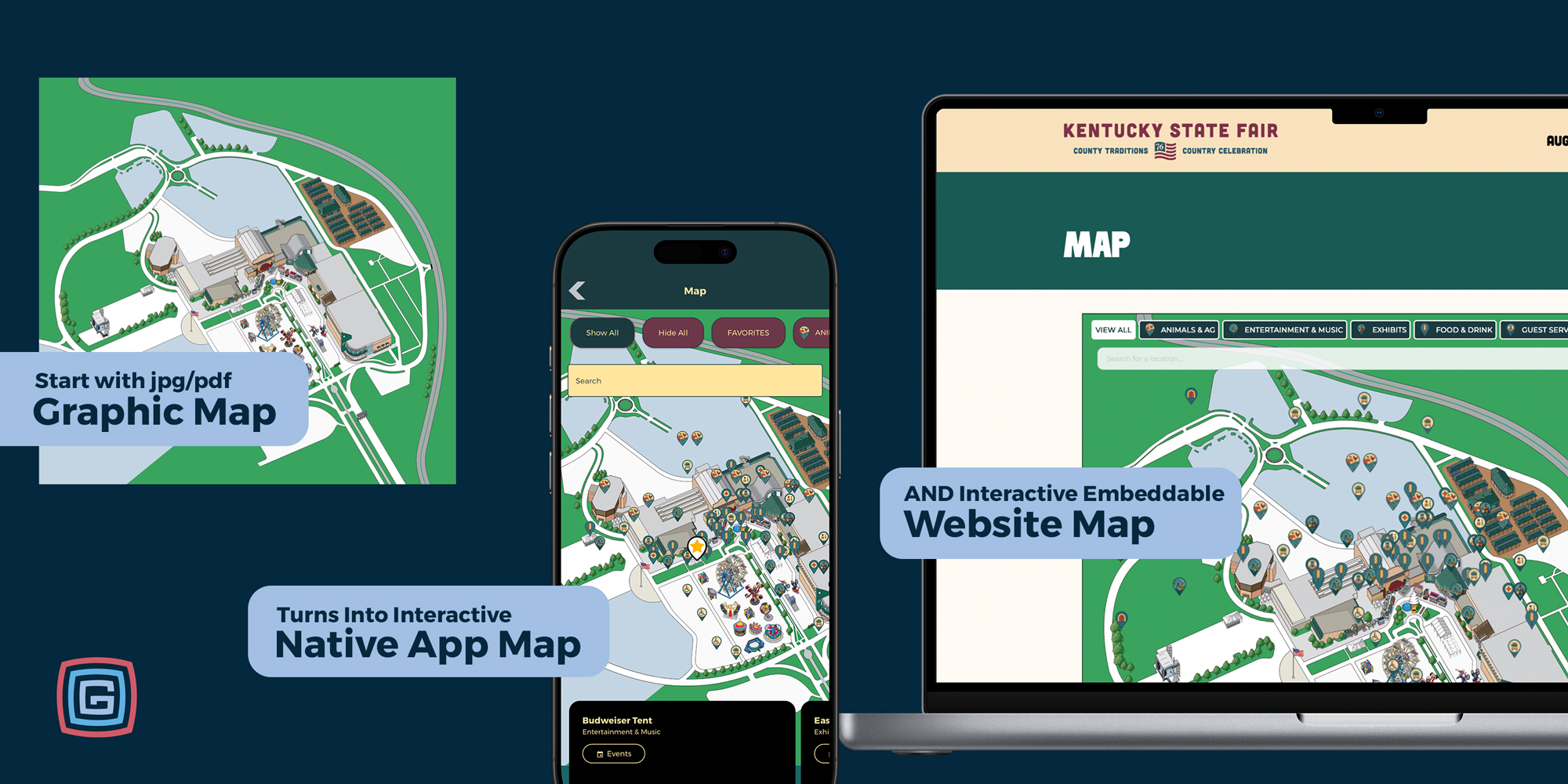
Product Updates
Published September 10, 2025
Our Map Widget has always been one of the most versatile tools in the Grandstand platform, giving your website visitors a dynamic, interactive way to explore your event or organization. And now, it’s even more powerful with several brand-new features that are live for everyone today. What’s New in the Map Widget Static Map → Interactive Map (Grandstand Exclusive) Take your flat, static map graphic — even a PDF — and transform it into an interactive web experience. Instead of uploading a non-clickable file, drop your map into our widget, add pins, categories, and filters, and watch your visitors navigate, discover, and engage. Print Option Visitors can print the exact view they see — including any pins that are selected or filtered. Ideal for guests who want a carry-along map or organizers who need to share a customized view with staff, volunteers, or vendors. Always-On Filter Bar An optional horizontally scrolling filter bar (modeled after our mobile apps) gives attendees an at-a-glance view of everything they can explore. Food vendors, stages, restrooms, and more are only a swipe away. Improved Pin Details Faster loading and smoother interactions, plus simpler dismiss/close actions that make the whole experience feel lighter and more intuitive. Features You Already Love The Map Widget was designed to be flexible for events of all shapes and sizes. Core capabilities include: Interactive Pins – Clickable markers with rich details, from vendor descriptions to performer bios. Category Filters – Toggle categories like food, shopping, activities, or restrooms to customize the map. Responsive Design – Scales beautifully across desktop, tablet, and mobile, so it can live on your website without extra coding. Searchable Map – Type a vendor’s name or keyword to locate them in seconds. Integration with Your App – The widget mirrors your in-app map, delivering a consistent experience from planning on desktop to navigating on the go. Save Time with Shared Data All Grandstand Web Widgets — including the Map Widget — use the same data as your mobile apps. Enter information once and it updates everywhere. No double entry. No mismatched info. One source of truth across web and app. Use Cases in Action Fairs & Festivals: Filter by food vendors, rides, or stages; print a personalized map before arrival; and use phones for live navigation on event day. Campus Tours: Showcase buildings, landmarks, and departments; let prospective students filter by academic areas or services. Sports Tournaments: Pin fields, courts, or golf holes so families know exactly where to go — then print a map of just their team’s locations. Community Events: From art walks to holiday markets, highlight participating businesses and help visitors quickly find their favorites. Explore Our Web Widget Gallery See the Map Widget and other widgets in action: Map Widget Examples Schedule Widget Examples List Widget Examples
Read More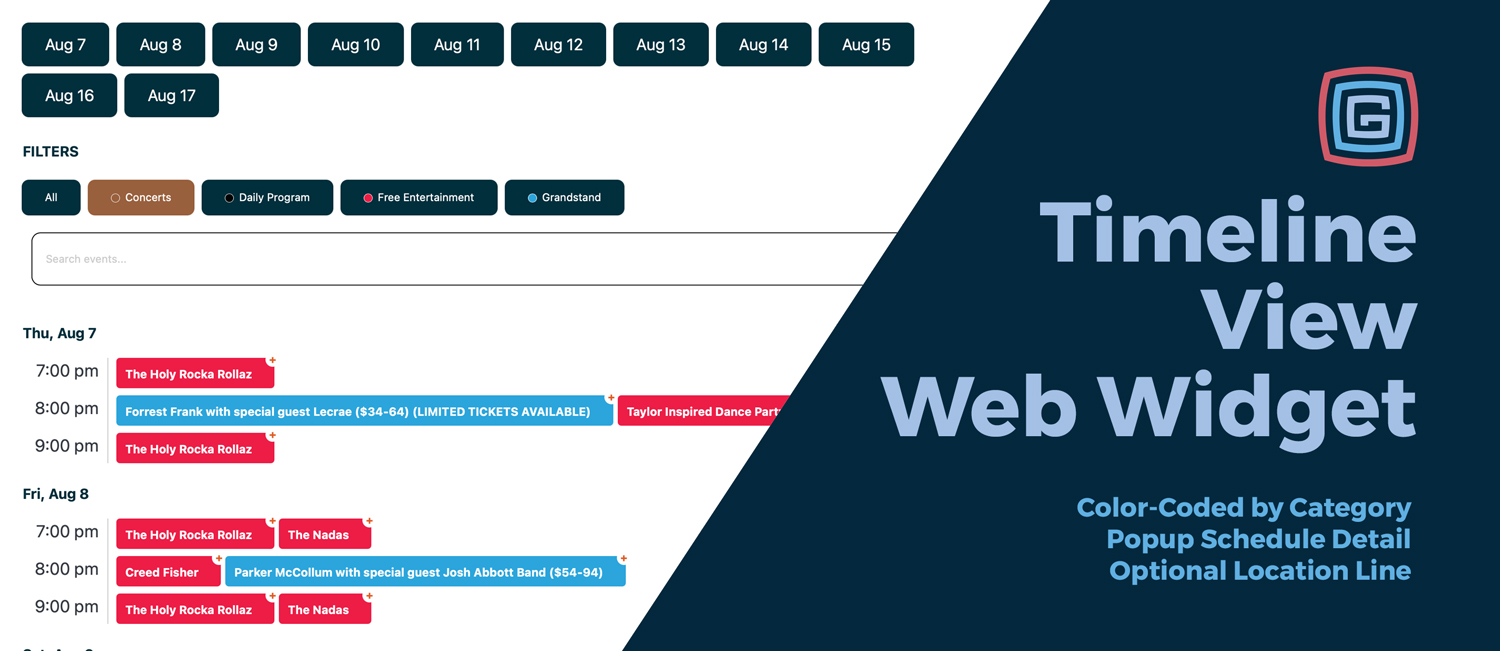
Product Updates
Published September 3, 2025
Say hello to the Timeline View Web Widget — the newest option for bringing your event schedule online. This dynamic, easy-to-read format lines up your programming by time of day, making it simple for visitors to see what’s happening now and what’s coming up next. What Makes Timeline View Stand Out Optional Color-Coding by Category – Keep your branding consistent by carrying over the same colors you use in your app. Popup Event Details with Share Options – Expand any event for more information, plus built-in sharing tools to spread the word. Optional Location Line – Perfect for events with multiple venues. Smart Search & Filters – Let visitors zero in on the events they care about most. Why It Works For events where a lot is happening at once — multiple concerts in the evening, or overlapping family programs in the afternoon — the Timeline View makes it concise and easy to follow. Instead of overwhelming lists, attendees see a clean snapshot of everything occurring in a given time slot. Families can plan their day without missing a favorite show, and groups of friends can quickly spot overlapping performances and decide where to meet up. The Timeline View keeps complex schedules simple, visual, and interactive. Available Now Already using Web Widgets for your events? The Timeline View is ready to go — simply add it alongside your row-based options and give your attendees a new way to explore your schedule.
Read More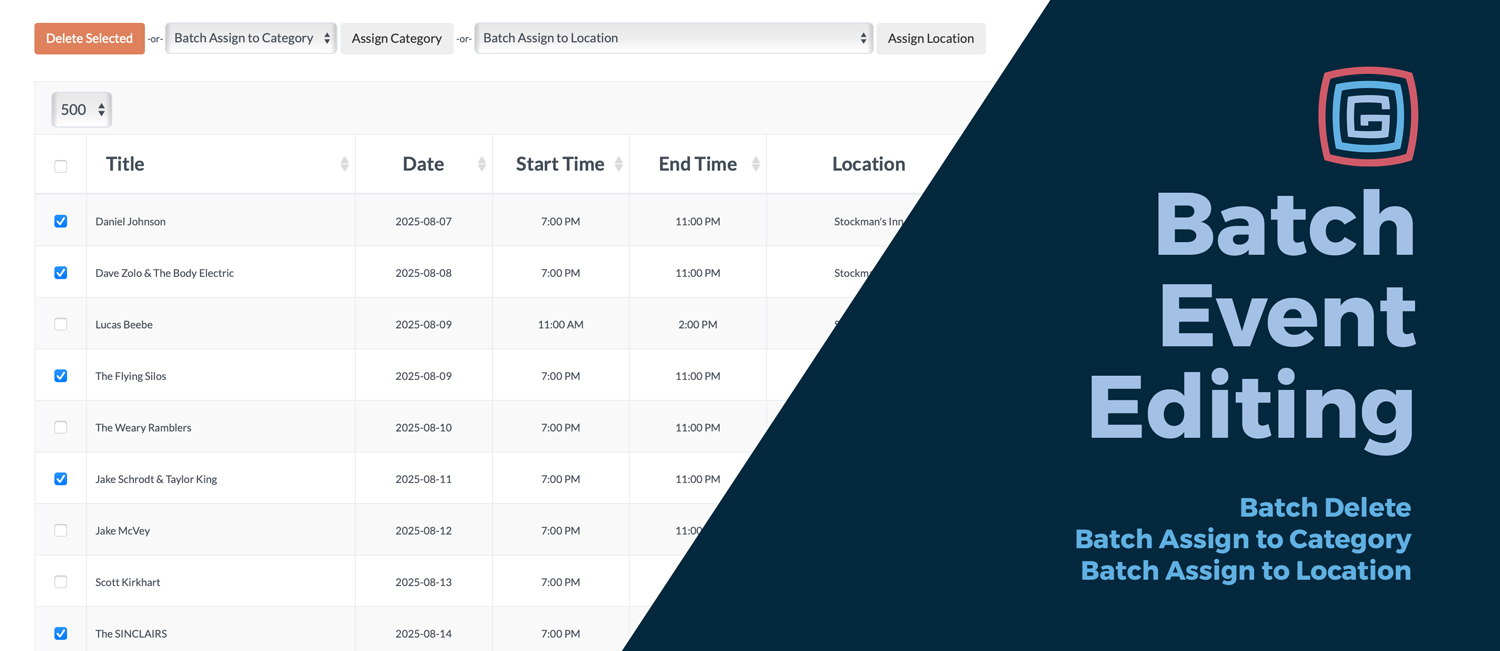
Product Updates
Published September 1, 2025
Managing events just got a whole lot faster. Our new Batch Toolbar makes it easy for admins to update multiple events in just a few clicks—saving time, reducing mistakes, and keeping your schedule perfectly organized. Here’s what you can do: 1. Batch Delete Need to clean out old events? Select them all at once and delete in bulk. Deleted items aren’t lost—they’re safely archived—so you can tidy up without worry. For example, after the fair ends, you can clear all last year’s events in a single action. 2. Batch Assign Categories Grouping events has never been easier. Select multiple events and assign them to a single category. For instance, mark all your headline shows as “Featured Concerts” so they stand out in the app. 3. Batch Assign Locations Tagging events to their venues is now a breeze. Maybe you’re scheduling a week of concerts at Madison Square Garden—now you can assign them all to that location at once, instead of updating each individually. 4. Batch Approve Drafts Draft mode is perfect for collecting submissions, but once you’re ready to publish, you don’t want to approve them one by one. With the Batch Toolbar, you can move all your draft events into Approved status in seconds—whether they came in through a staff form or vendor submissions. Smart Safeguards Built In Shift-click and a Select All checkbox make choosing events quick and simple. Confirmation dialogs always show how many events will be affected. If you’re deleting or reassigning more than 50 events, you’ll get an extra warning before moving forward. The Delete Selected button has been spaced out from dropdowns to avoid accidental clicks. The result? A faster, smoother way to manage your event lineup—so you can spend less time on updates and more time focusing on your attendees’ experience.
Read More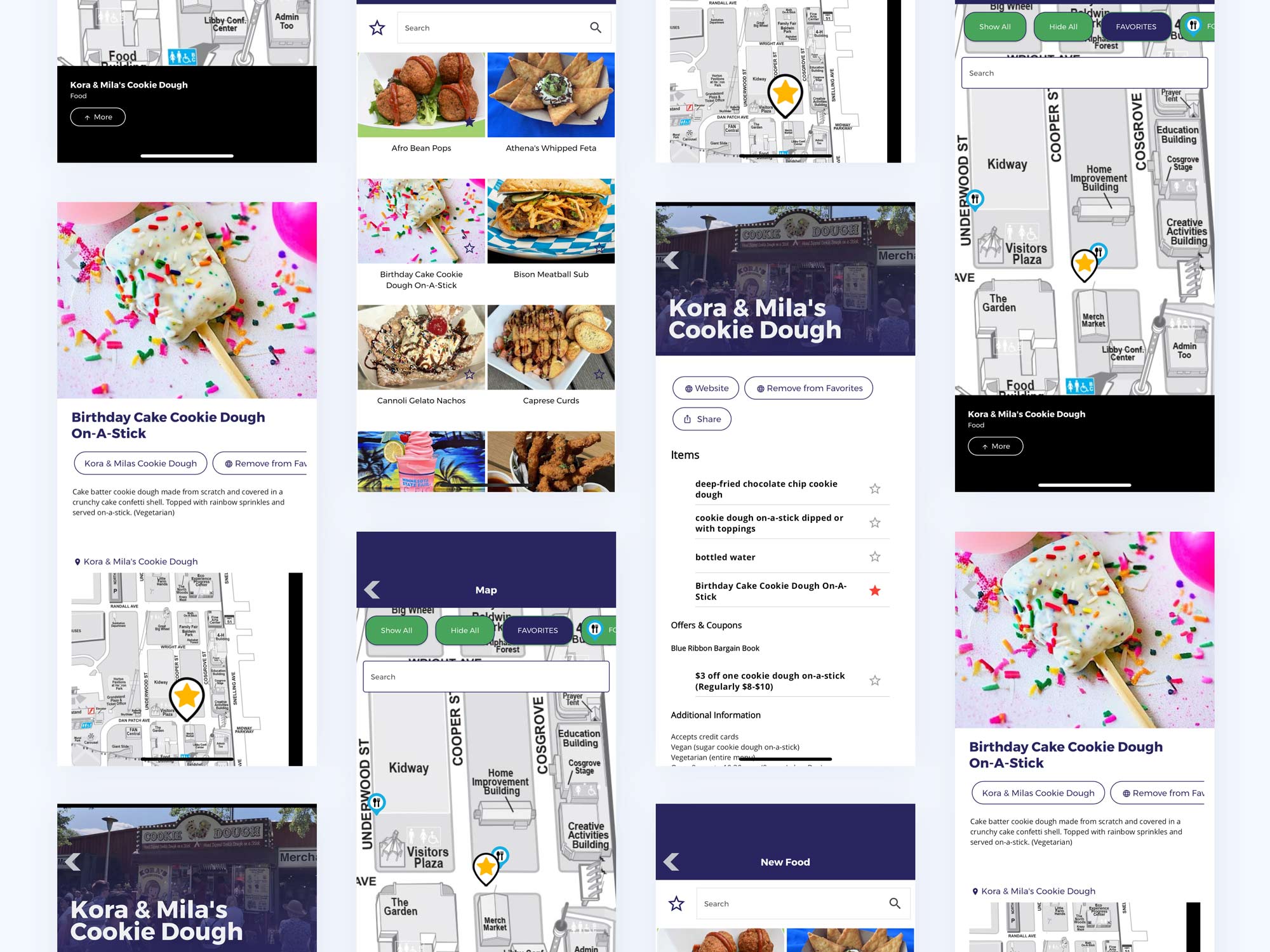
Product Updates
Published August 16, 2025
Food is one of the biggest draws at any fair or festival. Some attendees hunt for the newest creations; others stick to their classics. With Grandstand’s Platinum and Titanium packages, your app gives users the power to build their own food trails by favoriting vendors and dishes, then filtering the map to show only their picks. On Gold? Unlock all capabilities as an add‑on for $750. How It Works: Three Levels of Customization Level 1: Favorite Food Vendors Enable favoriting on each vendor’s detail page. As users browse, they tap the star to save vendors. The map can then be filtered by favorites, instantly becoming a personal food trail. Fastest setup: turn on favoriting for vendor pages. Attendees filter the map by favorites to plan their route. No structural changes to your map or data required. Level 2: Favorite Individual Foods List specific menu items on a vendor’s page using entries so each dish can be favorited individually. Favoriting a dish also favorites the vendor, ensuring the location appears on the user’s map. Granular control: users save the exact dishes they want. Automatic consistency: vendor is favorited when an item is. Higher engagement: item-level detail encourages exploration. Level 3: New Foods Page or Top Foods Create a dedicated Foods page where each dish is its own detail entry. Favorites from this page tie back to the originating vendor, keeping maps consistent and clutter‑free. Central hub to browse featured, new, or top dishes. Favorites still point to the vendor for accurate mapping. The fair can highlight items to try without creating new map pins. Why It Matters Custom food trails transform food discovery from a static list into a personalized experience. Every attendee leaves with a plan made by them, for them. More engagement: users explore, favorite, and filter. Better vendor visibility: saved items drive real foot traffic. Happier attendees: clearer navigation and fewer missed must‑tries. Availability & Upgrade Path Available now for Platinum and Titanium clients. Gold clients can unlock all features for an additional $750. Beyond Festivals: Perfect for Food Weeks This same approach works beautifully for restaurant weeks and downtown food weeks. Participants can favorite dishes across multiple restaurants, view those locations on a map, and follow their own dining trail for the week—while organizers highlight participating venues and special offerings without altering existing map pins.
Read More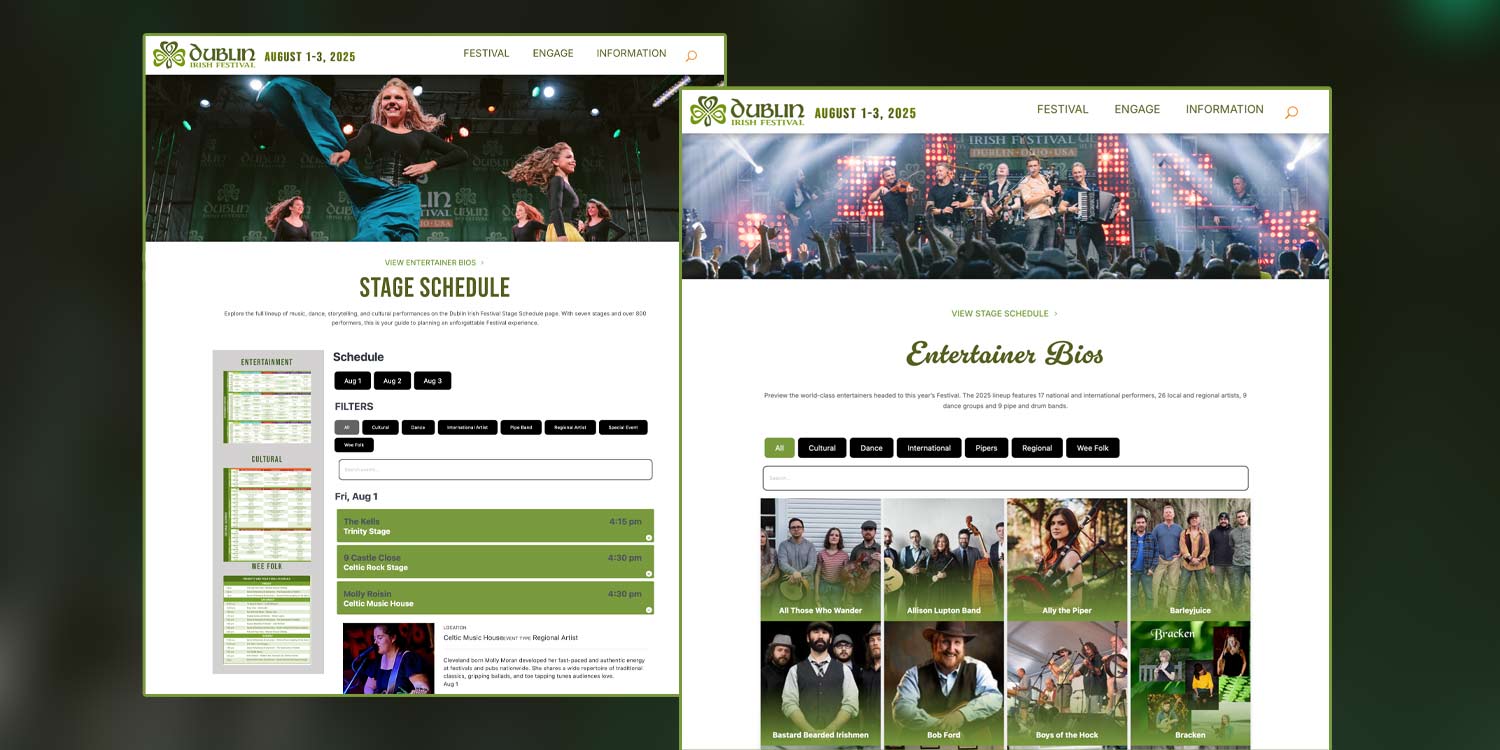
Product Updates
Published July 25, 2025
We’ve upgraded our Schedule and List Web Widgets to deliver a faster, more intuitive experience across all devices. Whether you’re showcasing a detailed schedule, vendor list, or sponsor guide, these enhancements help your users find what they need—quicker, cleaner, and with less scrolling.Schedule Widget UpgradesPerfect for: Event Schedules, Workshop Agendas, Stage Lineups, Conference TracksAlways-on Navigation: Sticky headers now keep date buttons, filters, and search visible while scrolling—great for long schedules.Smarter Layouts: Row widths are dynamically calculated to eliminate awkward side-scrolling and ensure visual alignment.Expandable Rows that Make Sense: Rows only expand when there’s something to show, with plus/minus icons for clarity.Faster Load Times: Images inside expandable rows are lazy-loaded, boosting performance on image-heavy schedules.Improved Search & Filter UX: Filtering or searching scrolls the view back to the top so sticky controls remain visible. The search bar now loads after the window is fully ready.Mobile-First Enhancements: Compact filters and date buttons appear on smaller screens, and filter buttons automatically convert to a dropdown view for easier tapping.List Widget UpgradesPerfect for: Vendor Directories, Sponsor Lists, Food Lineups, FAQs, Scavenger HuntsSticky Controls for Easy Browsing: Headers, filters, and search remain fixed during scrolling, keeping navigation accessible at all times.Expandable Rows with Real Content: Expand icons now only appear if a row contains images or descriptions, with plus/minus toggles for clarity.Uniform Row Layouts: Rows and their expanded sections now share a consistent, dynamically calculated width for a tidy look.Image Lazy-Loading: Visible images load on scroll, while hidden content loads only when a row is expanded—reducing load time without sacrificing detail.Why These Updates MatterThese changes are built on feedback from real events—state fairs, community festivals, conferences, and visitor guides.Fairgoers can browse entertainment lineups and food vendors without losing their place.Attendees can quickly find the sessions, booths, or sponsors that matter most.Tourists can filter attractions by category and find info faster on mobile.Want to try the new widgets or update your current ones? Let us know and we’ll help you get started.
Read More
Product Updates
Published July 20, 2025
We’ve released a batch of new Admin upgrades to save you time, reduce duplicate work, and streamline app setup. Whether you're creating events, managing lists, or tweaking your app layout, these features are designed to make life easier—especially for content-heavy apps like festivals, fairs, and community guides.Smarter Photo Selection, EverywhereSmart Event Photo SuggestionsWhen creating an event, you’ll now see the 3 most frequently used event images and the 3 most recently uploaded ones. Perfect for reusing a generic event graphic across multiple entries without needing to upload it again.Recent & Frequently Used Photos for ListsThat same smart image selector now works when you add list items too—like vendors, artists, or attractions.Why it helps:Quickly reuse generic or themed graphics without re-uploadingSimplifies bulk event or list entryKeeps your image library tidyNew Control Over List ItemsInactive List ItemsYou can now make any list item inactive. When you do, it:Disappears from the live app immediately once repushedMoves to a smaller “Inactive” section at the bottom of the Admin listCan be reactivated at any time with a single clickCommon uses:Sponsors who skip a yearVendors who aren’t returningArtists in a rotating festival lineupFaster List & Event SetupCopy List (Vendor Categories)Need the same set of categories in a new vendor list? Use the “Copy List” button to duplicate an existing setup—great for returning events or multi-location festivals.Copy List (Top-Level Event Groups)You can also copy entire event groups to speed up entry when your structure is similar across days or venues.Why it helps:Reduces repetitive setupEnsures consistent formattingSpeeds up event planning workflowsIcon & Menu Management Just Got EasierCopy Icon ButtonIn Icons & Menu Management, you can now duplicate an existing icon with all its current settings (link, appearance, etc.).Perfect for:Reusing a split graphic that needs two icons (e.g., left/right halves of a logo)Linking to two different subcategories of the same feature with a matching visual styleEdit Icons & Menu Links On the Go Now editable from your phone! You can now edit your app’s icons and main menu links directly from your mobile device. Whether you're making a quick update during your event or adjusting links in real time, Admin access is now more mobile-friendly than ever. Perfect for live adjustments when you're in the field.Putting It All TogetherThese July updates focus on eliminating repetitive work, helping you reuse and repurpose content, and giving you better control over how your app content is displayed and organized.Got questions or ideas for future improvements? We’d love to hear them!
Read More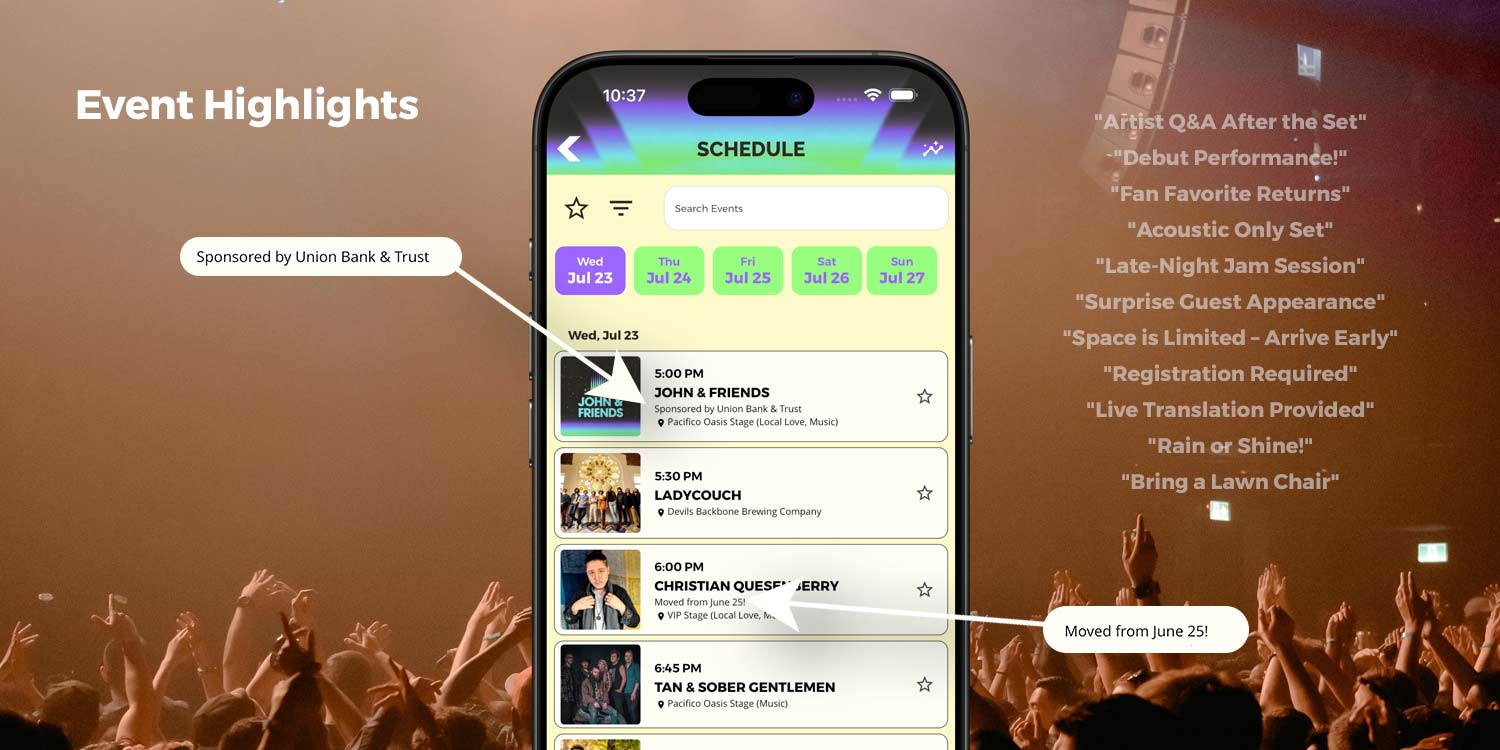
Product Updates
Published July 10, 2025
Make your event schedule more helpful and user-friendly with two powerful new tools: Day Highlights and Event Highlights. These features let you add short, eye-catching notes directly within your schedule to call out key details — without cluttering titles or descriptions. Whether it’s a special theme day or a specific event update, your audience will see what matters, exactly where it matters.Available in all Gold+ apps submitted after July 10, 2025.
Read MoreProduct Updates
Published July 10, 2025
Whether you're building a scavenger hunt, tour, or reward-based experience in your Grandstand app, we've outlined the key decision points in two handy flowcharts. This guide walks you through the logic behind setting up your experience and the specific setup required for each stop.Overall Experience SetupStart by asking:Will you have a reward?No: Go directly to What type of validation will you have?Yes: Ask Will you have them fill out a form to collect contact info?Yes: Set up a survey/form with questions for collecting info, then move to What type of validation will you have?No: Set up a reward item, then move to What type of validation will you have?What type of validation will you have?Question/Answer/Code EntryQR CodeLocation Check-InTake a PhotoWould you like to show a map?No: Move on to Set Up Each Stop Yes: Select the map to show, then move on to Set Up Each Stop
Read More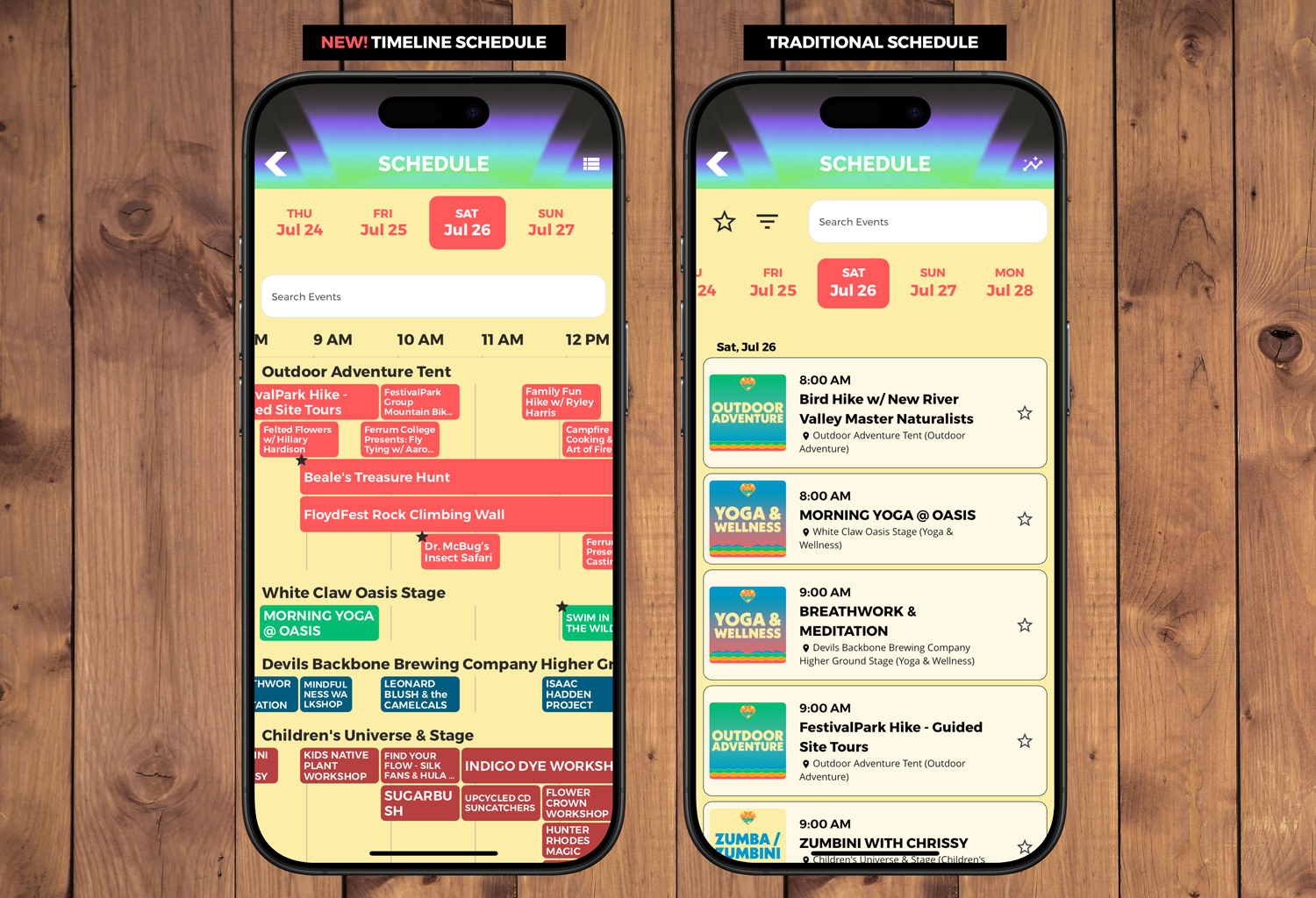
Published June 23, 2025
We’re excited to unveil the Timeline Schedule—a powerful new way for attendees to experience your event’s schedule. Instead of scrolling through a long list, users can now visually scan what’s happening at any given moment, organized by time + location or time + event category. Designed for events with overlapping sessions or multiple venues, the Timeline View makes it easier than ever to plan a full day without missing a thing. Ideal for All Types of Events Music Festivals Display performances by stage—such as Main Stage, Acoustic Tent, and more—so fans can instantly see what's playing when and where. Conferences Organize sessions by tracks or rooms, making it simple for attendees to follow a specific focus area or jump between topics. Fairs and 4-H Events Group your schedule by buildings like the Livestock Arena or Ag Hall, or by categories such as General Fair Events, Competitions, or Demonstrations. What Makes the Timeline View Stand Out Horizontal scroll through the day’s events Side-by-side display of simultaneous sessions Grouping by venue or event type for easy browsing Favorites are clearly marked on the timeline Tap any item for full details, just like in list view Customization Options The Timeline View can be tailored to fit your event: Custom Colors to match your branding or organize by type/location Adjustable Width Between Times for tighter or more spread-out layouts Top-Right View Switcher lets users toggle between Timeline and Traditional views Who Gets What? Silver Packages can choose to show either the Timeline View or the Traditional List View Gold, Platinum, and higher packages can enable both views at the same time, with a built-in toggle for users This feature is available in all apps updated and submitted after June 23, 2025. It’s a modern, intuitive upgrade that makes your schedule easier to navigate and your app more engaging. Want to turn it on for your app? Let us know and we’ll help you get started.
Read More
Published June 21, 2025
The Grandstand Admin just rolled out a major set of improvements to make app building and content management easier than ever. With smarter automation, better visuals, and new customization options across Maps, Lists, Events, and more—these tools are designed to save time while giving your app a professional edge. Here's a rundown of the latest features and how you can use them. Smarter Icon & Image Tools (All Packages) AI Icon Creation Easily generate custom icons using AI directly in the Icon Setup section. Need a quick visual for a dunk tank, shuttle stop, or ice cream vendor? Just describe it and let the tool do the rest—no design software needed. Perfect for speeding up setup when a new section is added late in the game. Logo Background Remover (Home Page Logo Only) A new tool automatically removes the background from the main logo uploaded to your app’s homepage. This is especially useful for seasonal updates when a new logo might have a white box or color that clashes with the background. It cleans things up with zero effort—and only applies to logos uploaded within the last two weeks. Map Enhancements Description Carousel Controls (Gold+) There’s now a new tab in Map Setup to fine-tune the map’s description carousel: control where it starts, how tall it appears, or whether to use it at all. This is great for setting up a featured tour—like a historical path through exhibits or a highlight reel of food vendors—where users can swipe and get info while the map auto-focuses on each point. Map Key Image Upload (Platinum+) You can now upload and delete a visual map key. Want to show that green pins are restrooms and red stars are first aid tents? This is the best way to explain a complex map with custom iconography and no room for confusion. Auto-Create Lists from Maps (Silver+) Add a lot of pins to your map and want a text version without retyping? Now you can auto-generate a synced list from your map. This works great for vendor directories, booth lists, or park features that already exist as map pins. List Setup Improvements Location Filters (Gold+) Add the ability to filter your list by location—ideal for large venues split across buildings, zones, or areas. For example, visitors can narrow down to just “South Food Court” or “Kids Zone” activities. Automated Tag Colors (Gold+) Let your tags pop with color—automatically! Perfect for flagging “Free,” “VIP,” “21+,” or other key info that users can scan visually in a list view. Custom Page Linking (Silver+) From a list item (like a performer or vendor), you can now link directly to a custom content page. Useful for expanding beyond the basics—link out to a bio, gallery, sponsor info, or menu PDF. Batch Upload Tweaks (Silver+) When uploading large lists, you can now include override values for location name and address—making it easier to set up entries that might need different public-facing names or non-standard map coordinates.
Read More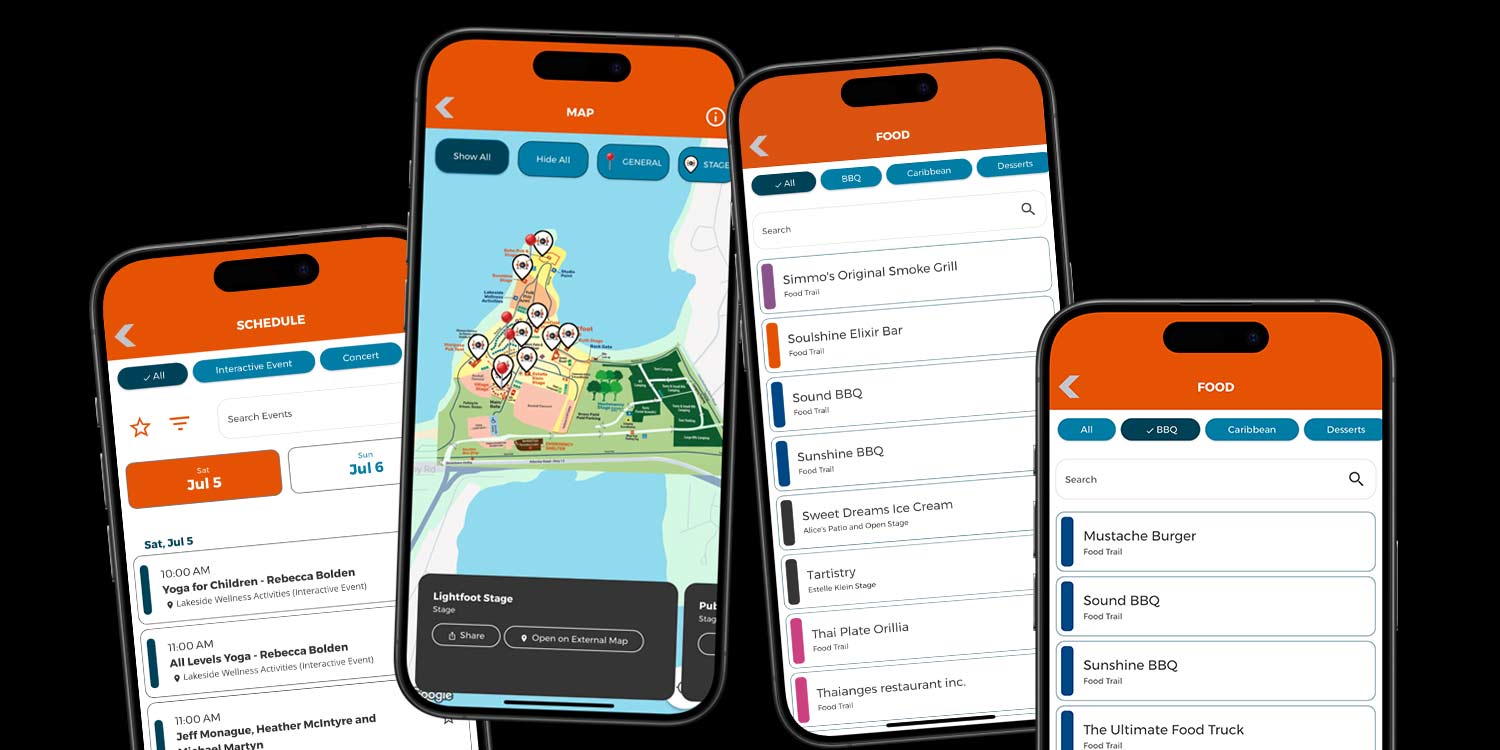
Published June 10, 2025
Festival season is heating up, and a fresh lineup of new features is here to help your app deliver an even more seamless and engaging experience. These updates are designed to solve real-world challenges for both organizers and attendees, making your app more helpful, more flexible, and better prepared for busy event days. Take a Guided Tour with the New Map Carousel The map screen now includes a powerful new always-on swipeable carousel at the bottom, offering users a new way to explore your map. As users swipe through locations, the map automatically pans and zooms to each corresponding pin. For example, an attendee can swipe through all concert stages to see where each one is located without manually scrolling the map. This is also helpful for self-guided tours, vendor spotlights, or scavenger hunts where users want to explore all locations quickly in a guided sequence. Better Browsing in Schedules An optional horizontal scroll bar for categories now appears above the search bar on Schedule screens. For events with dozens of sessions or performances, this allows attendees to quickly jump between categories like "Music," "Workshops," or "Family Activities" without scrolling through long lists. This is especially helpful for conferences, fairs, and multi-day festivals where the schedule grows complex. A Pop of Color in Lists List pages now feature a single-color accent line assigned from the app’s palette based on the first tag. All items sharing the same tag receive the same color, providing instant visual grouping. For example, in a vendor list, all "Pizza" vendors may show one color while "Beer" shows another, helping attendees quickly spot the category they’re looking for without reading every listing. Map Upgrades for Smarter Exploration Multi-filter selection allows users to display multiple types of pins at once. For example, someone could enable both “Beer Vendors” and “Food Vendors” to plan a full stop in one area. This reduces back-and-forth and helps attendees make decisions quickly. An optional map key graphic can now be uploaded and accessed via a new icon. This is especially useful for events with custom icons (e.g. VIP lounges, first aid stations, or parking areas) where users need a quick reference to understand the map layout. New Location Filtering in Lists Lists now support location-based filtering through a clean, scrollable modal popup. This allows users to filter vendors or activities by area, such as "South Lawn," "Exhibition Hall," or "Kids Zone." This feature is particularly helpful for large venues, fairs, expos, or multi-building events where visitors often want to see what’s nearby without scanning the entire list.
Read More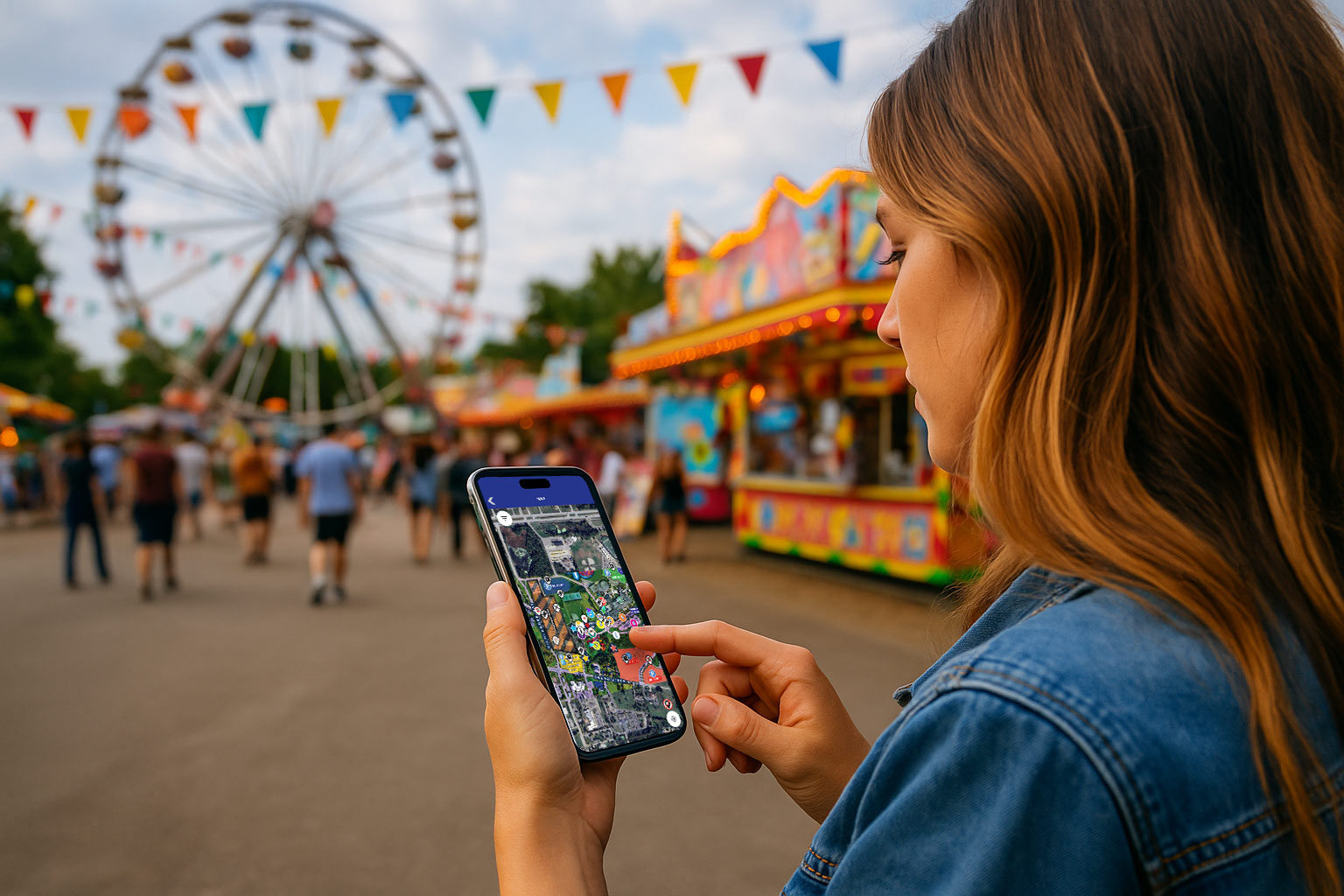
Published May 16, 2025
As the new event season approaches, now is the perfect time to get your mobile app ready for launch. Whether you’re working with a returning app or debuting a new one, these steps will help you align your content, branding, and structure with this year’s event plans. Refresh Your Branding Upload a New Logo or Homepage Design If your event has an updated look for the year—such as a new logo or redesigned homepage—upload the new files so your app reflects your 2025 branding. See how to customize layout & colors → Update Your Color Palette Match your app’s color scheme to this year’s logo or marketing theme. You can use our AI Content-Assist tool to extract a color palette directly from an uploaded image. Replace Default Images If your app is still using placeholder images for schedules or lists, now’s the time to upload updated versions for this year’s event. Guide to updating default images →
Read More
Published April 26, 2025
Grandstand's platform just became even more powerful with the introduction of two new AI tools that make visual customization faster, easier, and more flexible—AI-Generated Icons and AI-Generated Backgrounds.AI-Powered Icon CreationOur new icon generator allows you to instantly create high-quality, style-specific icons for your app. Whether you're looking to represent rides, food, attractions, or event features, you can generate unique icons that match your theme and brand identity.Choose from over 20 distinct visual styles:Pop ArtMinimalism3DRetroGraffitiOutlinesNeon LightsGeometricArt DecoPhotorealismAnd many moreJust describe what you need, select your style, and our AI will generate icons tailored to your specifications.AI-Generated Backgrounds for Home PagesNeed a compelling home screen design but don’t have the resources for a graphic designer? The AI background generator helps you create high-quality, image-based backgrounds that work seamlessly across devices. Use it for page headers, category images, or full-screen landing pages with a consistent and on-brand look.Choose from top styles like:Photorealistic – Real-world textures and lighting for lifelike scenesSoft Blur Illustrated – Gentle, artistic backgrounds with a modern touchPop Art – Bold, colorful, and eye-catching designs inspired by pop cultureGraffiti – Urban, edgy visuals with high contrast and street-art flairMinimalism – Clean, simple visuals with plenty of breathing roomNeon Lights – Vibrant, glowing effects ideal for nightlife or modern themesRetro – Nostalgic patterns and color palettes from past decadesScandinavian Minimalism – Soft tones and structured layouts with a natural feelComic Book – Illustrated, high-contrast art with bold outlines and textureArt Deco – Elegant, geometric designs inspired by the 1920s and 1930sSimply choose a style, describe your vision, and let the AI deliver a polished, custom background ready for use.Free for All Plans – Limited Time OfferTo celebrate the launch of these tools, all Grandstand app packages—including trials—now come with:10 AI-generated backgrounds30 AI-generated iconsThis offer is available for a limited time and requires no additional setup or fees.
Read More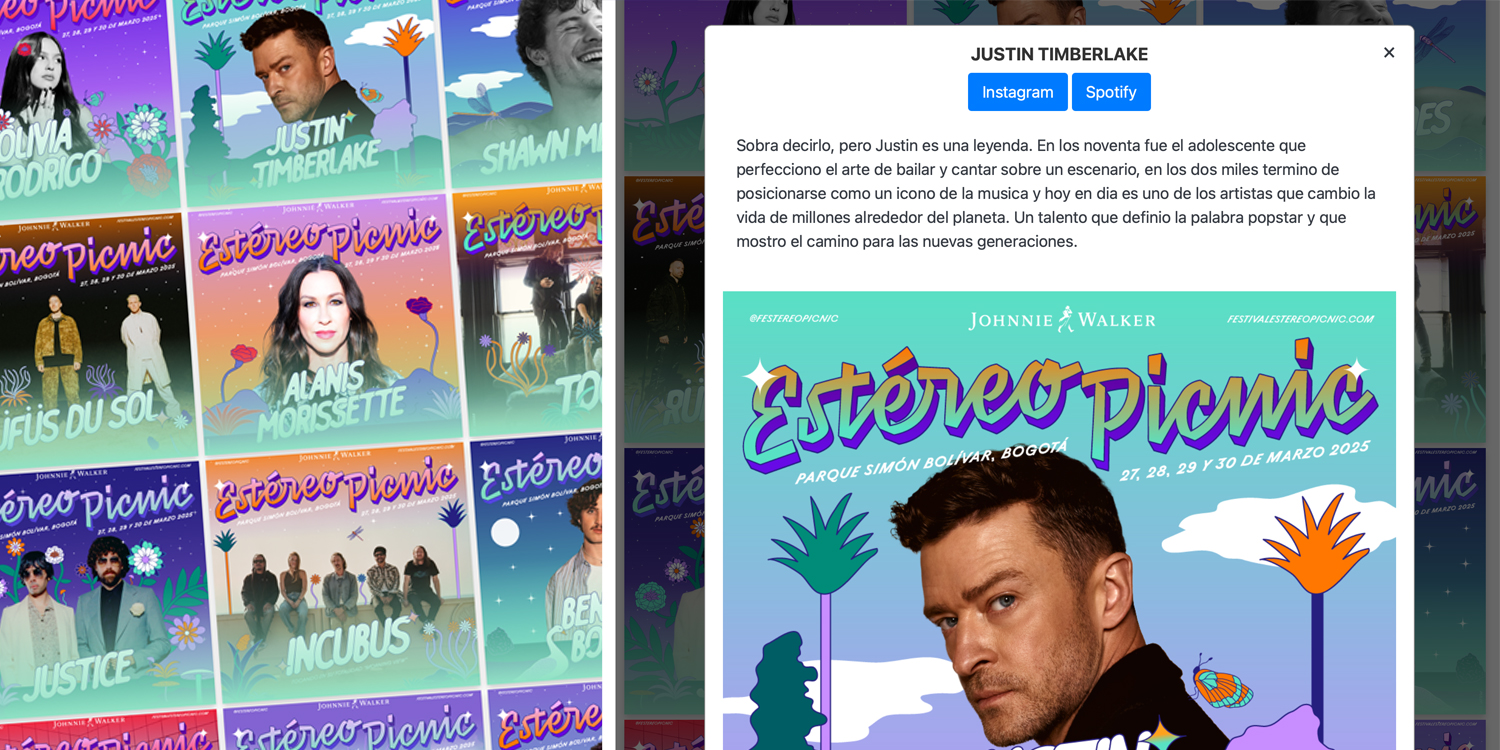
Published April 18, 2025
Grandstand’s Web Widgets just got a powerful new upgrade — and it’s going to make your event, festival, or organization look better than ever online.We’re excited to introduce our new Image Grid with Popover view — a sleek and modern way to showcase any list-based content like food vendors, speakers, performers, activities, or sponsors directly on your website. This new format combines the best of both worlds: the visual appeal of an image-based grid and the depth of a full-page detail view.A More Engaging Experience for Your AudiencePreviously, our most popular image-grid layout featured an interactive card flip — tap to flip the image and reveal key info on the back. Now, we’ve taken things a step further.With our new Popover Grid, clicking on any item in your grid opens a larger, nearly full-width detail view. This immersive overlay includes:A larger photo to make a bigger impactClickable links for tickets, social media, or sponsor sitesA full description or bio that can include schedules, highlights, or vendor menusSeamless search and filter tools to make it easy for users to find exactly what they’re looking forIt’s a richer, smoother way to explore your lineup — without ever leaving the page.Designed for FlexibilityWhether you’re promoting a culinary crawl with 50+ food vendors, showcasing local makers at a holiday market, or announcing a packed schedule of speakers and performers, this widget adapts to your needs. You get a beautiful grid that draws people in, and a detail view that keeps them there.Use it to elevate:Food Trucks or BoothsLive Entertainment LineupsSponsor ListingsWorkshop or Session LeadersExhibitor ShowcasesAny searchable directory-style contentSeamless Integration & Affordable OptionsThe best part? You can easily add this feature to your website using Grandstand’s Web Widgets — no complicated setup required.Pricing remains simple and transparent. Our Web Widget packages start at $150/year with options that include unlimited widgets and dynamic search and filtering. Learn more about pricing and what’s included on our Web Widget Pricing Page.
Read More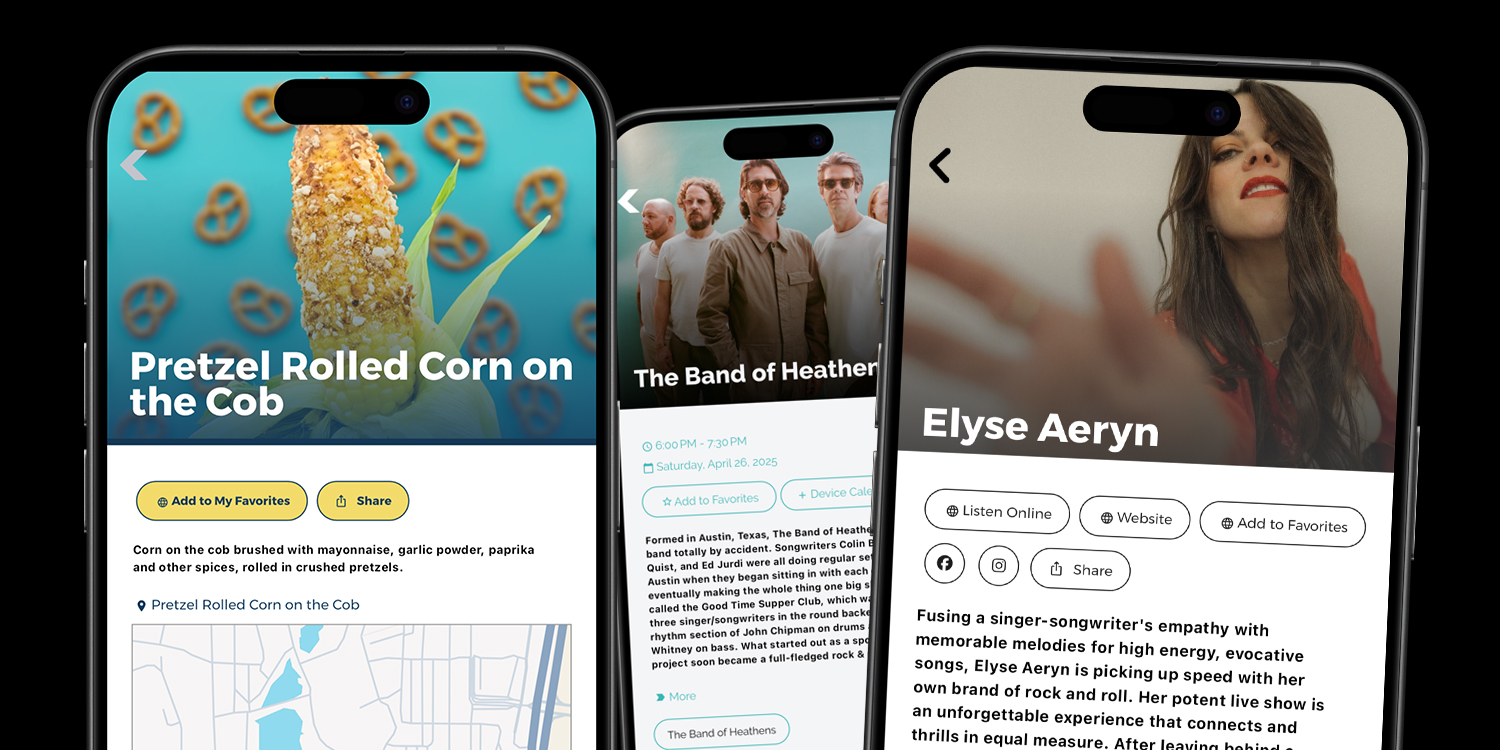
Published April 15, 2025
✨ New Detail Page Layouts & Design Options Now Available!We’ve rolled out some exciting new customization options for Event Detail and List Detail pages—designed to give your app a more modern, flexible, and polished feel. Whether you want to elevate your visual design or fine-tune how content is presented, this update offers more control than ever before.Headline Over Image – A Stunning First ImpressionYou can now move the title or headline directly on top of your feature photo! This new layout (enabled on the Detail Page tab in Add/Edit List Group and Add/Edit Calendar Group) creates a bold, visually immersive experience for your users. Prefer the original setup? No problem—just stick with the default where the headline appears below the image.Choose Between Image or Classic HeaderNot every page needs a top image. Now, for both Event and List Detail screens, you can select a traditional text header —perfect for pages that don’t have a featured image or when you want a cleaner, more streamlined layout.Flexible Button PlacementNeed key actions more visible? You can now move your menu buttons above the map instead of the default spot below it. This update gives you more freedom to guide users to important links right away.Custom Button Styling Per PageYou asked—we delivered! You can now stylize buttons independently on each detail page. Whether it’s a donation link or a signup form, you can now choose button styles that match the tone of that page specifically.Per-Page Header Color OptionsIn addition to global styles, you can now set custom header colors for each page. This is a great way to align with a specific brand or create a unique vibe for different areas of your app.Available NowThese features are available in apps using version 400 (released 2/10/25) or later. Want help configuring these for your app or experimenting with new layouts? Reach out to our team and we’ll guide you through it!
Read More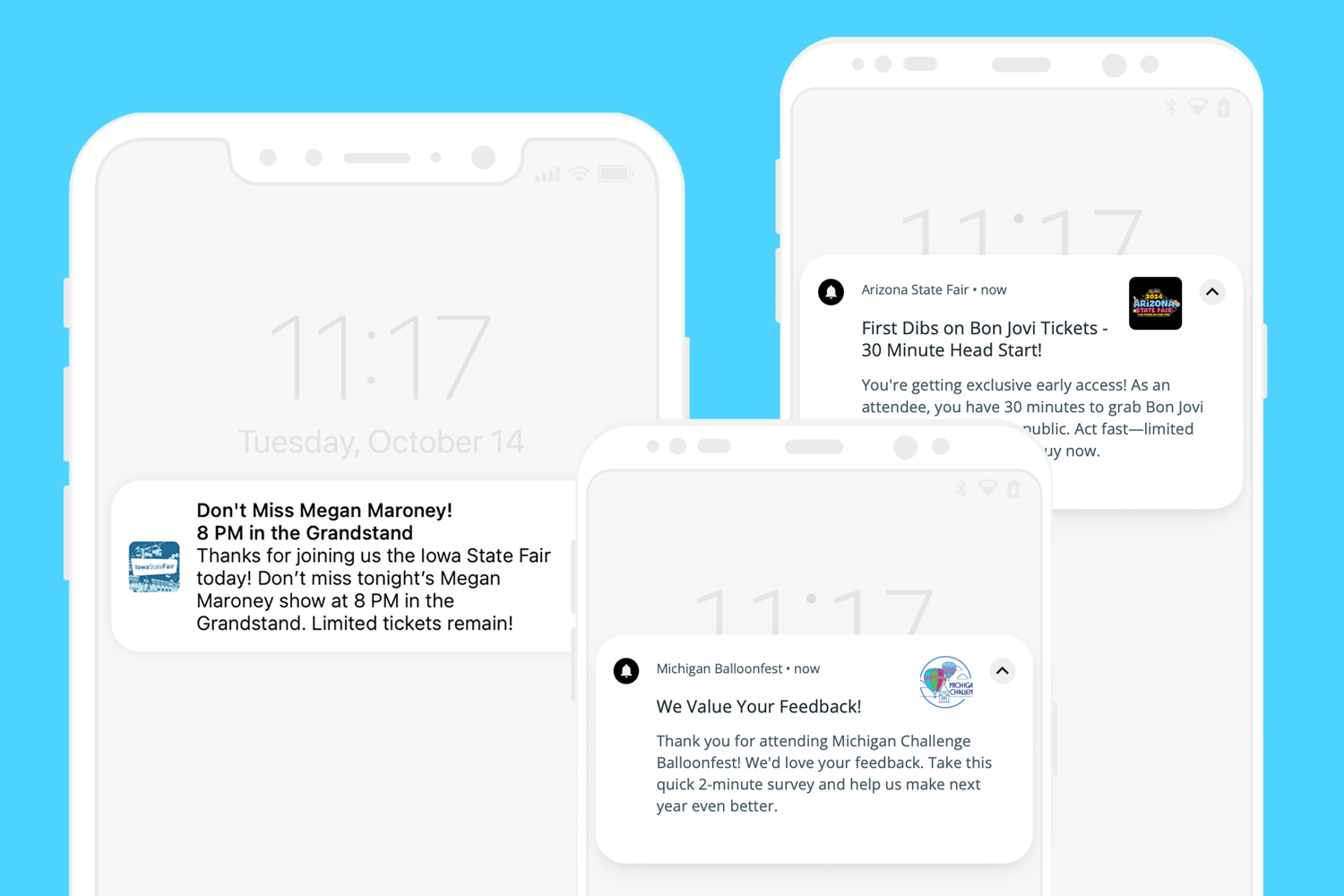
Product Updates
Published March 13, 2025
Connecting with your audience is all about timing and relevance, and our latest push notification capability makes it easier than ever to engage the right users. Now, you can send targeted push notifications to app users based on their activity on a specific date and location. How It Works This feature allows you to identify users who opened the app on a particular day or within a defined location. Once identified, you can send relevant notifications tailored to their experience, ensuring the message resonates and adds value. Platinum and Titanium users can set up to 14 days per year to automatically opt-in users to special alert groups. These groups can include any users who open the app on those designated days or users located within a specific geographic radius. This helps streamline targeted messaging and ensures key updates reach the most engaged audience effortlessly. Real-World Use Cases 1. Festival Alerts Hosting a large event? Send notifications to attendees who opened the app during the event. Whether it's a weather update, schedule change, or special promotion, you can ensure these important alerts reach active participants. 2. Local Business Promotions Have a retail store or restaurant? Notify users who visited your location and used the app that day. Share special offers, upcoming events, or loyalty rewards to encourage return visits. 3. Conference Updates For multi-day conferences, send timely reminders or updates to attendees who checked in via the app. Whether it’s a speaker change, networking session, or post-event survey, keep participants informed and engaged.
Read More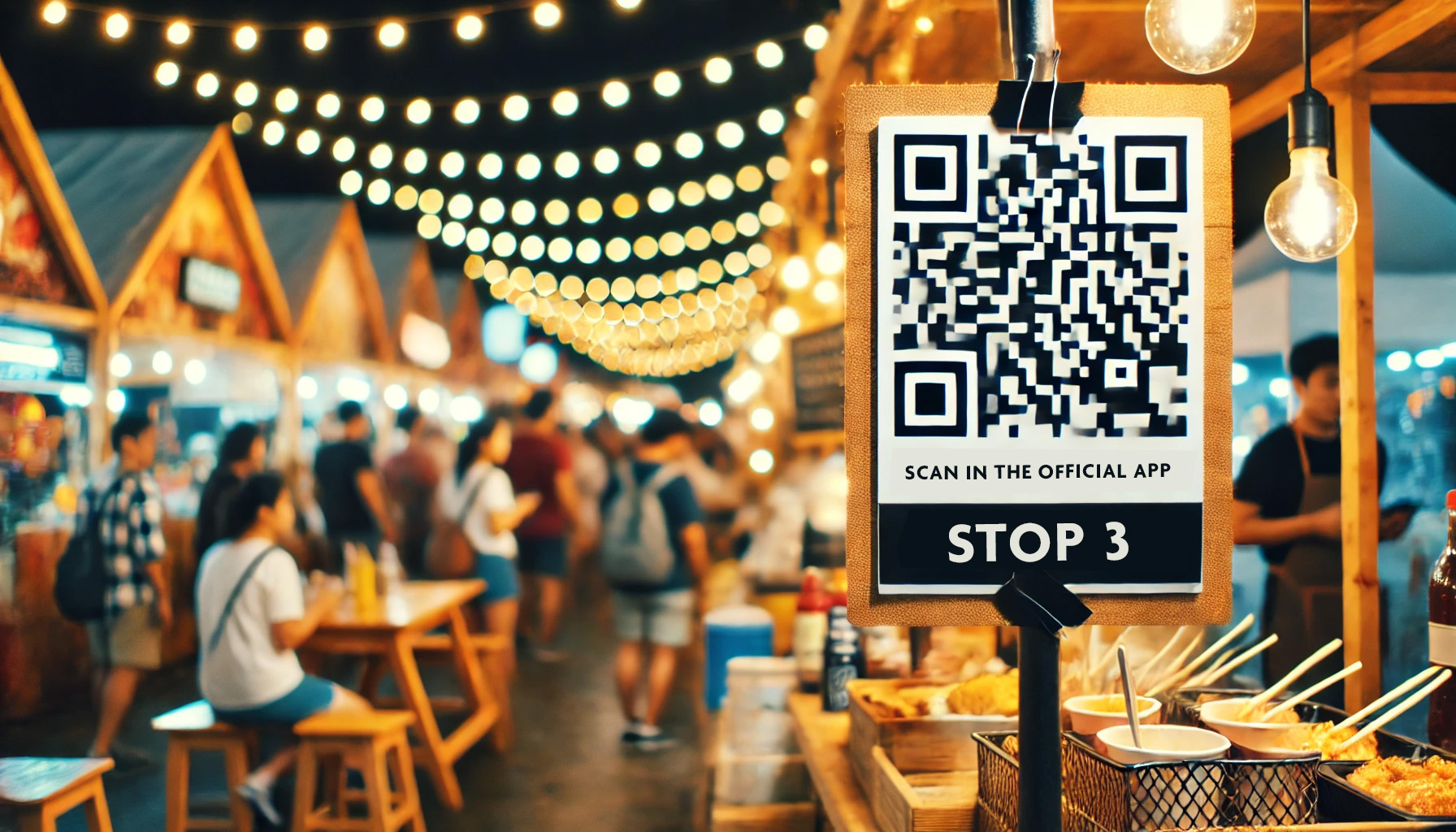
Product Updates
Published March 5, 2025
Grandstand has just rolled out some major upgrades to our Scavenger Hunts, Check-Ins, and Quizzes, making them more engaging, interactive, and customizable than ever before! Whether you're running a fun scavenger hunt around a venue, organizing a food week with exclusive rewards, or setting up a knowledge-based quiz with a leaderboard, these new features will take your event to the next level. New Validation Methods for Each Stop Now, event organizers have even more flexibility in how participants complete each stop. Choose from four different validation methods: Traditional Code Entry – The original method remains an option for those who prefer a simple and effective way to validate progress. QR Code Scanning (NEW!) – Users can now scan a QR code at each stop for a quick and seamless check-in. Geo-Location Confirmation (NEW!) – Let your event participants check in automatically based on their GPS location, eliminating manual entry. Photo Upload Requirement (NEW!) – Require users to submit a photo at each stop, with admins having access to all collected photos for review and potential repurposing. New Leaderboard Feature Competitive participants will love our new leaderboard functionality! This feature can be either time-based or score-based, offering more ways to track engagement and success. Users can now see when stops are completed and, if desired, a new link at the bottom of the screen for each stop provides a real-time view of their progress.
Read More
Product Updates
Published January 29, 2025
Grandstand is revolutionizing app setup with AI Content-Assist, making it easier than ever to organize and enhance content. From automating schedules to transforming raw text into structured data, Grandstand AI brings efficiency and intelligence to your app. With features that extract, categorize, and format information seamlessly, Grandstand AI ensures that content management is faster and more intuitive. Unbelievably, these powerful AI tools are available to all users on all feature tiers, making advanced automation accessible to everyone. These are just eight examples of what Grandstand AI can do—there are countless other ways to leverage its capabilities for your specific needs. Example 1: Auto-Setup of a Schedule from a Poster Grandstand AI can generate a full schedule from a poster. The AI identifies schedule items on a graphic, categorizes them, recognizes AM/PM designations, and even adds short descriptions when possible. This automation drastically reduces setup time, allowing users to focus on event execution rather than manual data entry. Your browser does not support the video tag. Example 2: Import FAQs and Web Content FAQs and other web content can be extracted directly from a website and converted into a searchable, filterable list within the app. Whether it's a list of restaurants, hotels, vendors, or sponsors, Grandstand AI enhances accessibility by adding relevant tags, improving searchability and organization. Even content that isn’t structured in a question-and-answer format can be transformed into one, ensuring seamless integration. Your browser does not support the video tag.
Read More
Product Updates
Published December 31, 2024
2024 has been a monumental year for Grandstand Apps, marking a significant milestone in its history. With more clients, app users, and set of features than ever before, this year has set a new standard for the platform. As we reflect on the incredible progress, let’s dive into the numerous updates and enhancements that have helped shape this year’s success. A Record-Breaking Year Grandstand Apps has achieved impressive growth in 2024. With the most clients and app users in its history, the platform has continued to build on its reputation as a trusted tool for event management. New large-attendee partners included Minnesota State Fair, Bumbershoot Music Festival, the JUNO Awards, the Kansas State Fair, and more! The year has also been defined by a substantial expansion in its offerings, with numerous releases adding new tools and functionalities that cater to a wide range of event organizers and participants. As we look back on 2024, it’s incredible to see how much we’ve accomplished at Grandstand! Here’s a month-by-month look at our journey: January: We kicked off the year with user-friendly enhancements to surveys and forms with a new dropdown menu option. Home page layouts also saw significant improvements, with auto-sizing for icon titles and better alignment and padding adjustments. These updates made the app more intuitive and visually appealing from the start. February: February focused on customization and style. Users gained the ability to control row background colors and add dividers in side menus, creating a cleaner look. We also introduced auto-fit icon titles for icon-driven layouts, allowing text sizes to adjust dynamically for a polished and professional appearance.
Read More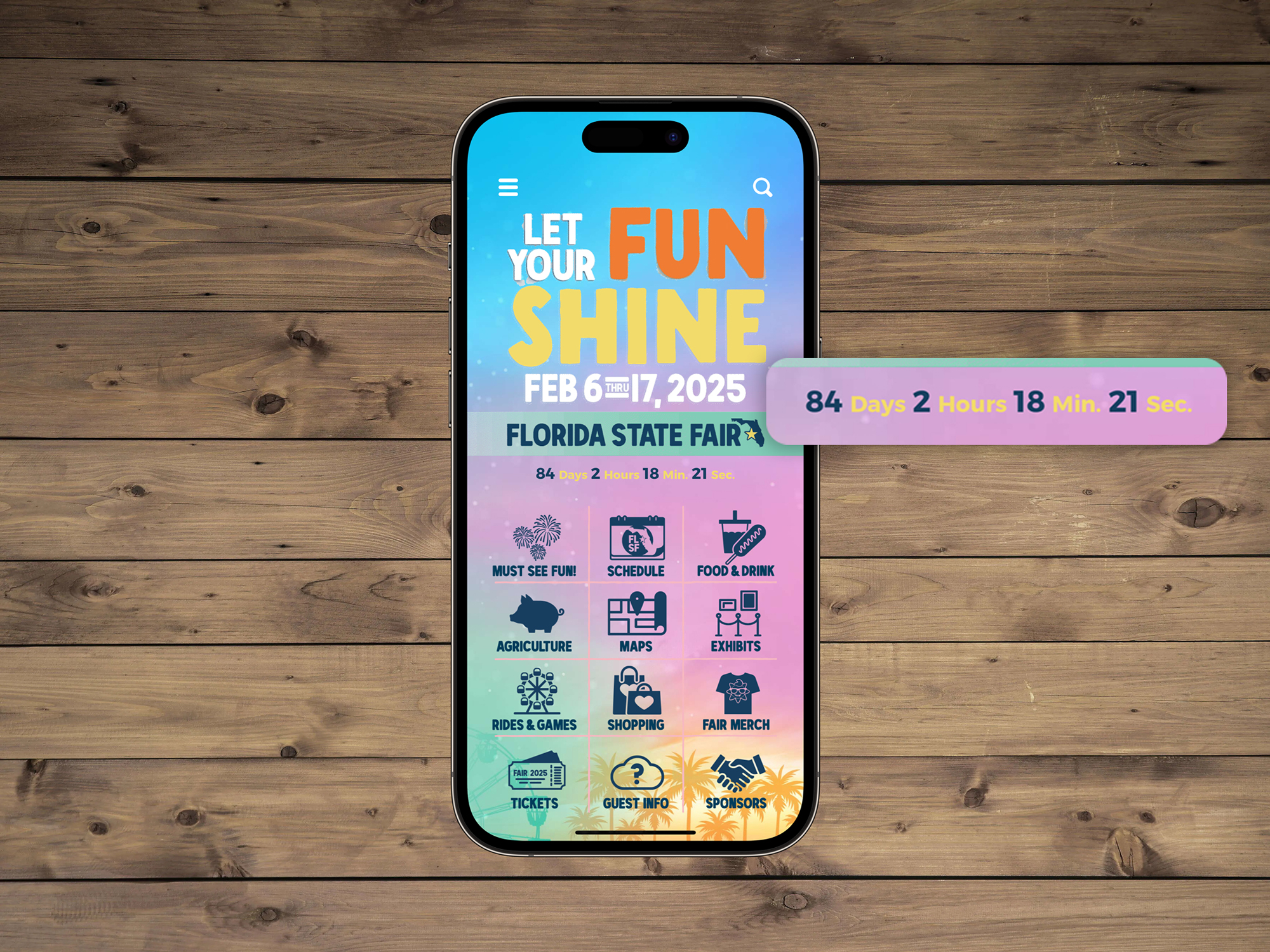
Product Updates
Published November 14, 2024
At Grandstand, we’re always looking for ways to help you engage your audience and make your app truly shine. That's why we’re thrilled to announce the rollout of our brand-new Countdowns feature, available for apps with the Gold Package or higher starting November 14, 2024. What are Countdowns? The new Countdowns feature is a versatile tool that allows you to create excitement and anticipation around your events by displaying a live countdown right on your app's homepage. Whether you’re counting down to a special event, a product launch, or a seasonal celebration, this widget adds a dynamic touch to your app that your users won’t be able to miss! Where Can You Place the Countdown feature? Countdowns are designed to fit seamlessly into your app's design. You have multiple placement options to choose from: Above your logo for maximum visibility. Below your logo or hero image to complement your brand identity. Under your icons or graphics for a subtle yet impactful presence. No matter where you place it, the widget will stand out and draw attention to your upcoming events. Customization Options We know that every app is unique, so we’ve packed Countdowns with a range of customization features: Time Units Display: Choose which time units to show (days, hours, minutes, seconds) based on the length of your countdown. Fonts and Colors: Match the widget to your app’s branding with customizable fonts, text colors, and background colors. Size and Positioning: Adjust the widget size and placement to fit perfectly within your app’s layout. Custom Completion Message: Set a special message that will automatically display when the countdown hits zero. Whether it’s a “Happy New Year!” celebration or a “Welcome to the 2025 Festival!” notification, you can personalize it to match your event. How to Get the Countdown Widget Countdowns are available exclusively for apps with the Gold Package or higher for any new apps submitted after November 14, 2024. If your app already meets these criteria, adding the widget to your homepage is quick and easy. For apps on lower packages, you can upgrade to Gold to access this and other premium features. Why Add a Countdown to Your App? Countdowns are a proven way to drive user engagement and excitement. Here’s why you should consider adding the Countdown feature to your app: Create Urgency: Build anticipation for your events and encourage users to act before time runs out. Highlight Key Dates: Promote events, product launches, sales, or special announcements in a visually striking way. Enhance User Experience: Add a dynamic and interactive element to your homepage that keeps users coming back. Get Started Today! Ready to add a Countdown feature to your app? Contact the Grandstand support team to get started, or log into your dashboard to explore the customization options. Don’t miss out on this exciting new feature to enhance your app's homepage! Upgrade to the Gold Package or higher to start counting down to your next big event.
Read More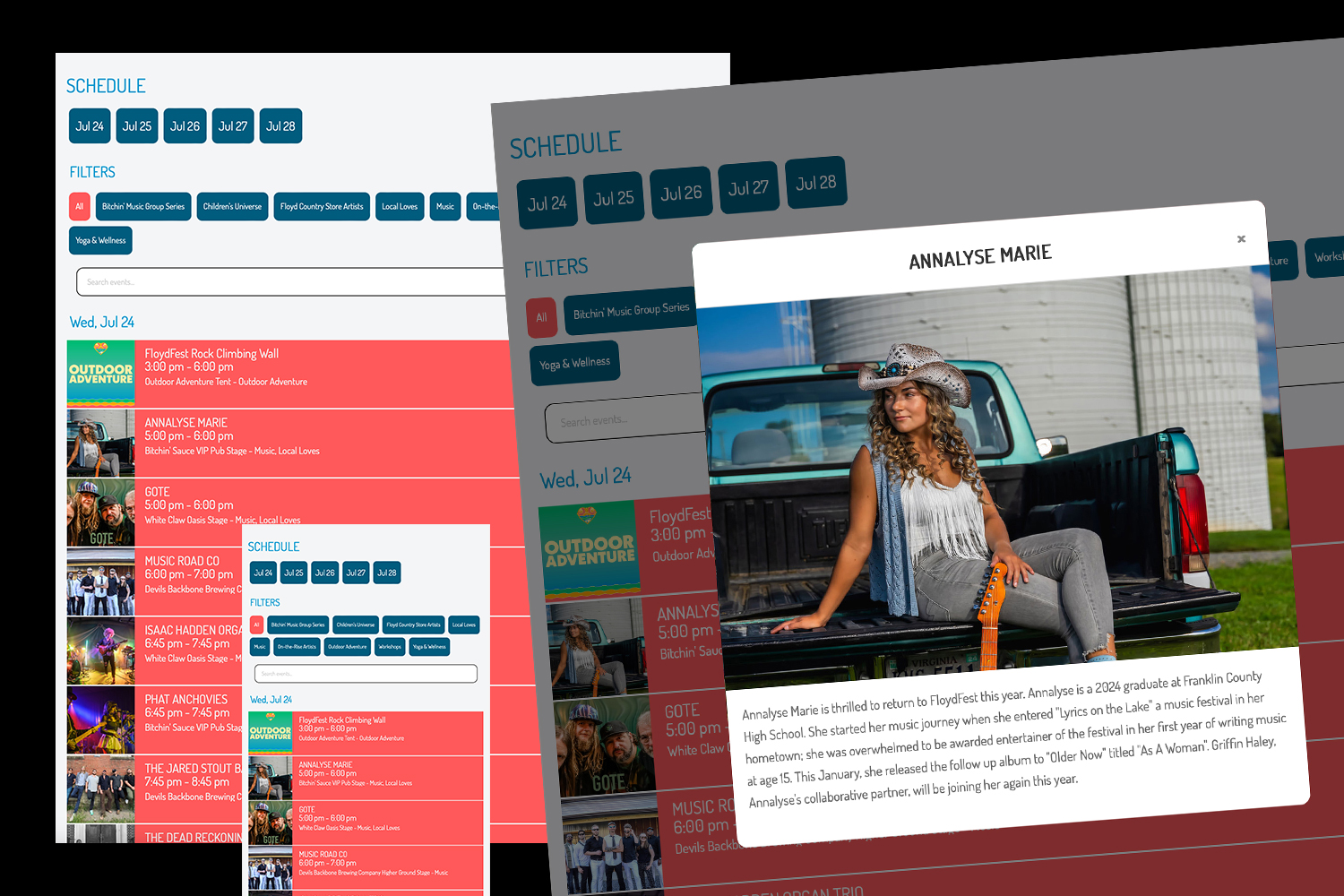
Product Updates
Published November 1, 2024
It’s essential for event organizers and organizations to make content accessible across various formats to reach and engage their audience effectively. Grandstand understands this need and has completely transformed its web widget, offering unmatched customization, powerful features, and intuitive controls. This reimagined widget makes it simple to adapt your event content to fit seamlessly with your website, ensuring a cohesive, polished presentation that helps you reach attendees wherever they are. Infinite Styling, Flexible Layouts, and Custom Adjustments The new Grandstand web widget puts you in control. With a vast array of settings and styling options, you can easily design a widget that complements your website’s aesthetic. Whether you’re managing a festival, conference, or community event, the reimagined widget adapts effortlessly to reflect your brand. For those using a JavaScript embed, you can even leverage your website’s existing styles and select from 50 Google Font choices for a fresh new look without the hassle of coding. The widget’s flexible layouts add another level of versatility. Schedule and List widgets come with multiple layouts—five for Schedule and four for List—each with various configurations. Lists are ideal for displaying Food Vendors, Artists, Performers, Sponsors, and even FAQs, and you can give each list a unique style, ensuring that different categories stand out visually. The newly added Popover Layoutbrings a modern, interactive experience for both Schedule and List, complementing existing expandable options. With Map customization options, you can adjust the look and feel to create an engaging visual guide for attendees. Each component now offers real-time previews so you can see exactly how it will look on your website, whether you choose the JavaScript or iframe embed.
Read More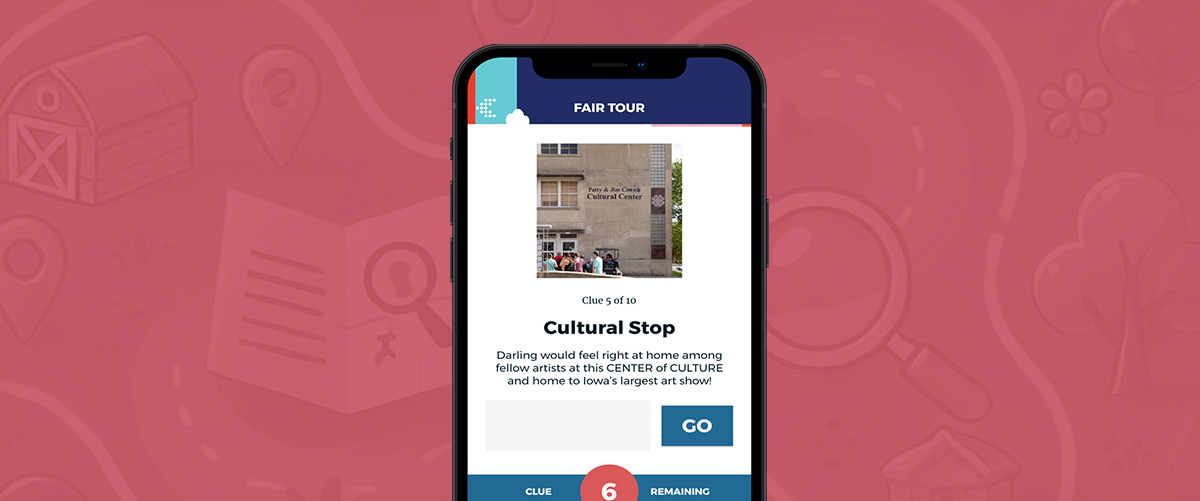
Product Updates
Published October 4, 2024
If you’re organizing an event with multiple vendors and want to increase booth traffic and engagement, a scavenger hunt might be just what you need. Grandstand Apps offers a built-in scavenger hunt module that can transform a typical vendor showcase into an interactive, memorable experience. Here’s how it works and why it’s a fantastic way to drive attendees to your vendors’ booths.
Read More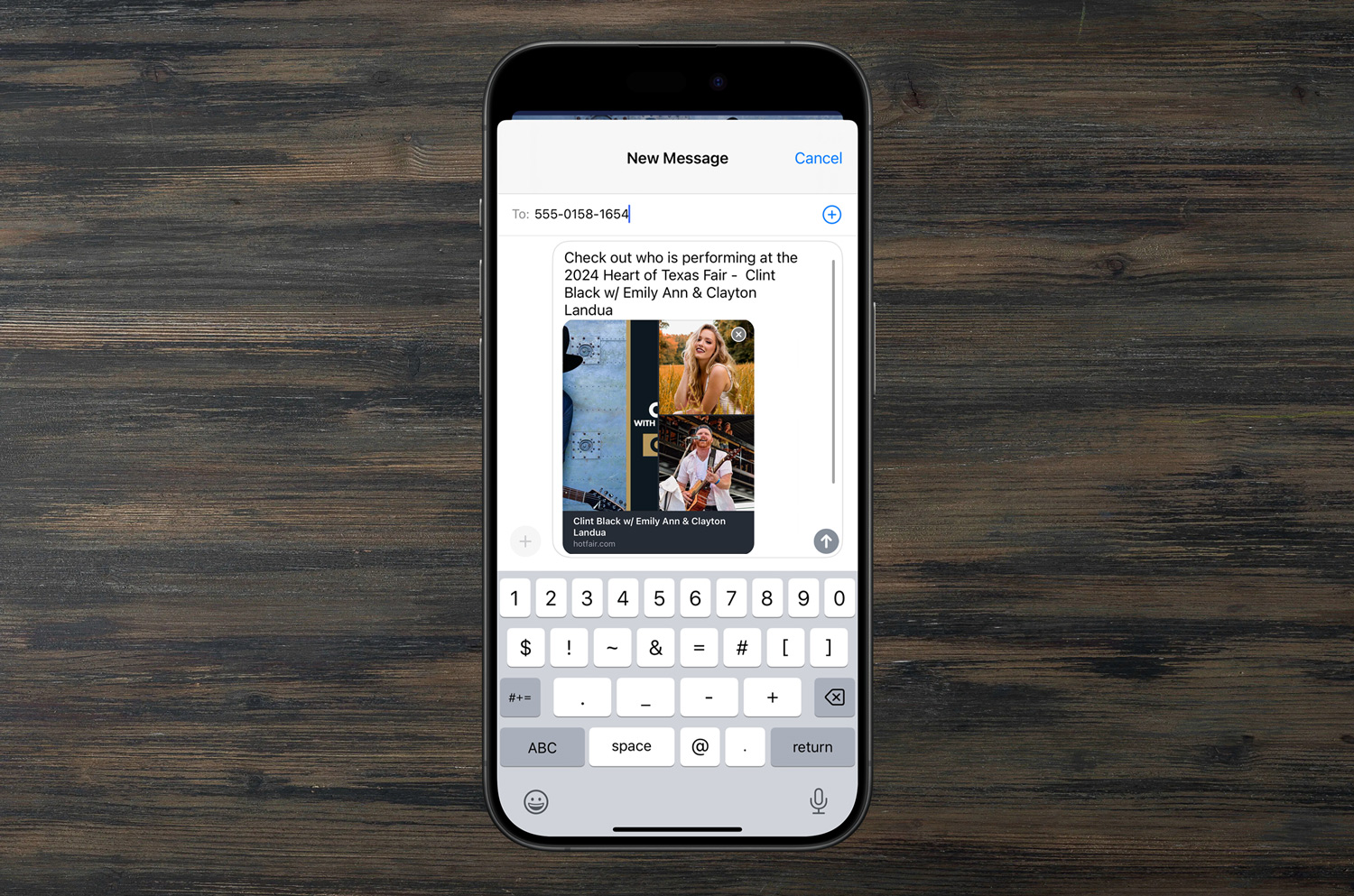
Product Updates
Published October 1, 2024
Grandstand understands that sharing is one of the most crucial elements of any app. It's how users spread the word about events, vendors, and experiences to their friends, family, and colleagues. That's why we’re excited to introduce several new features that give you even more control over what gets shared and how it’s shared from both the app and the admin side. These enhancements empower you to customize and fine-tune the sharing experience, ensuring that your users share the right message at the right time. Let’s dive into the new and existing options available in the three primary areas where sharing takes place: Schedules, Maps, and Lists. 1. Lists One of the most dynamic features in your app is the List functionality, which covers everything from food vendors to performers, FAQs, and more. With our latest update, we’ve added flexibility to let you decide exactly what gets shared and how it’s presented. Key Features: - Default Content Control: As of August 5, 2024, all apps now allow you to set the default shareable content for lists. You can select combinations of the Title, URLs, descriptions, and subheaders to be shared. The best part? It’s adjustable for each list. For example, you may want to make the menu for a food vendor shareable but only the URL link for a performer’s band page. - Starter Message Customization: Since the end of July 2024, you’ve had the ability to edit the initial message that accompanies shared content. This means you can add promotional hooks like “New Food for 2024 – ” or “Don’t miss the amazing performances of …” right from the admin panel. - Ending Message Customization: A soon-to-be-released feature will allow you to edit the message that appears at the end of shared content, such as “Download the Official app on iOS and Google Play!” 2. Maps Navigating your event just got easier with improved Map sharing features. Whether users are dropping pins or sharing key locations, Grandstand automatically adds a Google Maps link for smooth navigation. Key Features: - Google Maps Integration: Since early August 2024, all shared map locations include a Google Maps link with latitude and longitude. This feature ensures that users can easily find any location, whether it’s a vendor booth or a performance stage. - Message Customization: You can edit both the beginning and ending messages of shared map locations directly in the admin. Want to add a welcome note or a download prompt? No problem! - Share Toggle: Not all apps want to make their locations shareable. Starting in August 2024 admins now have the option to turn off sharing for specific map points, giving you complete control over what gets distributed. 3. Schedules Event schedules are one of the most frequently shared aspects of any app. Grandstand makes it simple for users to share the details of events, performances, and activities with their social networks. Key Features: - Automatic Event Information: Every event shared from the schedule will automatically include the title of the event, the date, and the time. This ensures that users have all the key information they need at a glance. - Hide Share Button: For events that are more private or require limited publicity, admins can hide the share button altogether. This feature has been available in all apps since mid 2023. With these enhancements, Grandstand is providing you with the tools to craft a seamless and tailored sharing experience for your users. Whether it's promoting vendors, guiding attendees to key locations, or broadcasting event schedules, you now have more power to ensure that every share carries the right message.
Read More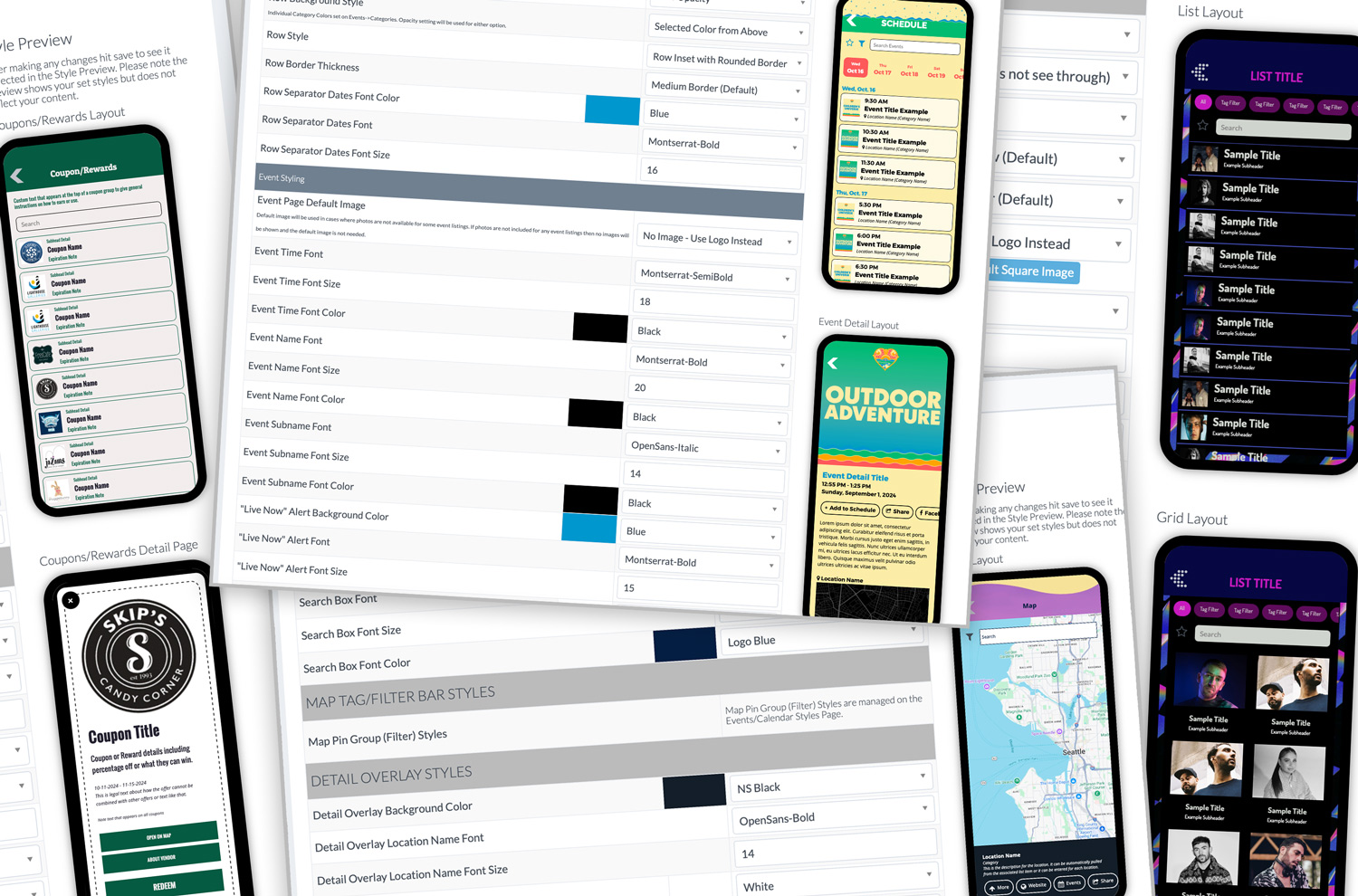
Product Updates
Published September 30, 2024
At Grandstand, we’re dedicated to helping you create an app that truly reflects your brand’s identity. As part of our ongoing commitment to delivering **"Apps with Personality"**, we’re excited to announce a new feature that’s available to all Grandstand partners: the ability to **preview style changes** in **Grandstand Admin** before they go live. Preview Your Changes Before They Go Live This new feature allows you to view style updates in real time, so you can see exactly how your changes will look before making them live in your app. You can now experiment with different styles across various app pages, including: Schedules Schedule Detail Page Lists (Traditional Layout) Lists (Grid Layout) List Detail Page Custom Pages Maps Surveys & Forms Rewards & Coupons Rewards & Coupons Detail Page Scavenger Hunts Whether you're adjusting colors, fonts, or backgrounds, this tool lets you ensure your app design aligns perfectly with your brand before publishing changes. Improved Clarity for Style Updates We’ve made it easier to understand how different style changes affect specific areas of your app. With clearer explanations on what each style update modifies, you’ll have more control over the final appearance of your app, ensuring it’s visually consistent with your branding. Preparing for New Layout Options This style preview feature is part of our ongoing effort to provide you with more customization options. It lays the groundwork for the upcoming release of **new layout options** for nearly all pages, allowing even greater flexibility in how your app looks and functions. Available Now for All Partners The new style preview feature is **available now** for all Grandstand partners, regardless of your package level. It’s particularly useful for previewing interior backgrounds and testing out the new **content squeeze** feature, ensuring your app looks polished and professional. At Grandstand, we’re committed to helping you build an app that not only performs well but also reflects your brand’s unique personality. This latest update is designed to give you more control and confidence in your design choices, helping you create an app that stands out and engages your audience.
Read More
Product Updates
Published September 15, 2024
As an event organizer looking at the cost-effectiveness of your marketing dollars, you are often faced with the critical decision: should I create a dedicated app for my event or rely on a mobile-friendly website? While both options have their merits, event apps offer a range of benefits that go far beyond what a mobile site can deliver. Let’s explore why an app is often the better choice for event engagement and success, and how Grandstand Apps can make this choice easier and more effective for your event.
Archived announcement Read More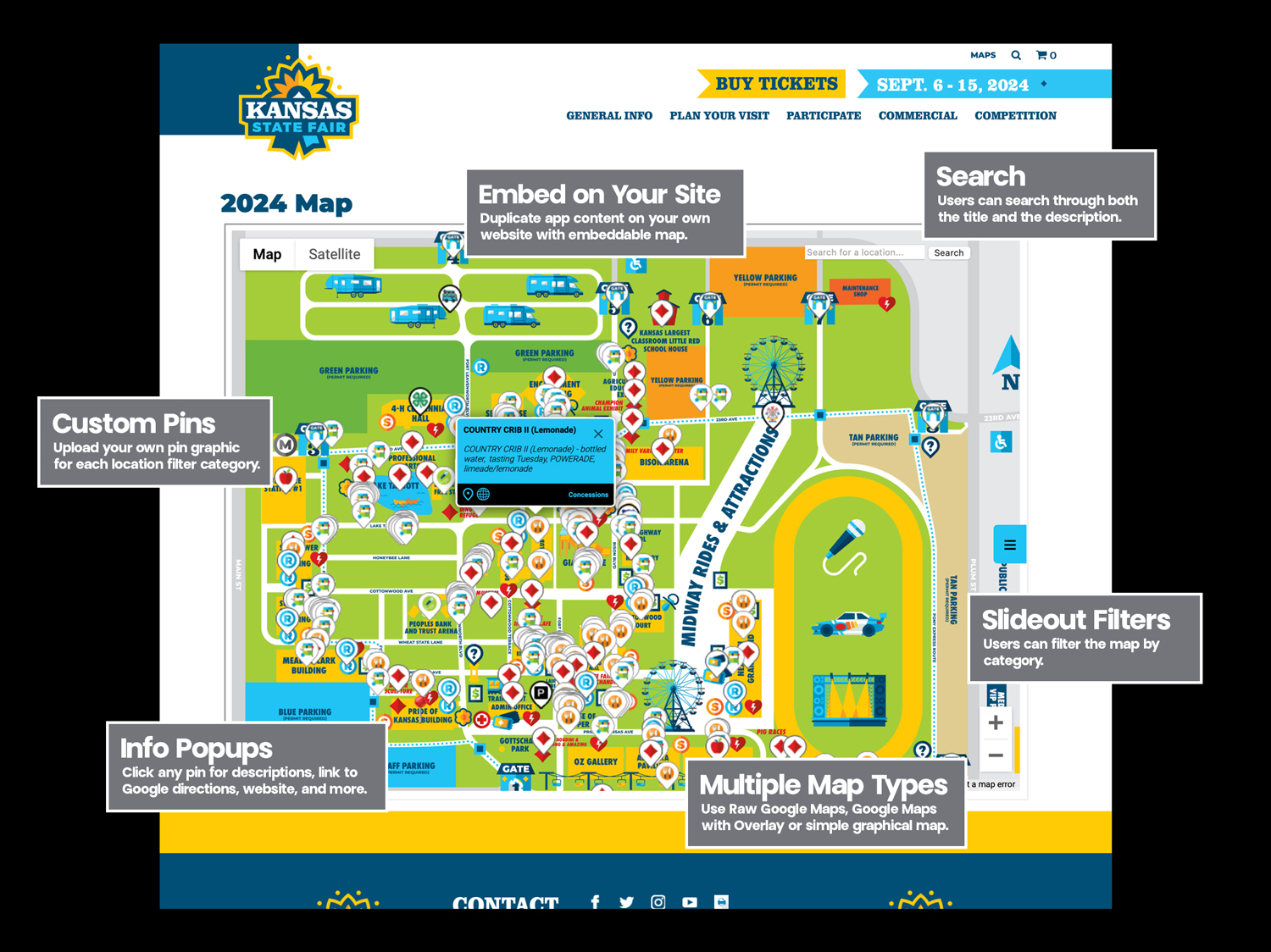
Product Updates
Published September 11, 2024
Whether you’re managing a large-scale event like the Kansas State Fair or a local festival, Grandstand's map widgets are here to level up the way you interact with your visitors. Let’s take a quick look at the cool features that come with this new tool: No Additional Data Entry Grandstand's Map Widgets take the location data already being used for your app and gives it another use. Using the Grandstand Admin if you add a category, a location or upload a new map graphic it will all be automatically applied to your map web widget at the same time it updates in your native mobile app. Easy Website Embed Similar to our schedule and list web widgets, Grandstand provides you with easy code to embed on your own website. Even more importantly, you determine the size and shape of your map widget. Custom Pins No more generic, one-size-fits-all markers! Just like our apps, your web widget can use your your own uploaded pin graphics, making it easy to categorize and differentiate locations on your map. From food vendors to parking spots, everything can have its own unique look. Info Popups Clicking on a pin isn’t just for zooming in anymore. Now, each pin comes with its own information popup. Users can see details about the location, get Google directions, and even click through to websites or more content. Want to promote a special lemonade stand? You’ve got it covered! Multiple Map Types Not everyone loves raw Google Maps (though we do offer that as an option). With Grandstand’s Map Web Widgets, you can choose between different map types, including overlays or simple graphical versions. Whatever fits your event’s vibe. Search Finding a specific booth or vendor? Easy. Our built-in search lets users explore both the titles and descriptions of locations, so they can quickly get where they want to go. Slideout Filters With so many things happening at events, you need a way to simplify. Grandstand’s widget offers slideout filters that let users sort by category, like food, rides, or attractions. Less scrolling, more enjoying. Map Web Widgets by Grandstand is here to take your event’s digital experience to the next level. It’s never been easier to help visitors navigate, find what they’re looking for, and enjoy the best of your event. Many web widget packages will include the new map web widget at no extra cost. Others will require an additional fee to unlock this new feature. Because of fees associated with Google Maps usage, all packages contain a usage cap, but we will never shut you off and will always notify you before incurring additional costs. You will also have full transparency to your web map widget usage. In addition, packages are available for non-app partners for the first time ever allowing them access to our easy-to-use admin to setup a powerful web widget. This tool is designed for maximum flexibility, ensuring your event map is as engaging and functional as possible.
Archived announcement Read More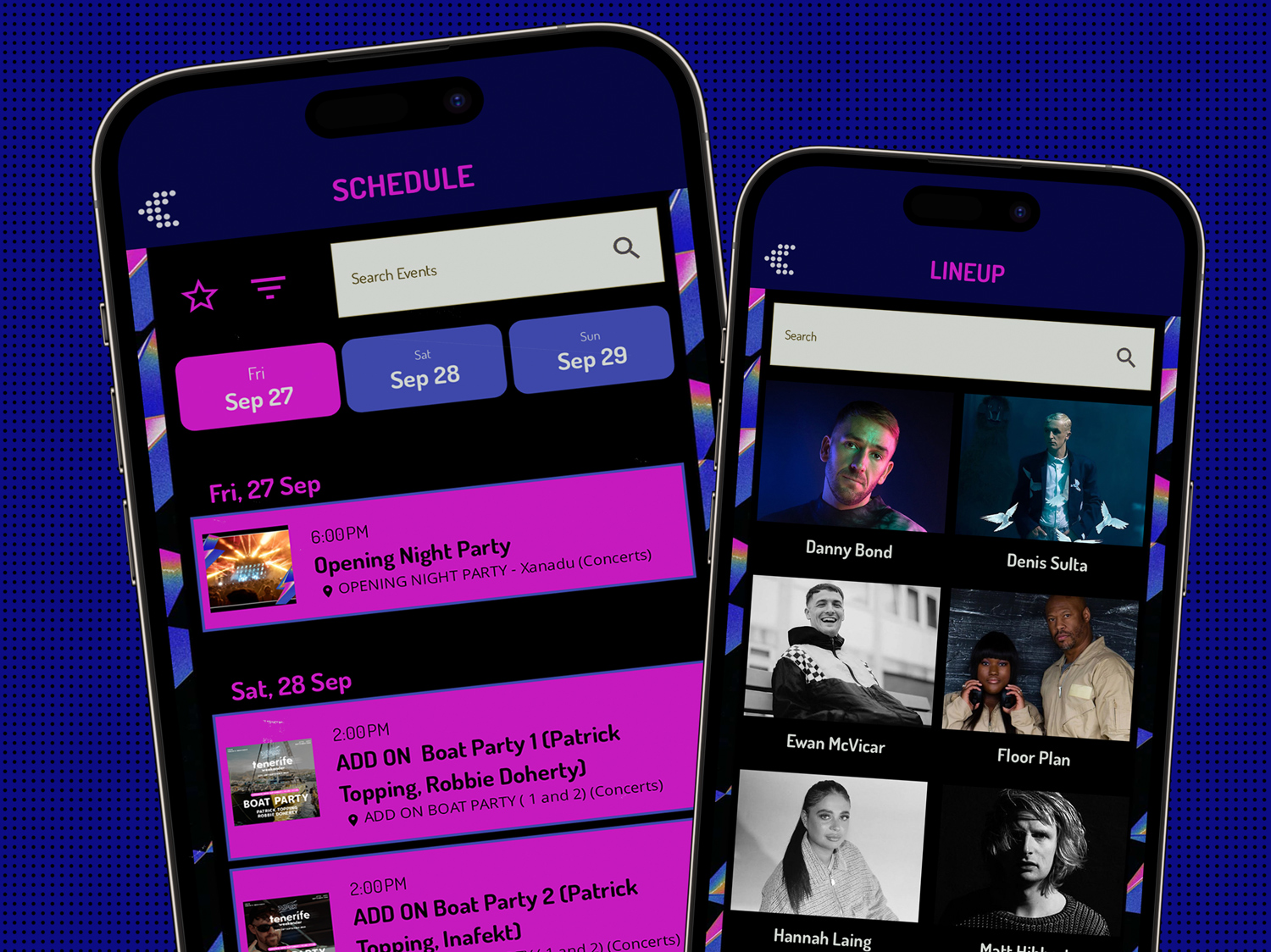
Product Updates
Published September 10, 2024
At Grandstand, we’ve always prided ourselves on creating Apps with Personality. From the very beginning, we’ve allowed for extreme customization of the app home page and interior landing pages, giving you the power to make your app truly yours. But we’re not stopping there! We’re excited to announce even more ways to stylize the interior pages of your app. Since earlier this year, you’ve had the ability to add custom backgrounds to a wide range of interior pages—like Schedules, List Pages, Scavenger Hunts, Quizzes, and Surveys—making it easy to keep your app’s look consistent with your brand. Now, as of September 2024, we’re taking things up a notch! You can now squeeze your content, allowing your background graphic to really shine through, including graphics with complex borders. Every page with a custom background now has the option of adding extra padding, so the layout feels smooth and natural. It’s just another way we’re making sure your app matches your style down to the last detail. Backgrounds can be added to interior pages for all apps in Package 3 or higher. At Grandstand, we’re always committed to delivering Apps with Personality, and more announcements in the next few months will continue to reflect that charge.
Archived announcement Read More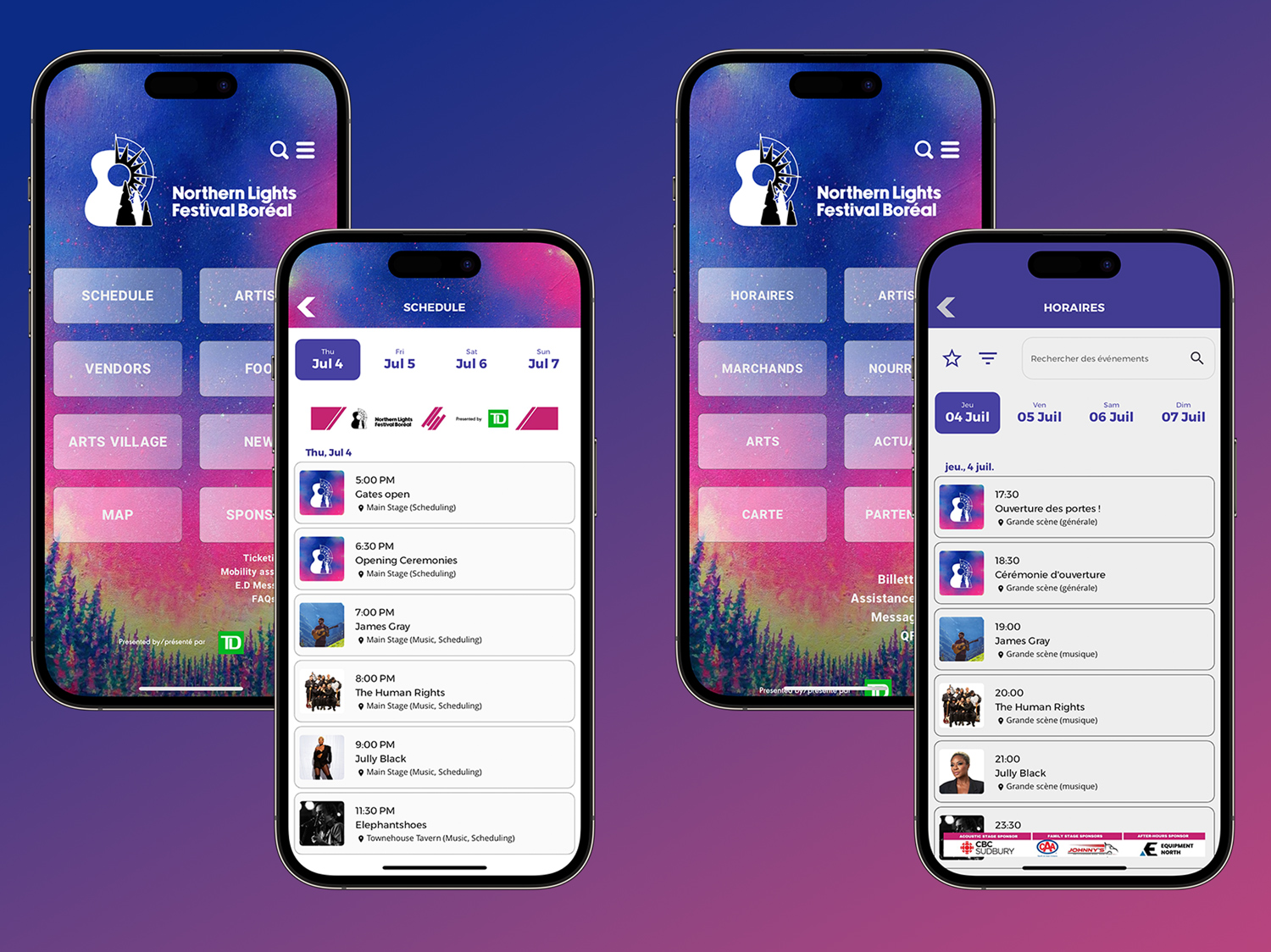
Product Updates
Published September 3, 2024
Did you know that your Grandstand app doesn’t have to be limited to just one language? With our latest feature, you can now add a duplicate version of your app in a completely different language, making it even easier to reach a broader audience! Whether you're looking to connect with Spanish, French, German, or English speakers, you can now fully customize the graphics and content to fit the language of your audience. Plus, all system dialogues will be displayed in the selected native language, ensuring that users feel right at home when navigating through your app. Starting at just $500, you can create a full second app in another language. The best part? It gets submitted as a single app to the App Stores with a simple language switcher built right in. This means your users can easily switch between languages whenever they want! And it doesn’t stop there! You can even send alerts in a specific language to users based on which version of the app they’re using. Need to reach your German audience with important event updates? No problem! Sending targeted messages in their native language is a breeze. Ready to expand your reach and provide a more personalized experience? Contact your Grandstand representative today to add a second language to your app and take your event to the next level!
Archived announcement Read More
Product Updates
Published June 12, 2024
The Apple Worldwide Developers Conference (WWDC) on June 10, 2024, always has announcements that affect new features or new limitations for mobile apps. This year's AI announcements were some of the most consequential in recent years. As always, Apple has set the stage for innovation and has significant implications for Grandstand's clients. Here's a breakdown of the key takeaways from the keynote and what they mean for our ecosystem, knowing that more than 60% of our app users continue to use iOS: AI: A Practical and Secure Approach Apple's approach to artificial intelligence (AI) was a highlight of the keynote. Instead of presenting AI as a monolithic, all-encompassing entity, Apple showcased AI as a series of practical features designed to enhance specific functions securely. While the immediate usage is restricted to Apple's own apps, tools are being put in place to allow apps in the future to make select information available to the larger system and make it accessible to the AI system. This could be event schedules, food vendors, instructional pdfs, even map information. The only problem is that this would be restricted to iOS users so Grandstand is exploring additional opportunities to bring natural language search into our own apps with much of that processing happening in the cloud and in the app. Stay tuned for many more announcements over the next year. Simplified Demos and Troubleshooting One of the standout features introduced is Mac iPhone mirroring. This tool is a game-changer for sales and support teams. With the ability to mirror iPhone screens on a Mac, demonstrating app features and troubleshooting issues will become significantly more straightforward. This enhanced visibility and control can lead to quicker resolutions and more effective training sessions, ultimately improving customer satisfaction.
Archived announcement Read More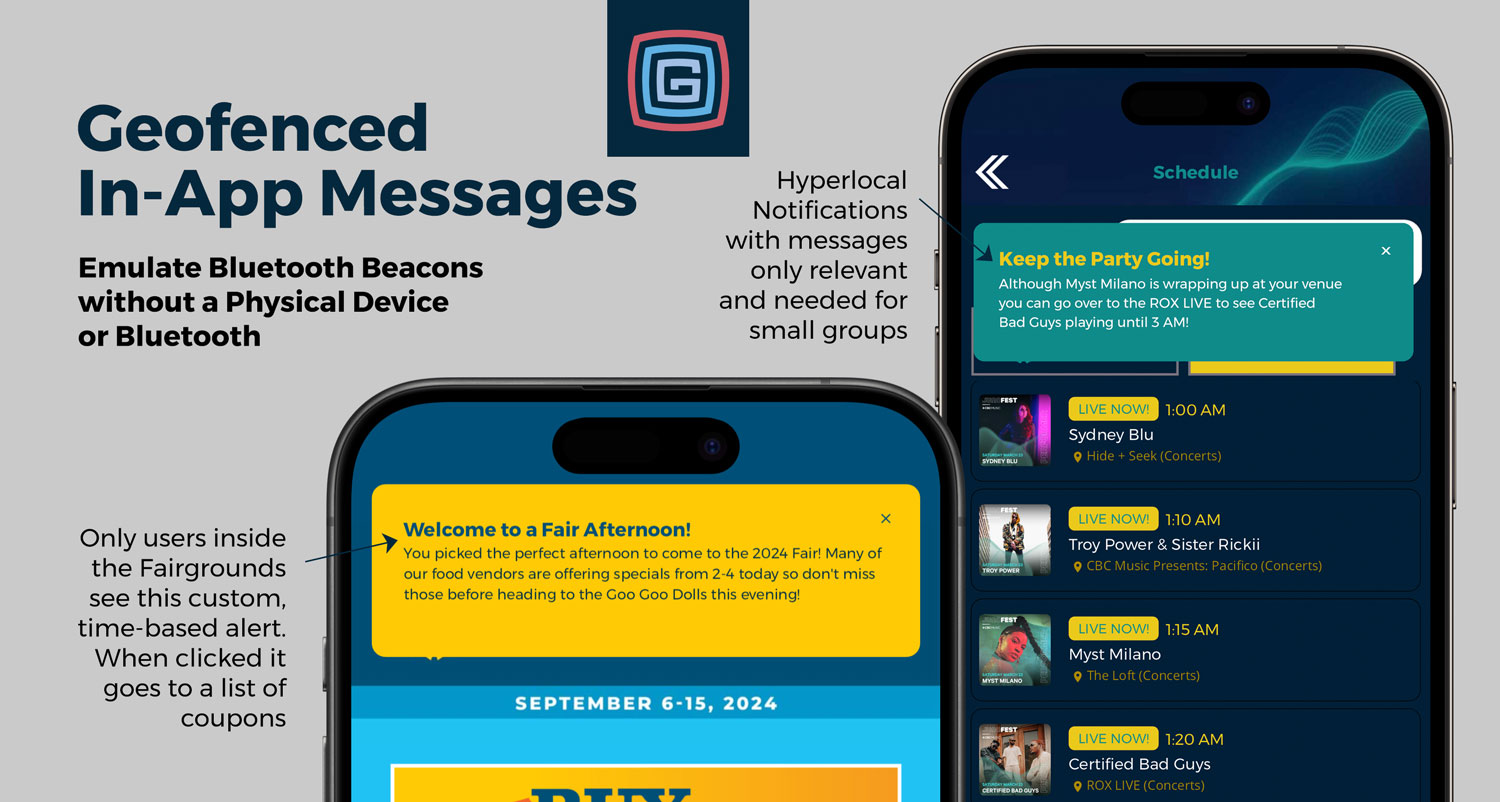
Product Updates
Published June 5, 2024
Grandstand is set to transform how mobile apps engage with users through a groundbreaking new feature. Launching in apps submitted after June 1, 2024, this innovative product allows for sending targeted, geofenced messages without the need for users to accept alerts or opt into specific alert types. This cutting-edge functionality promises to enhance user experience dramatically, providing timely and relevant information exactly when and where it's needed. Seamless Integration Across App Interfaces One of the most compelling aspects of this new feature is its versatility. Messages can be displayed across various pages within an app, including the home page, schedule pages, list pages, custom pages, and map pages. This flexibility ensures that the right message reaches the right users at the right time, tailored to the context of their interaction with the app. As an app administrator you have full control to only show alerts to users of the map, the schedule, or the first available page the user accesses in the app. And because these are based on the user location you can make the range extremely small (like a Bluetooth Beacon would behave) or larger (the full venue for example). Real-World Applications The potential applications of this feature are vast and varied. Here are a few examples of how it can be used: Event Welcome & Parking Guidance: Imagine welcoming attendees to a festival with a timely alert about overflow parking as they approach the venue. This not only improves the user experience but also helps manage traffic flow efficiently. Localized Event Notifications: For events spread over large areas, this feature can alert users in specific zones about upcoming activities. For instance, attendees in the northeast corner of an event can receive notifications about a show starting soon nearby, encouraging timely participation. Promotional Alerts: This feature can also drive sales and engagement by alerting users to special offers when they are near a particular booth. For example, app users steps away from your booth could receive a coupon, enhancing their event experience and boosting your sales. Emergency Alerts: In critical situations, such as a gas leak at an event, this feature becomes an essential tool for safety management. It can promptly direct users in the affected area to avoid danger, demonstrating the feature's importance in crisis situations.
Archived announcement Read More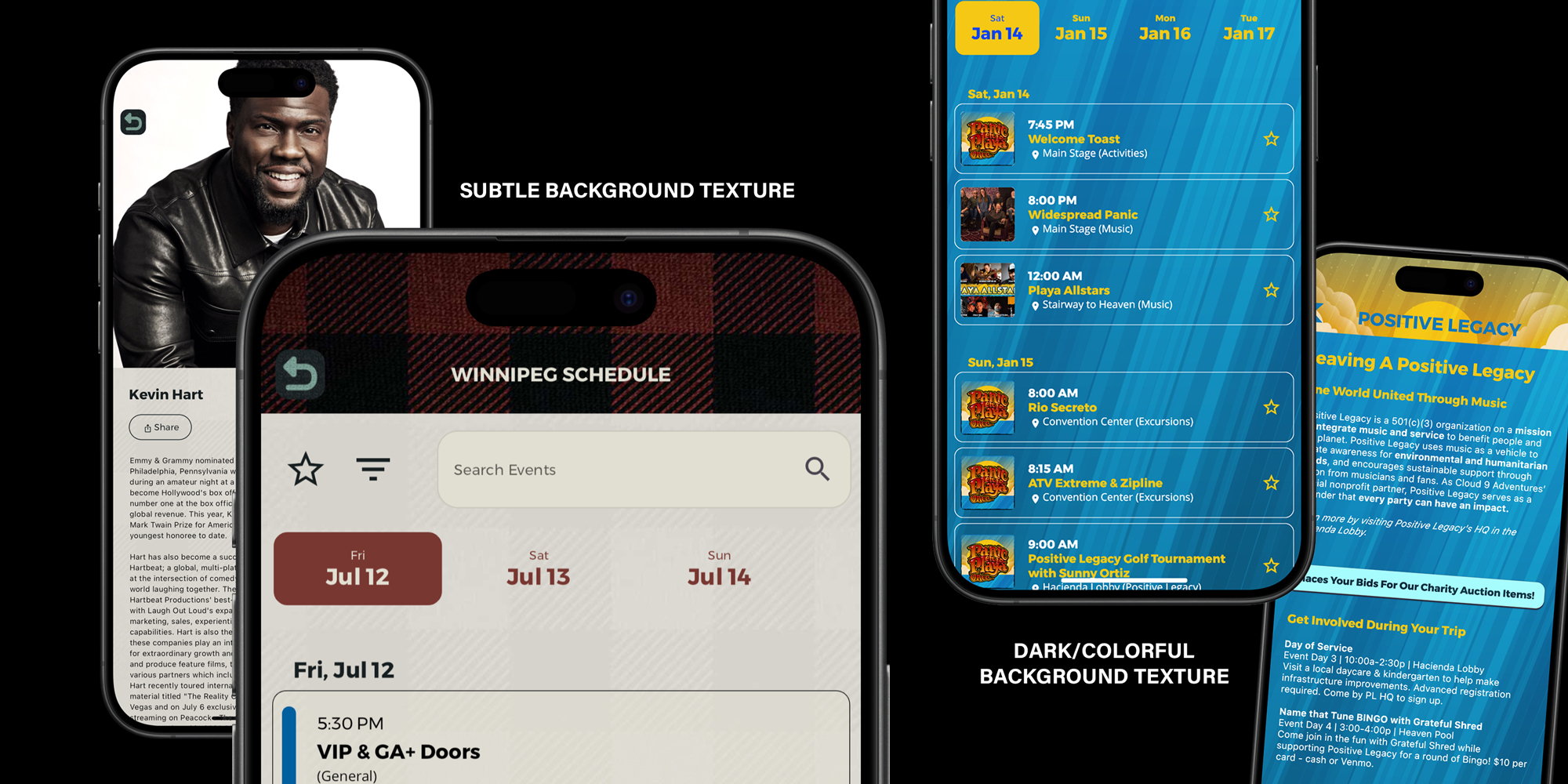
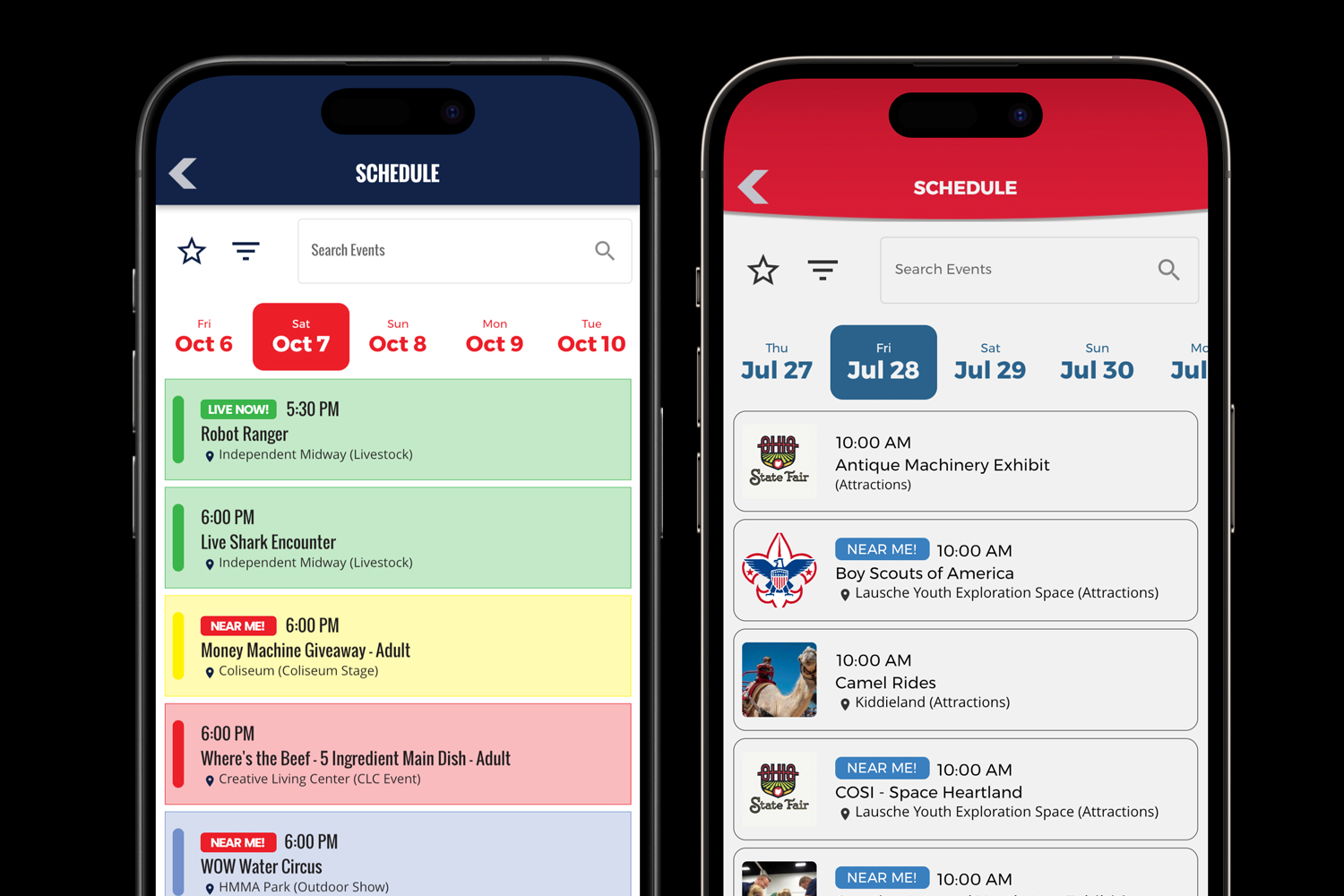
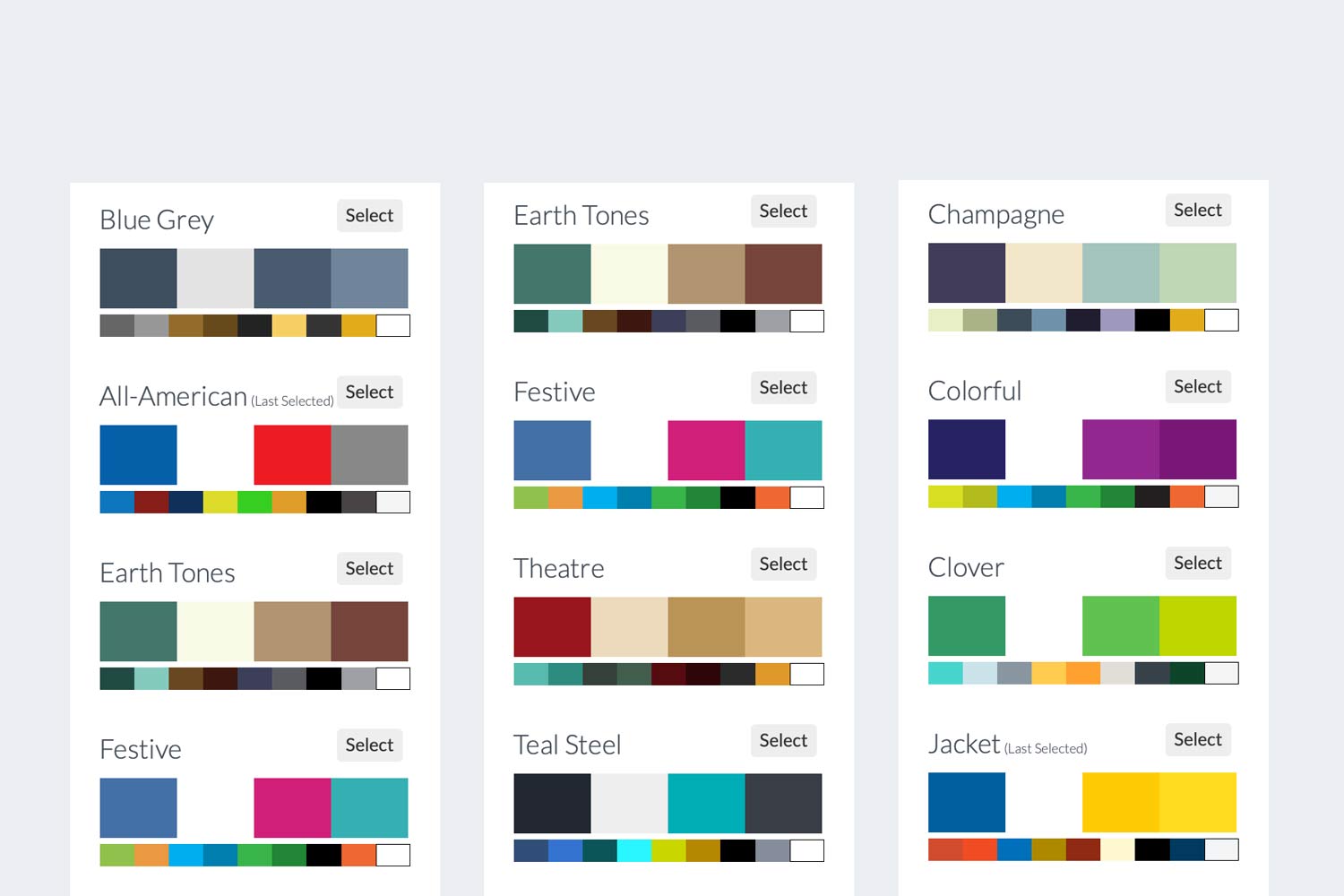
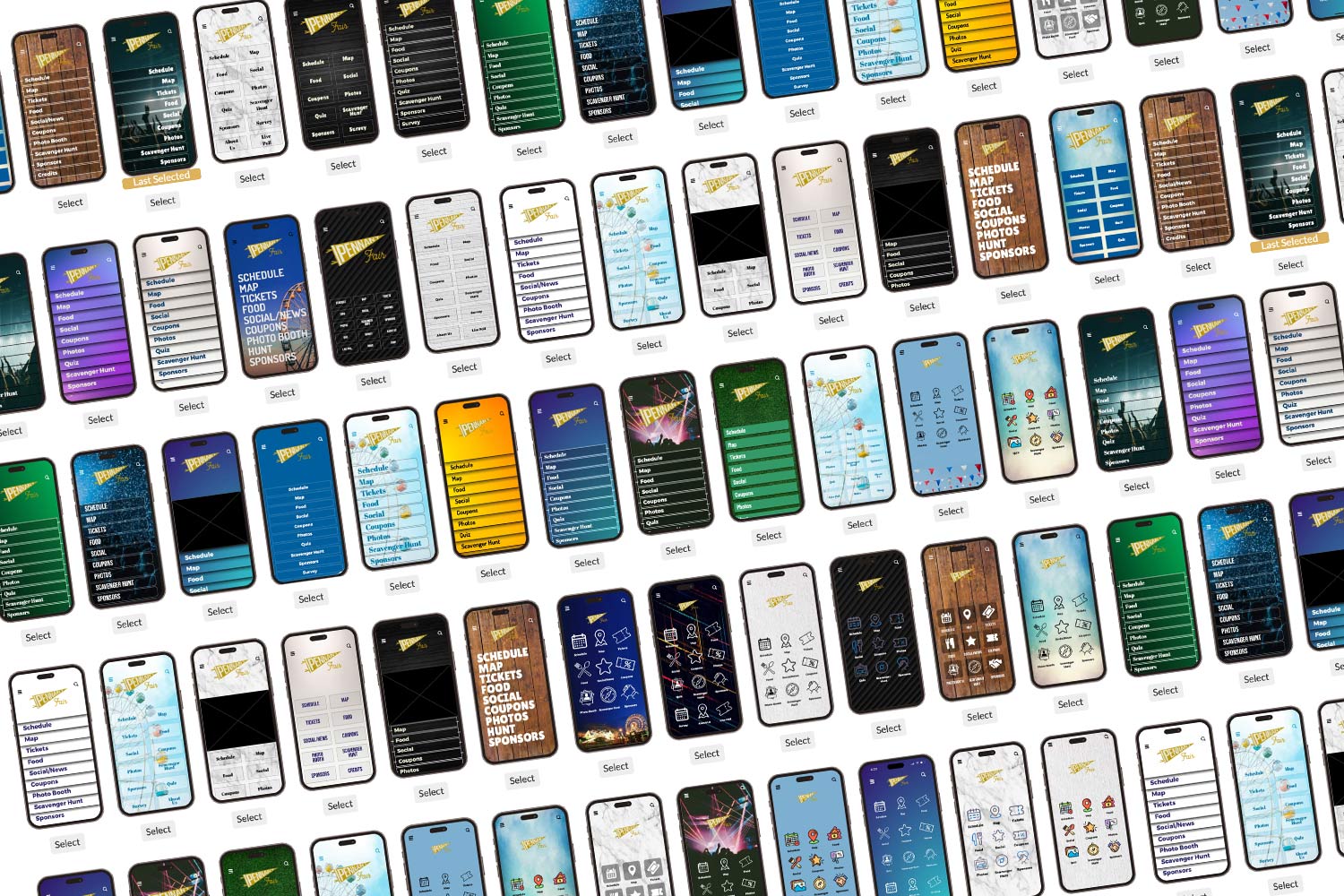
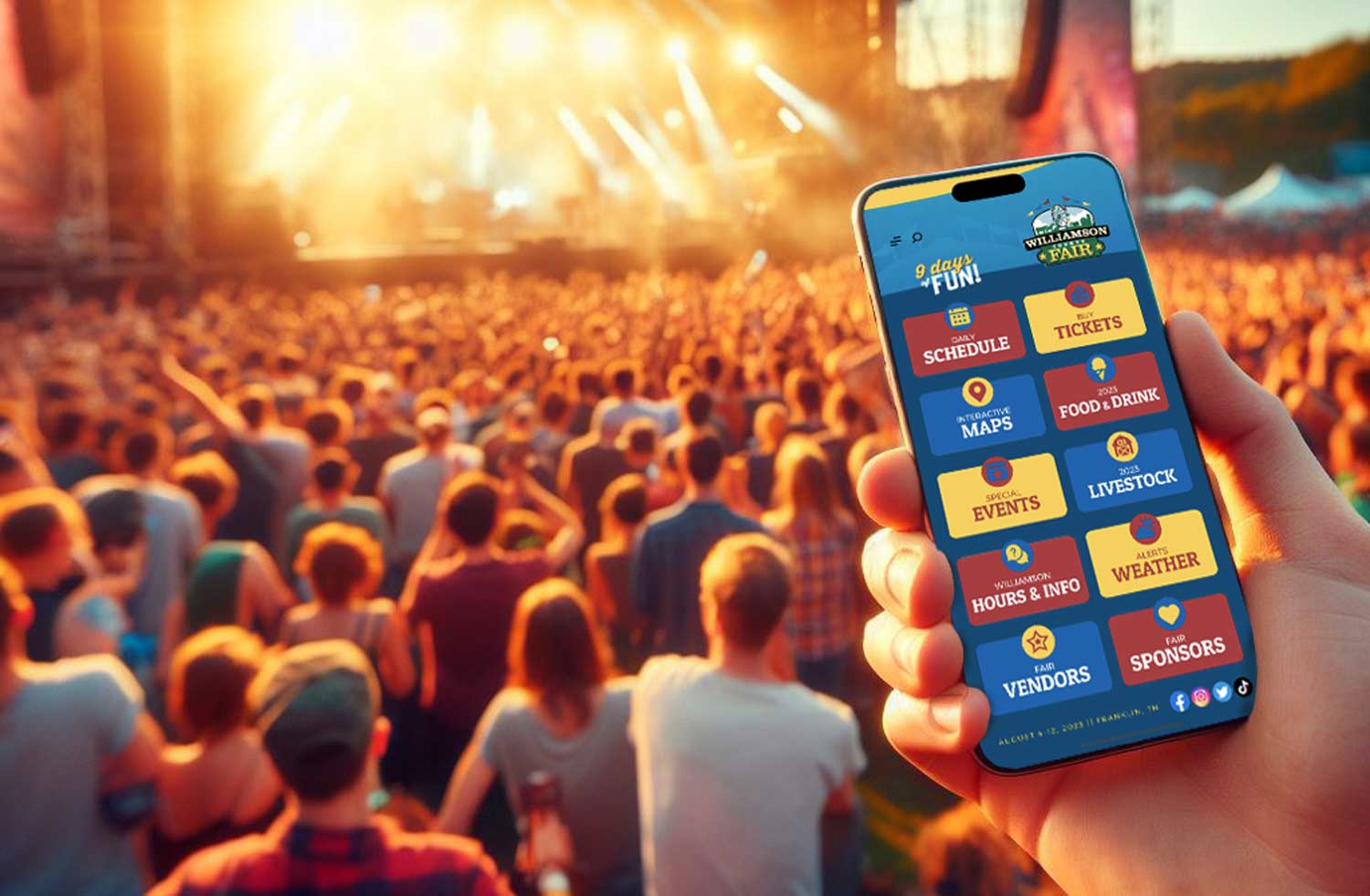
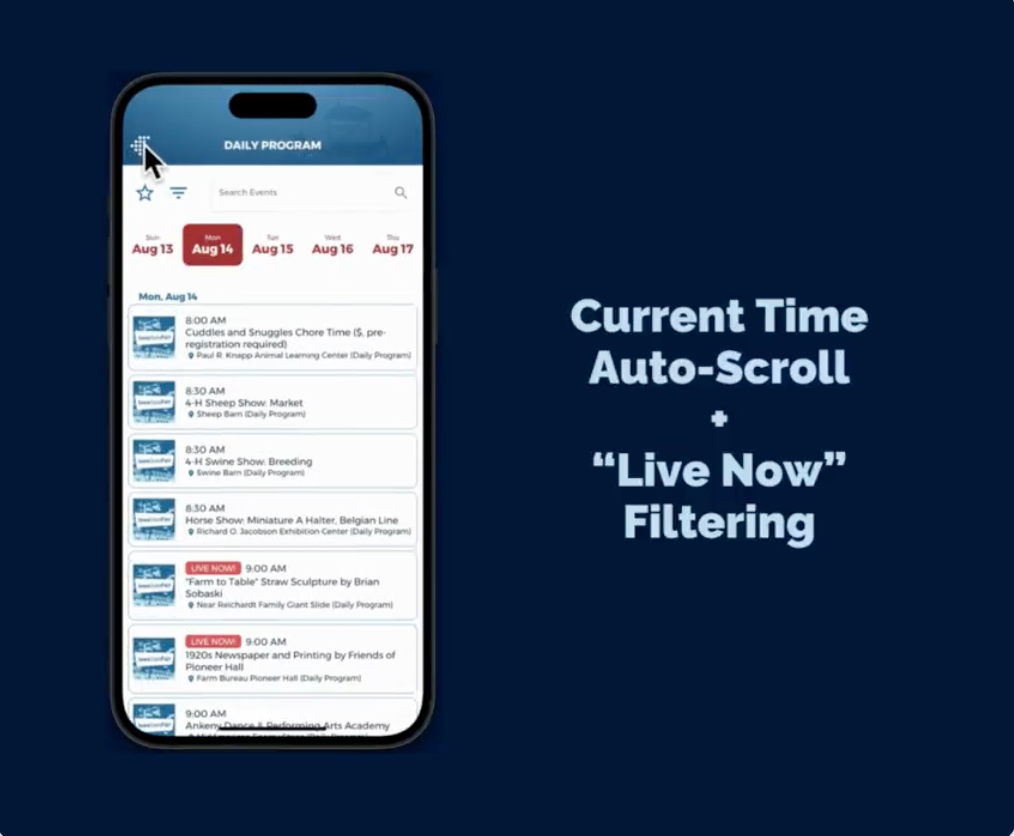
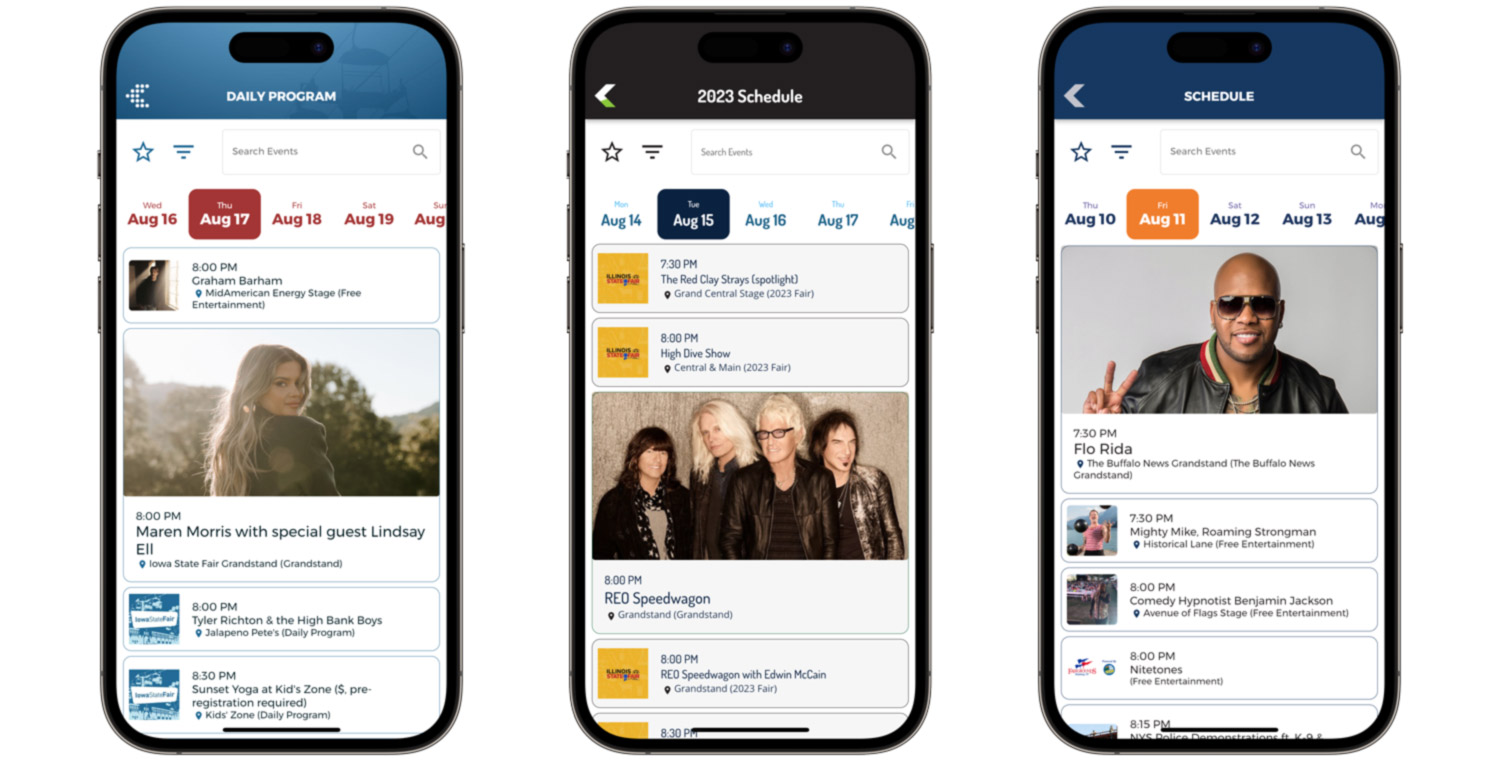
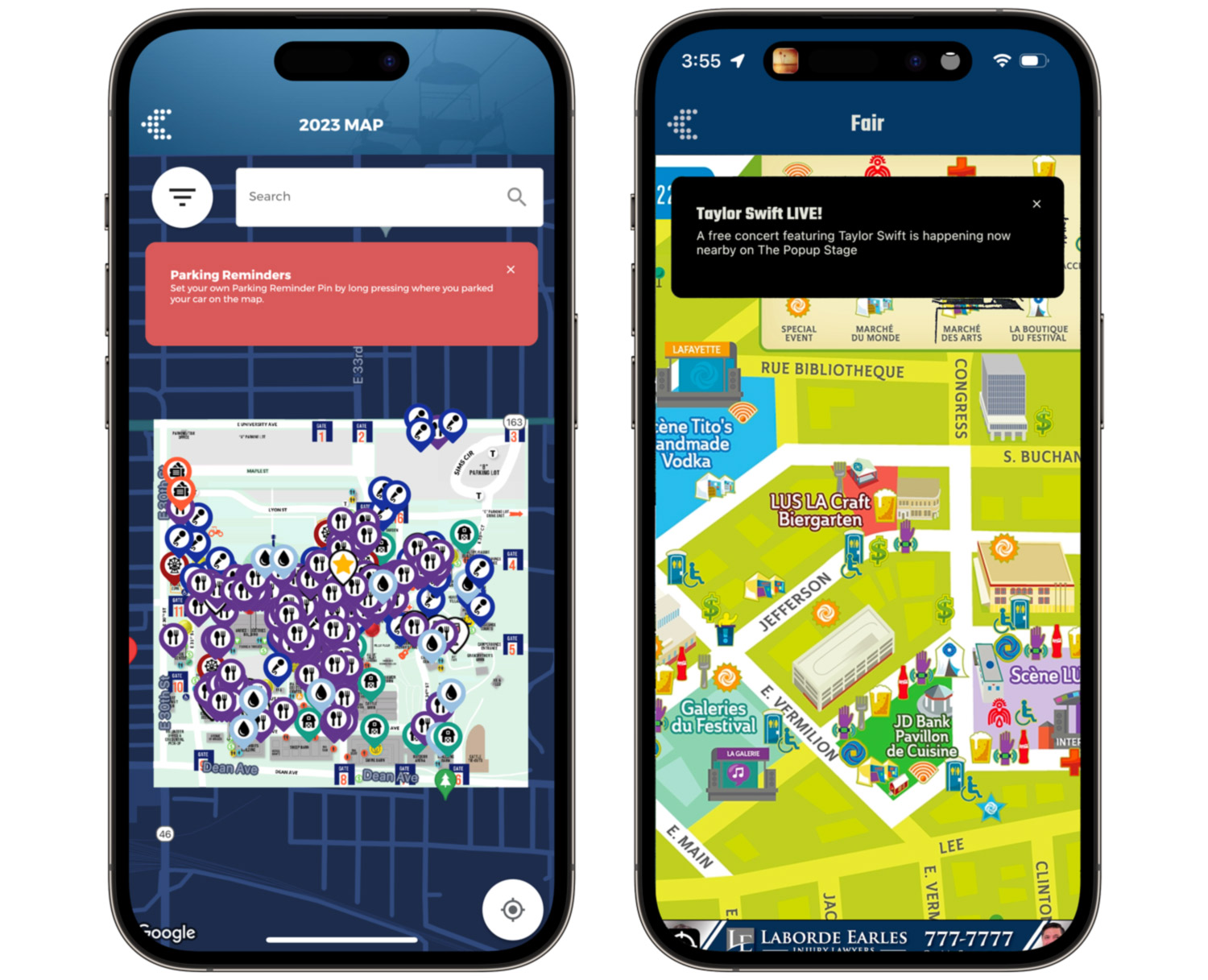
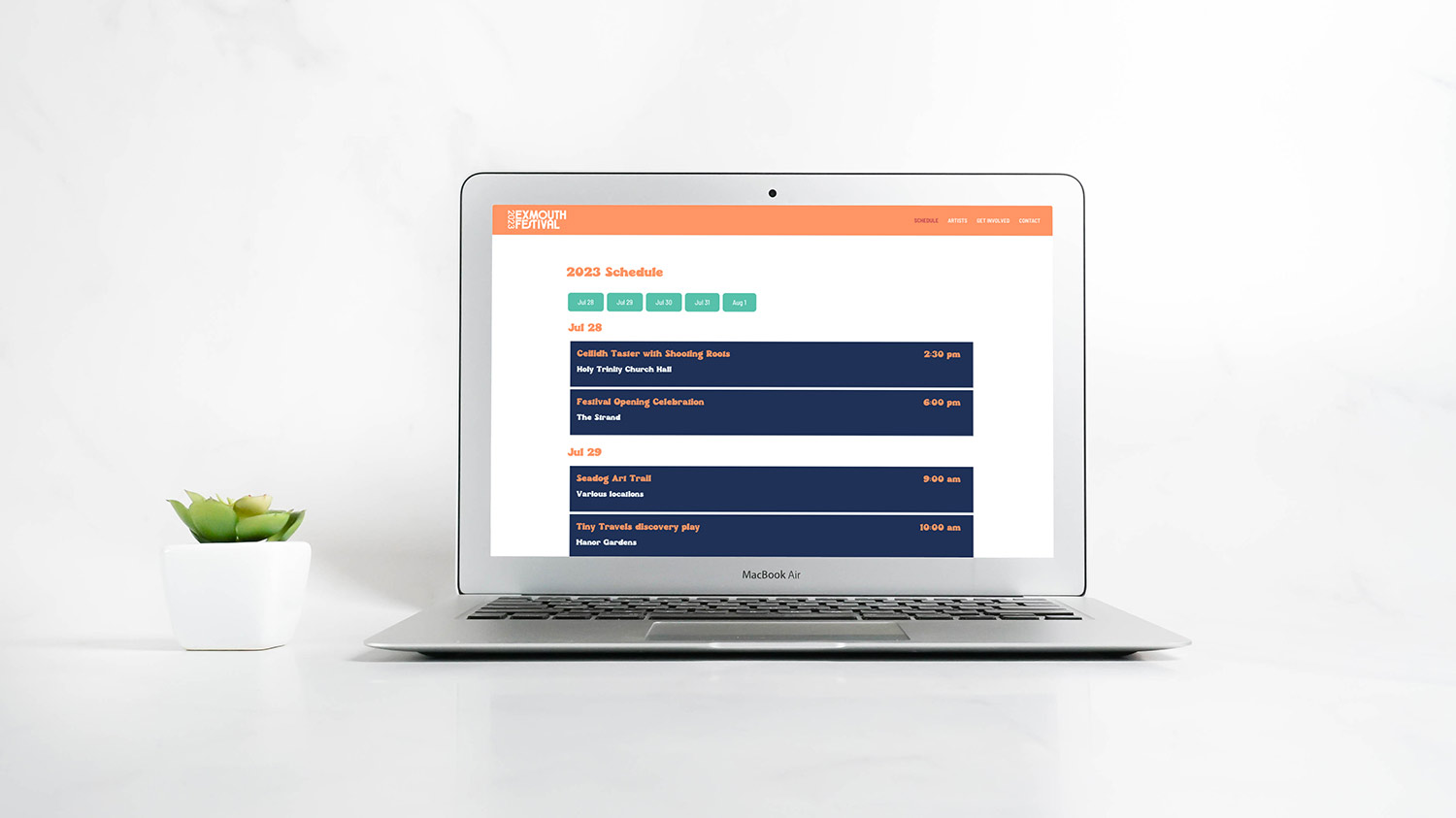
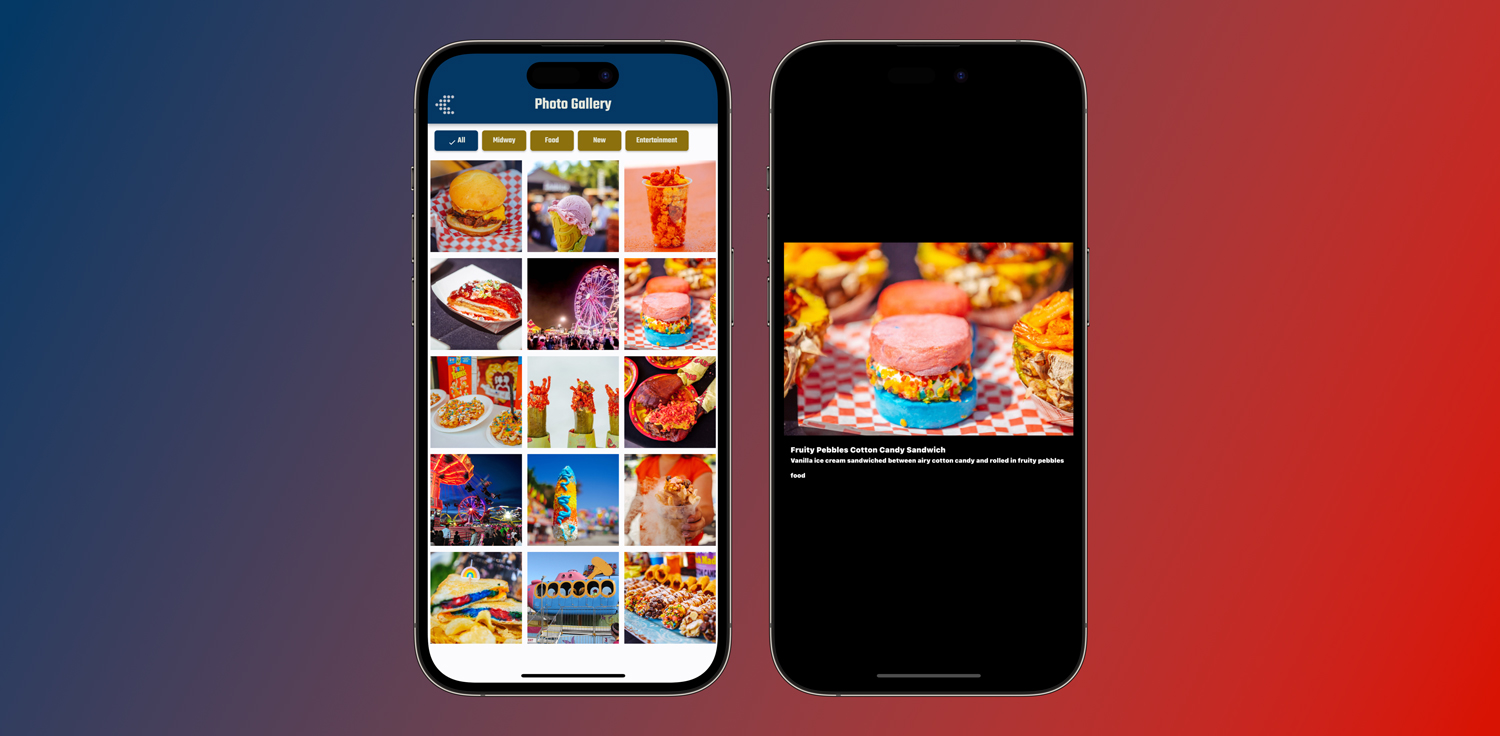
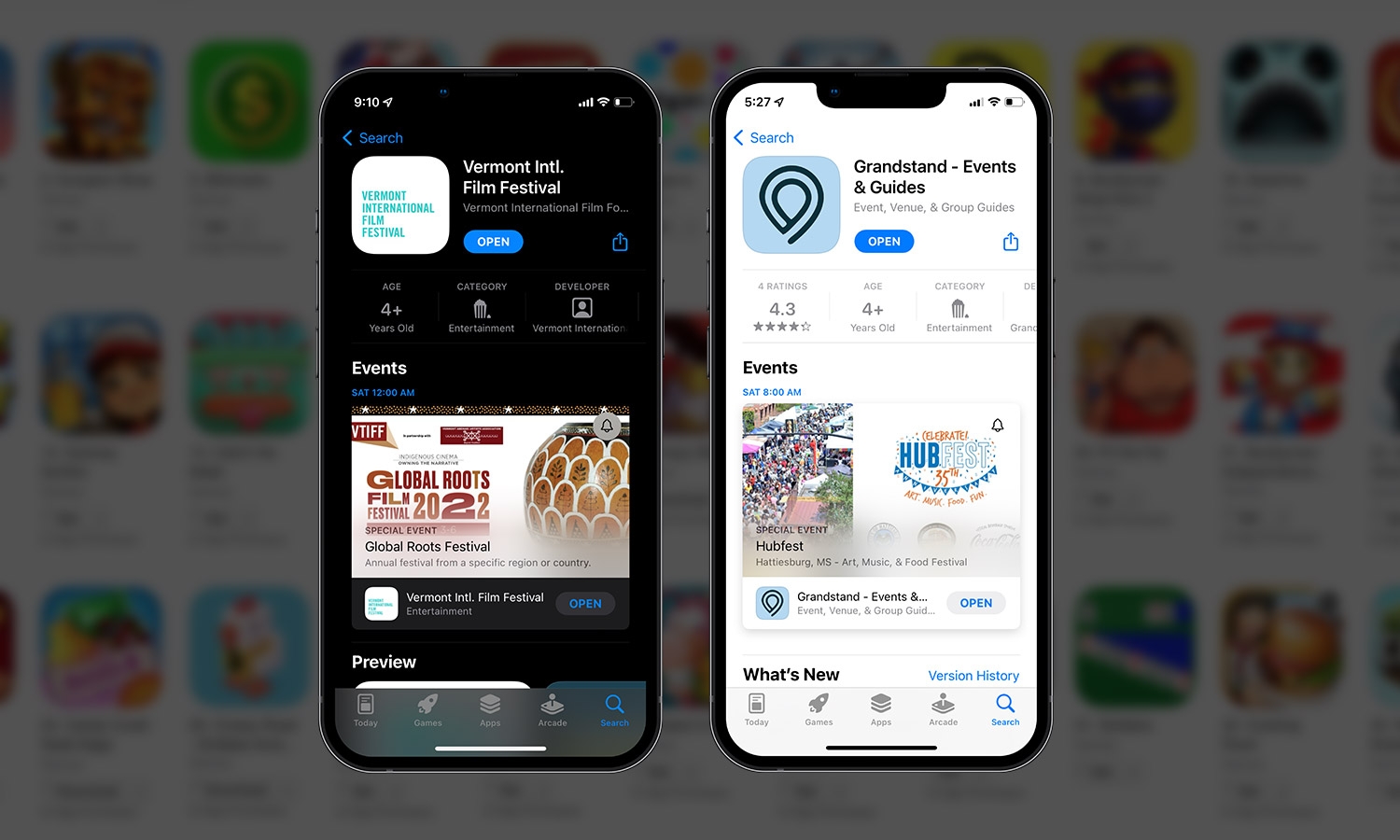
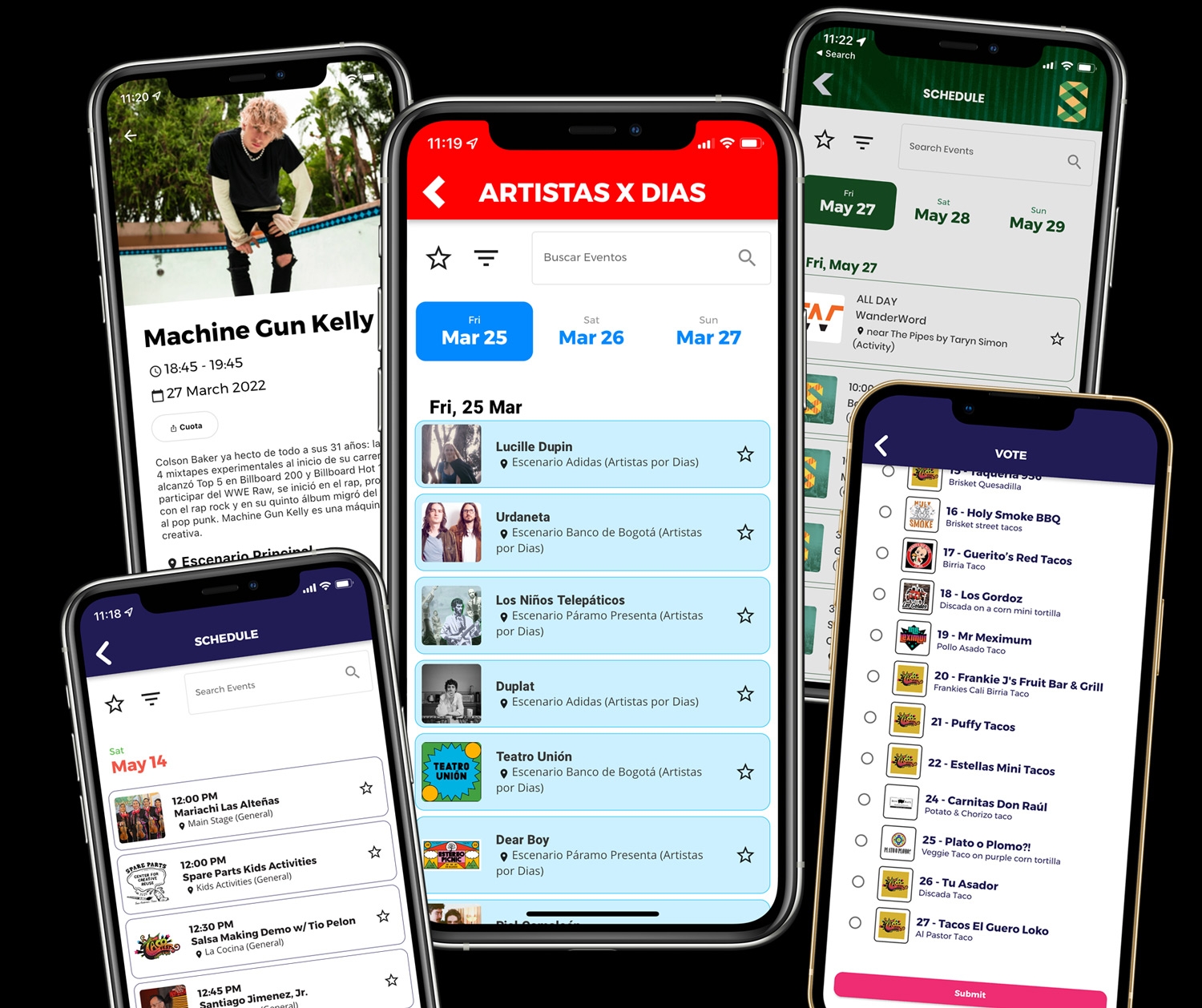
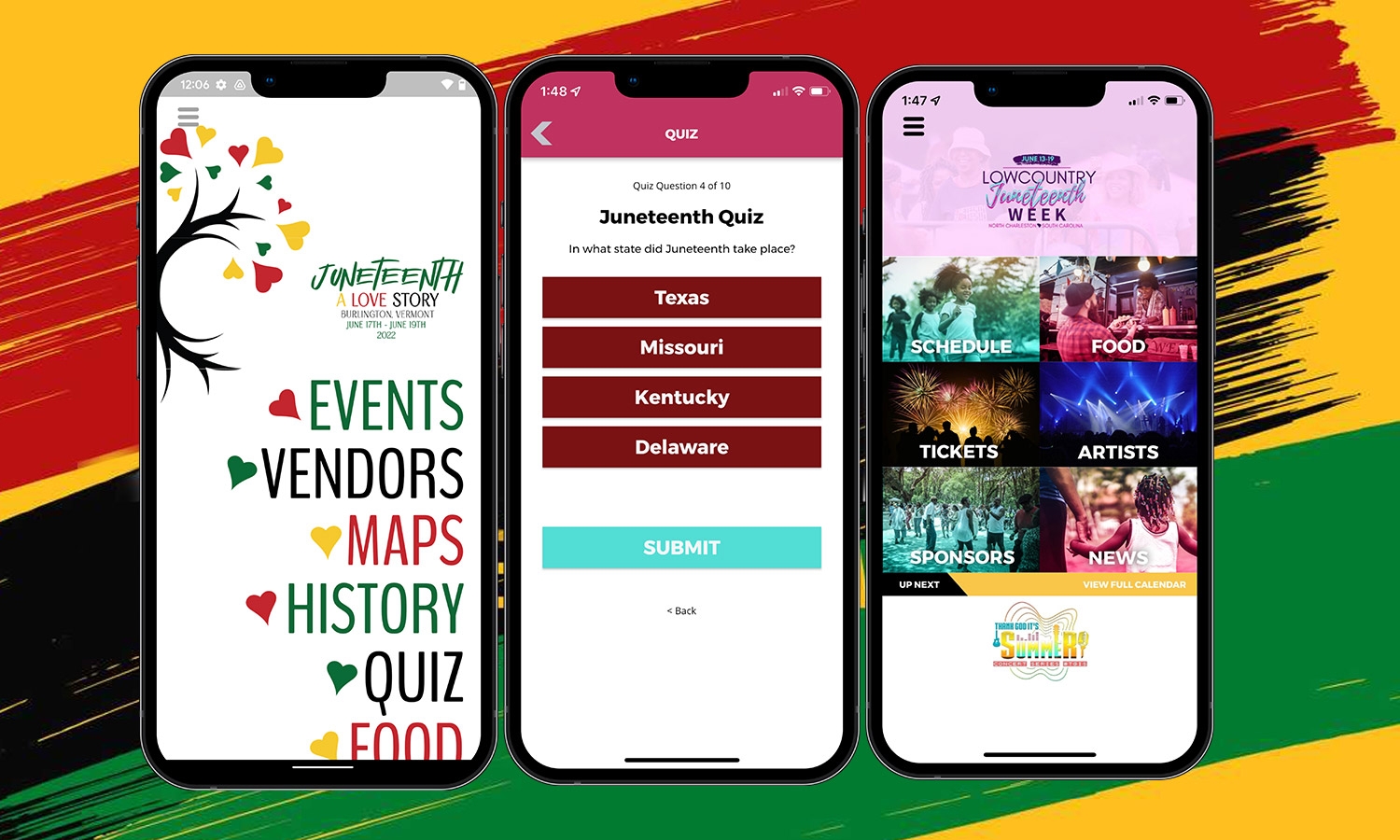
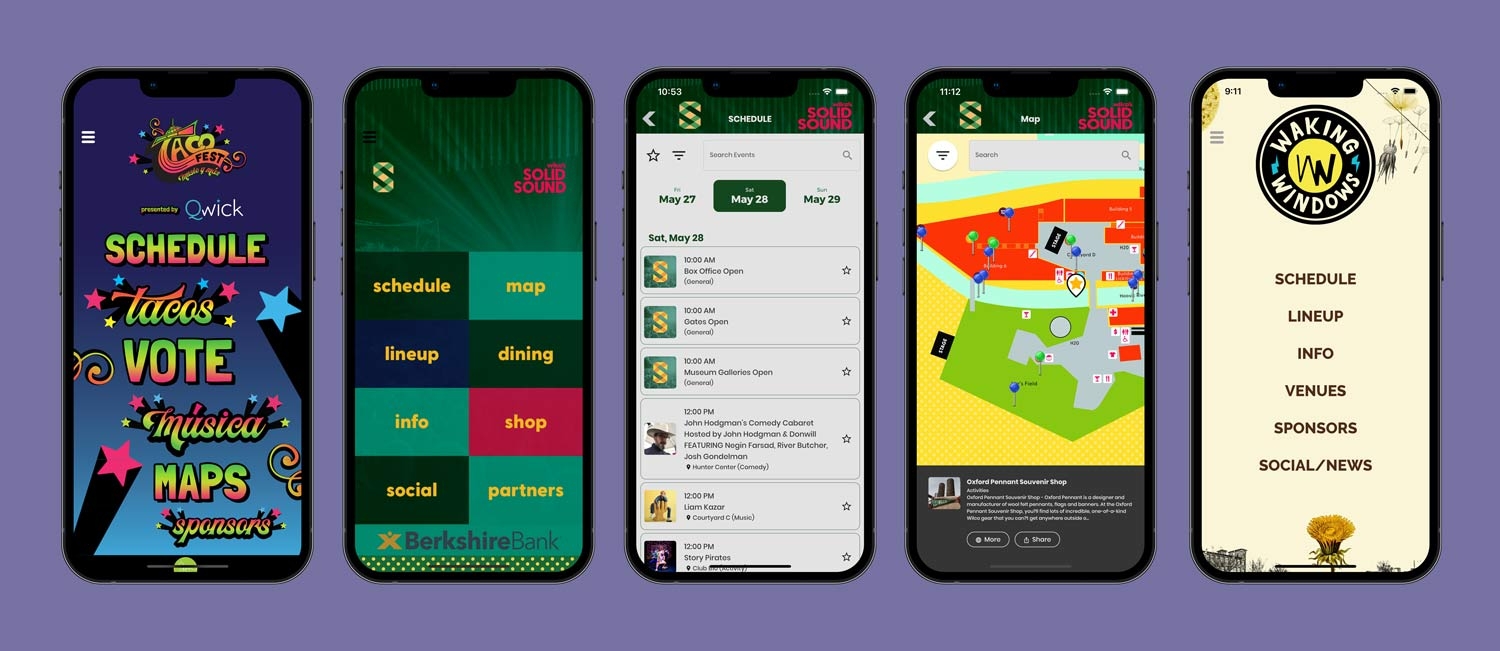
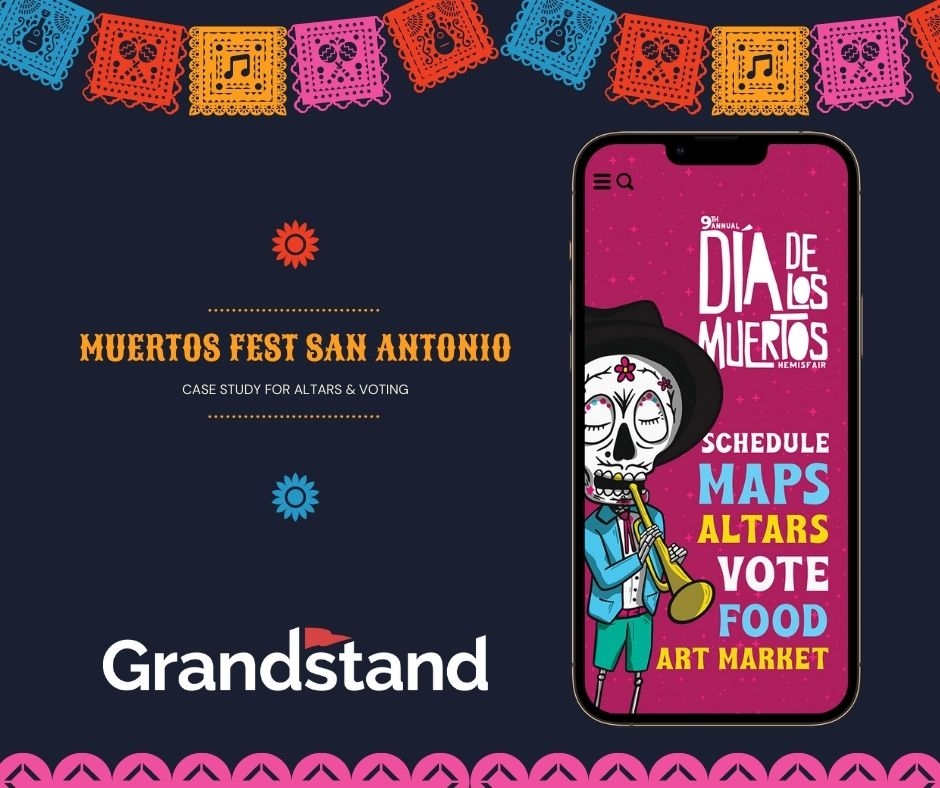
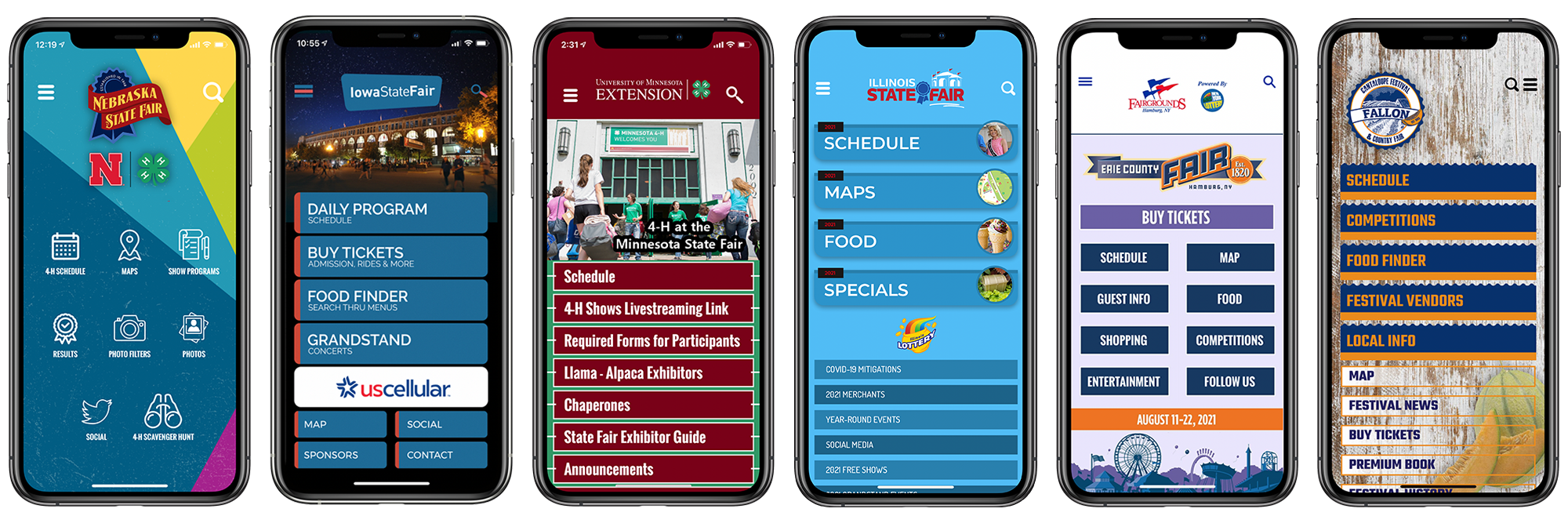
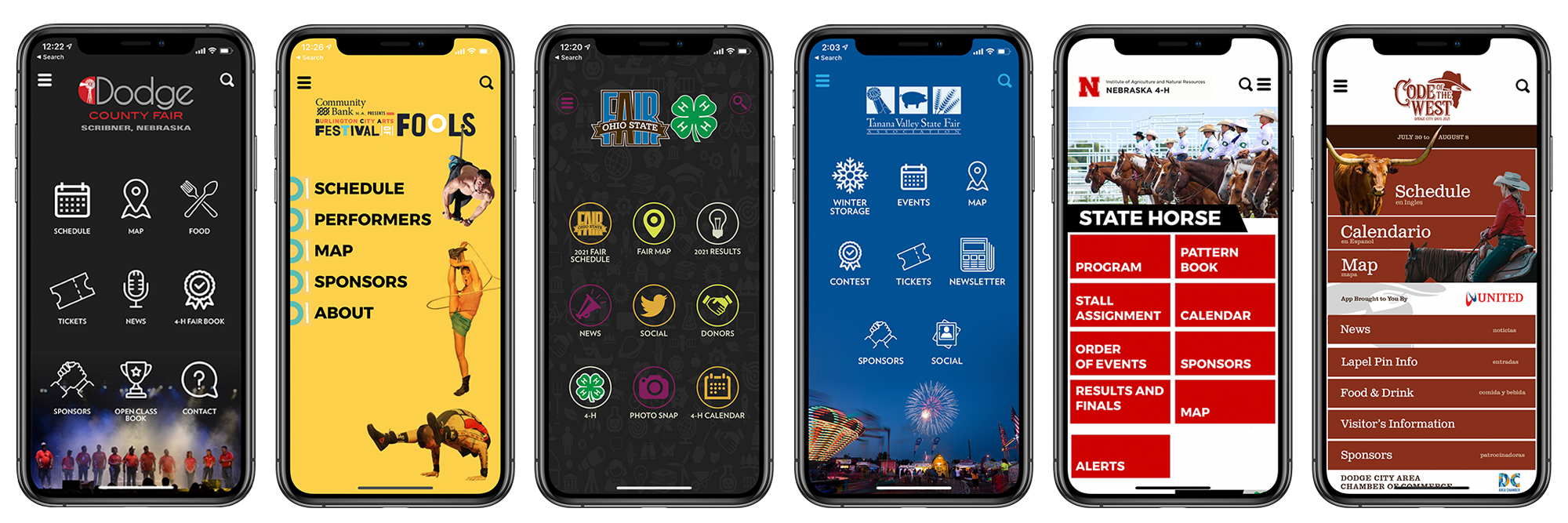
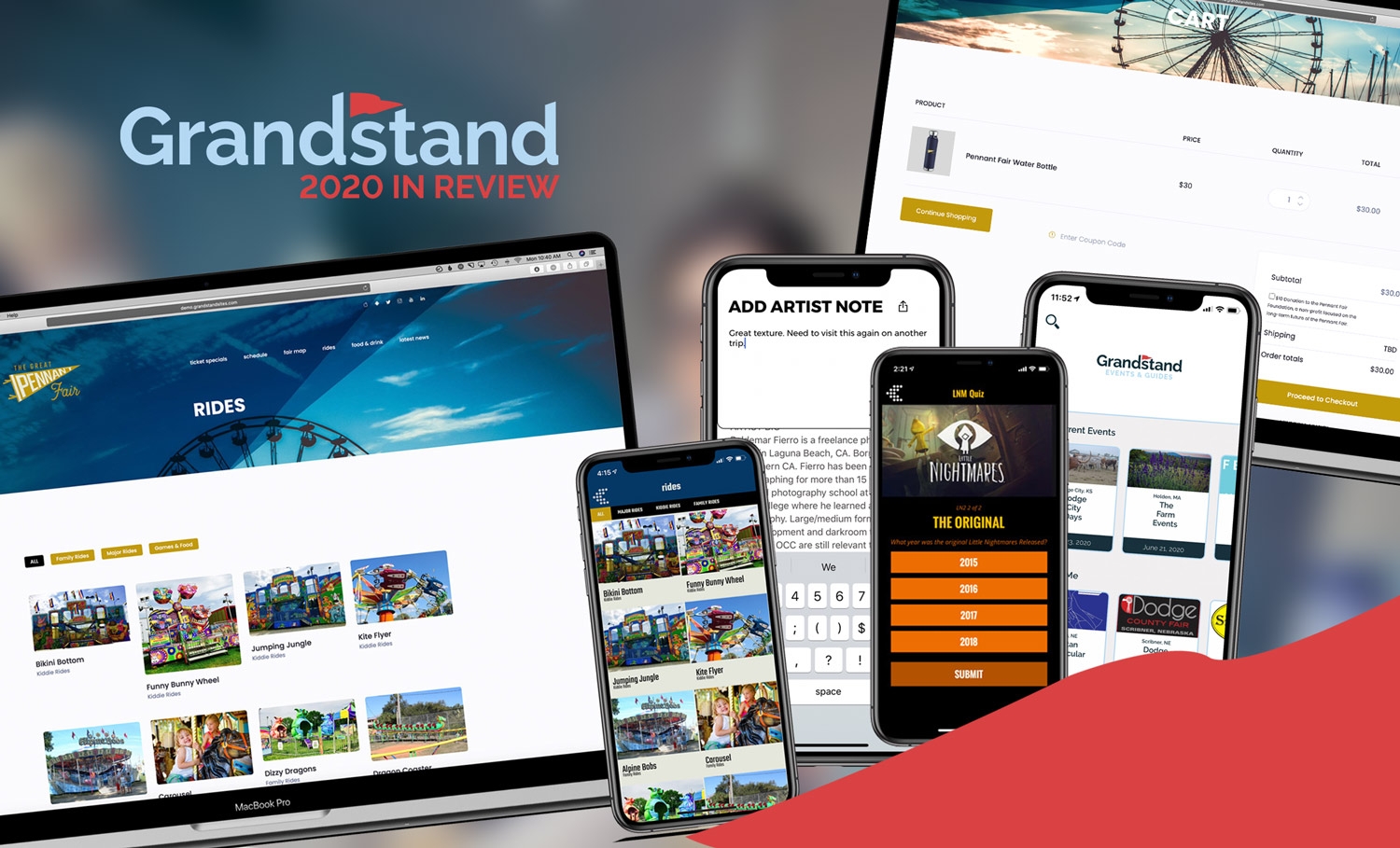
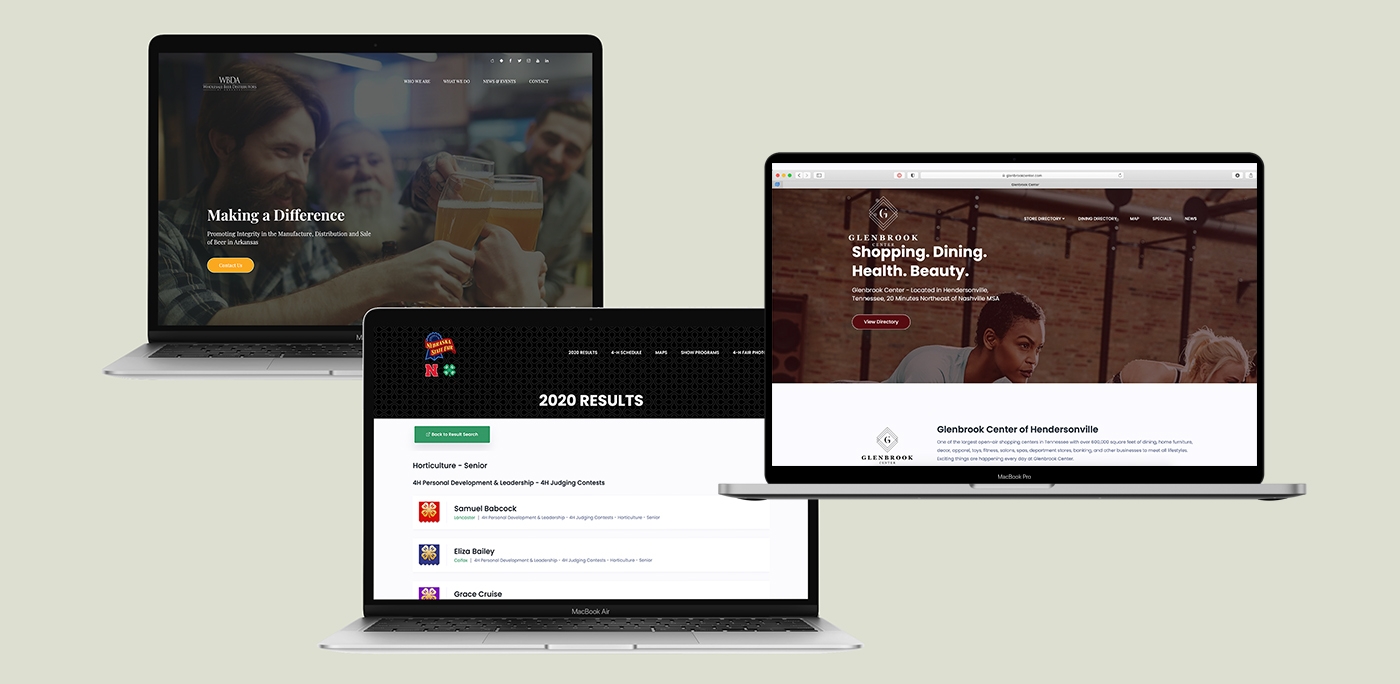
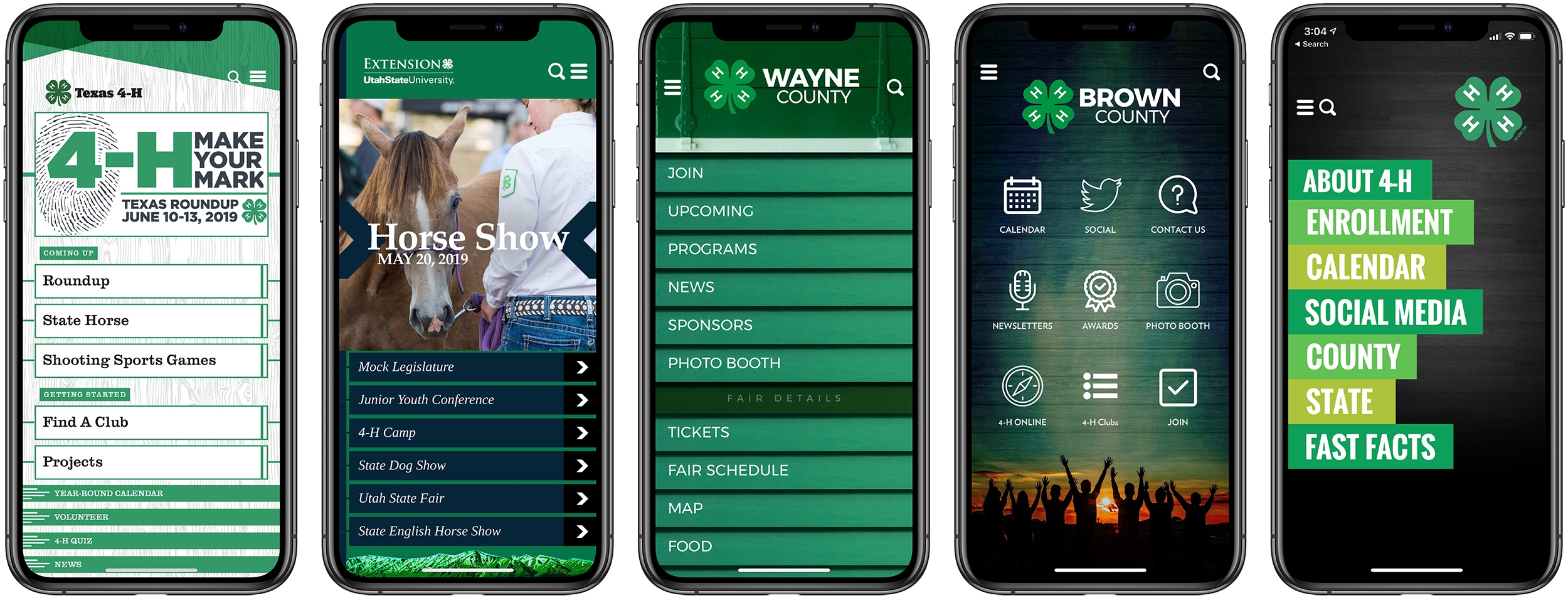
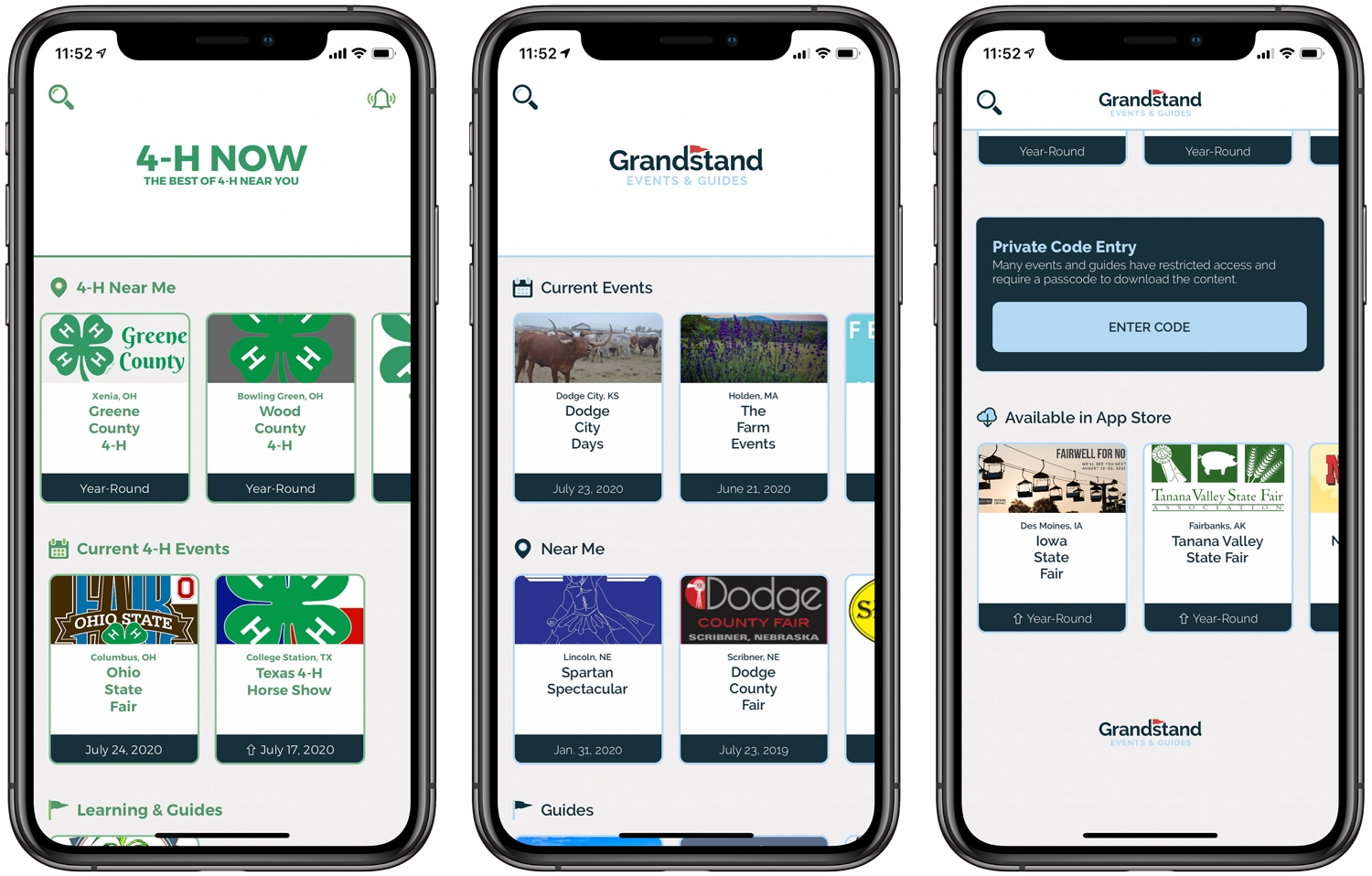
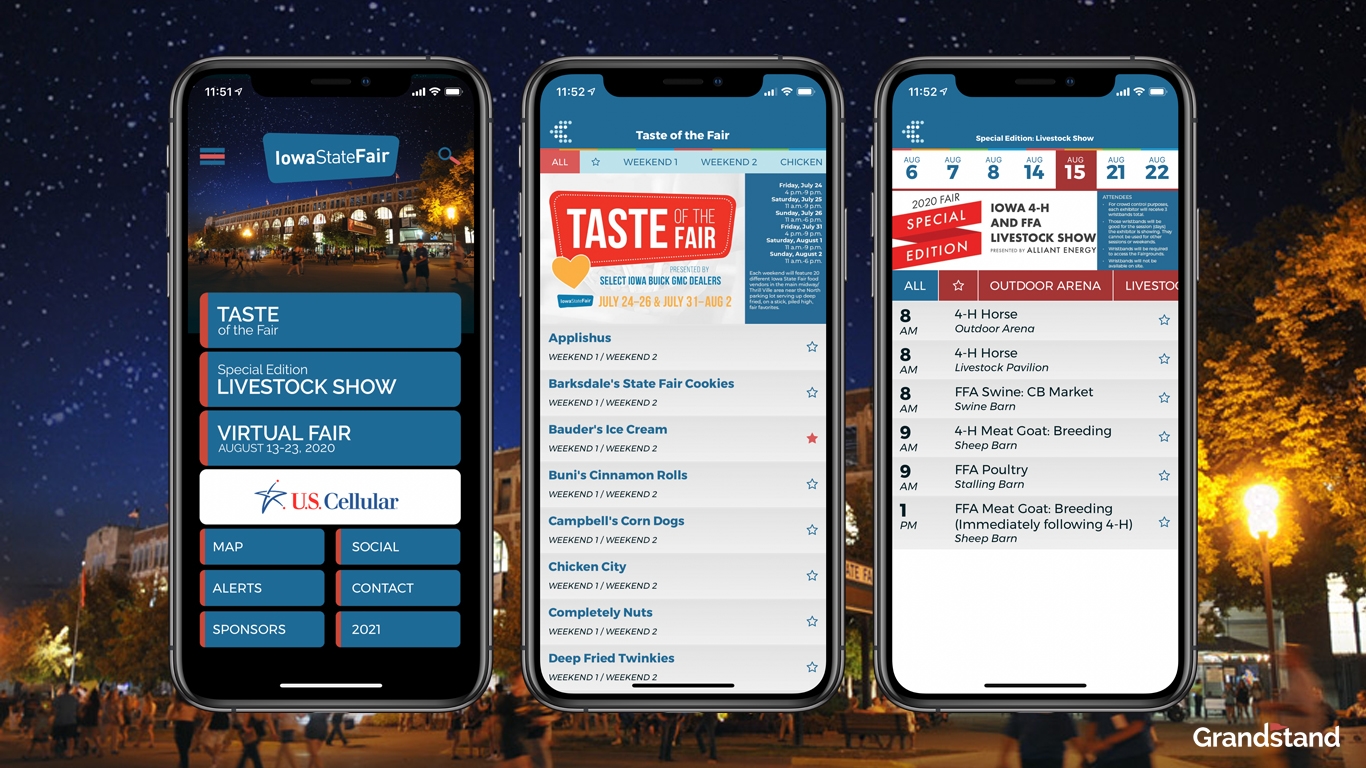
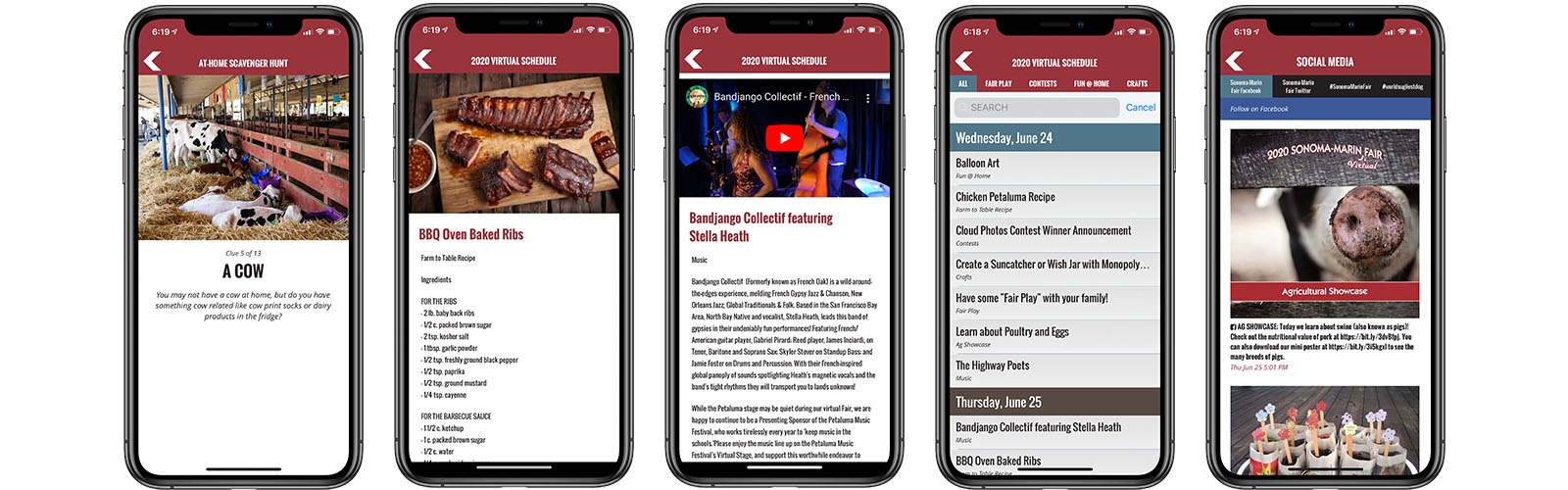
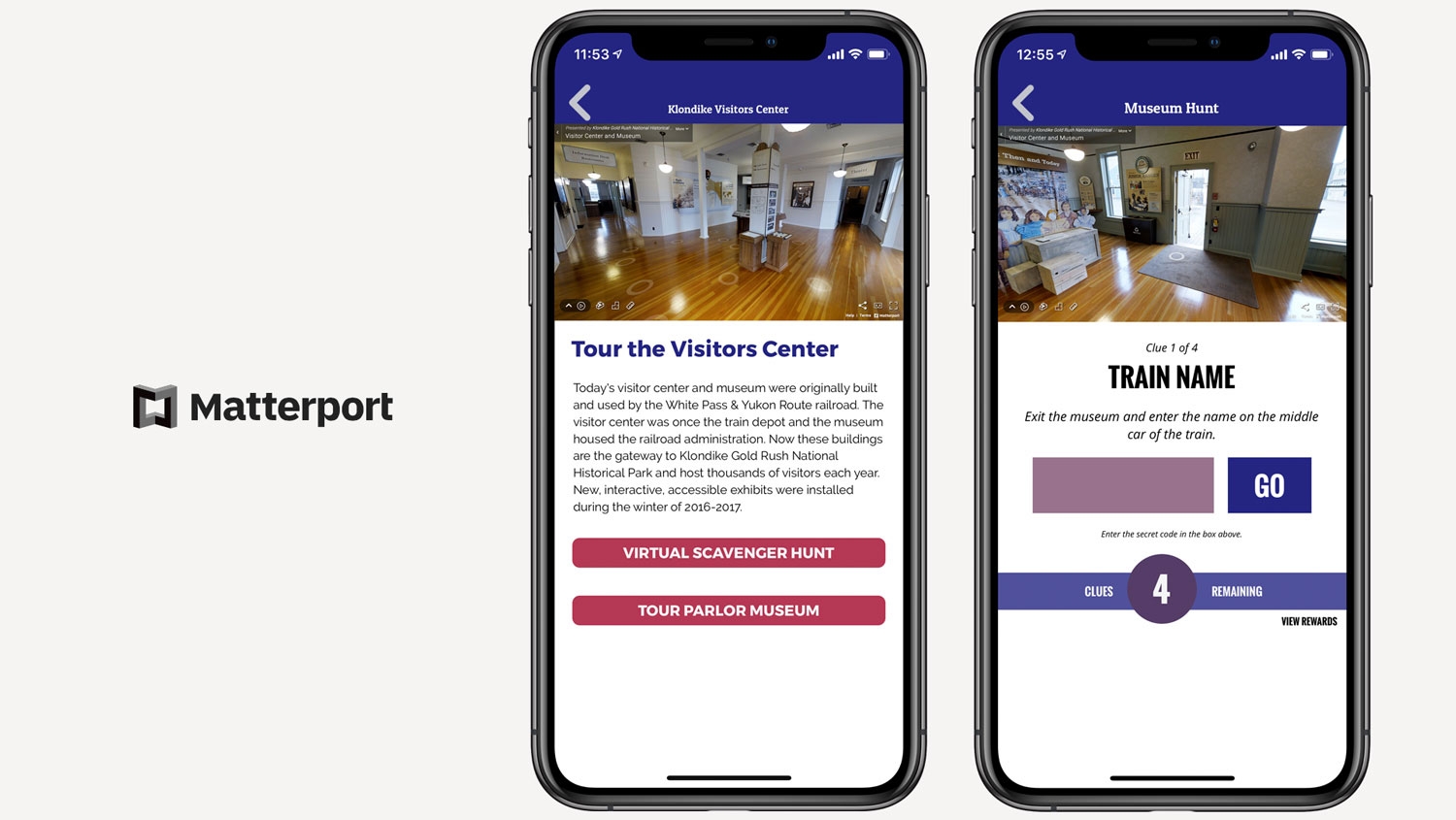
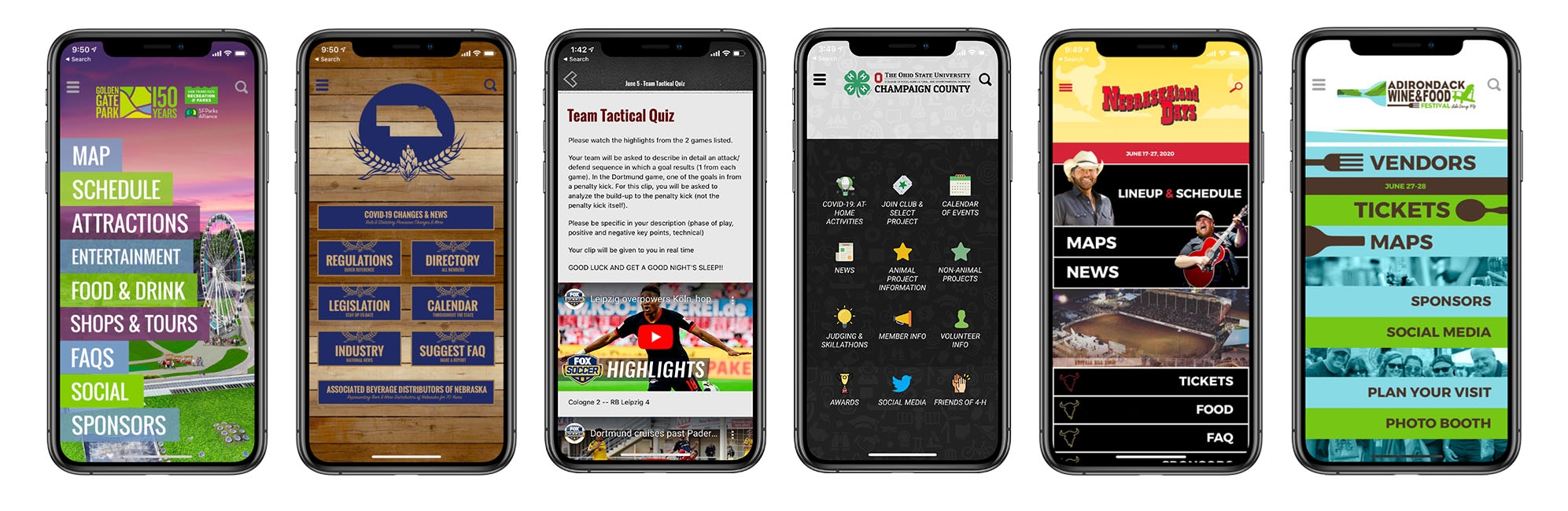


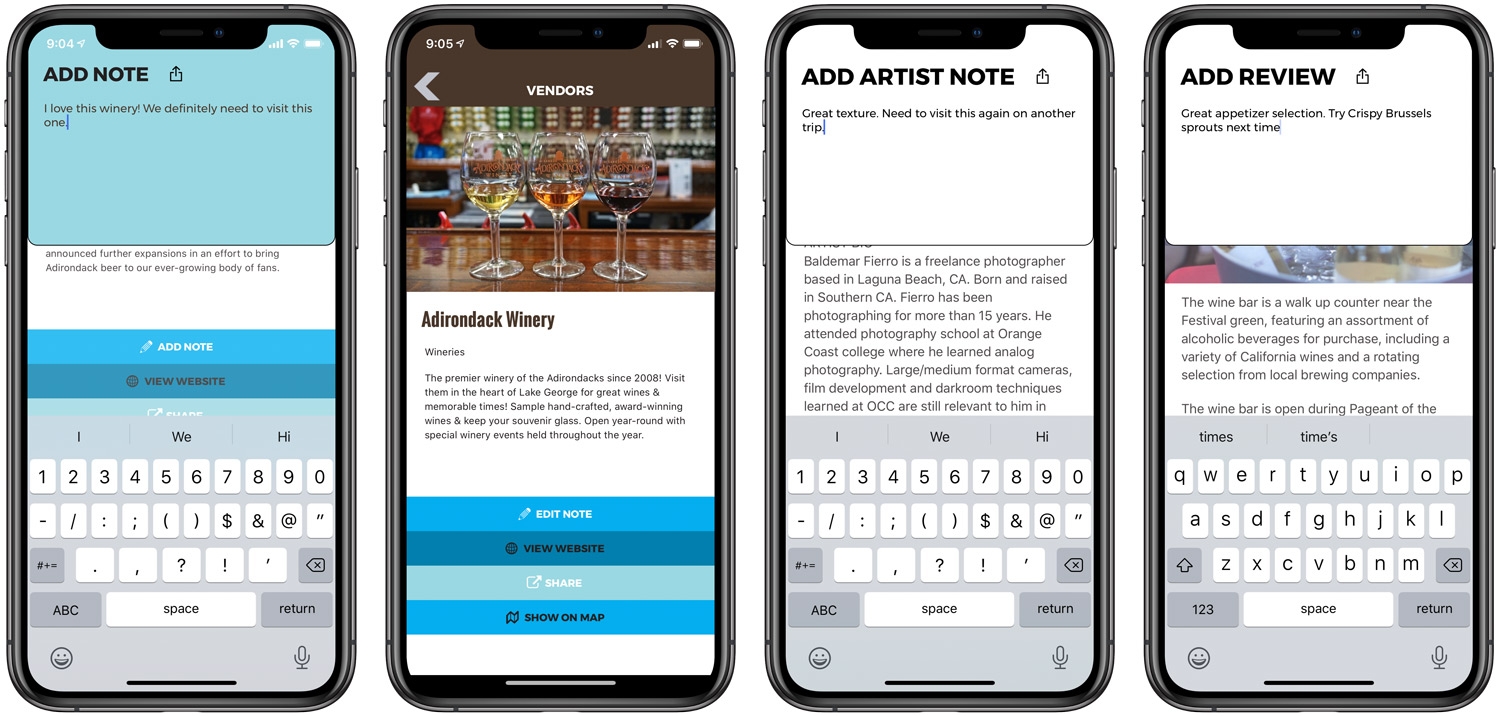
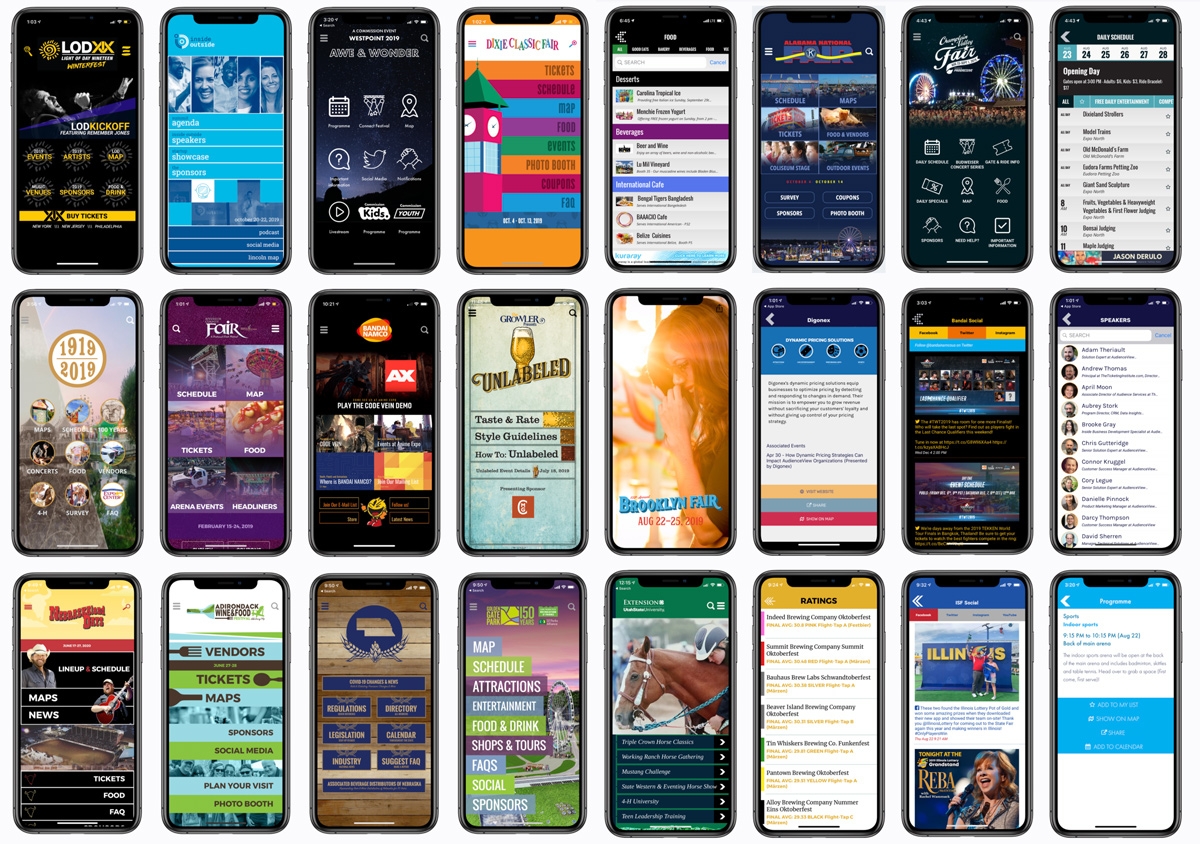
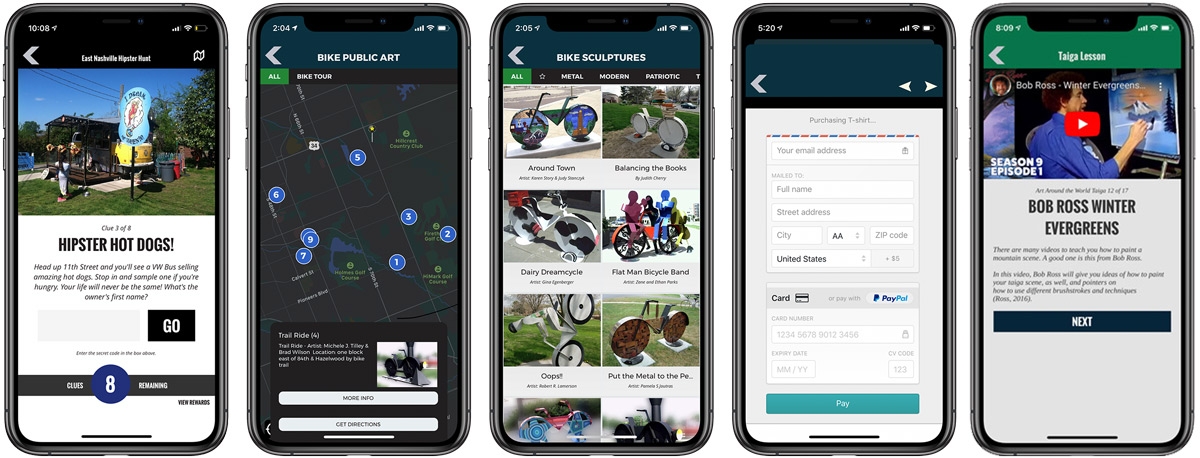
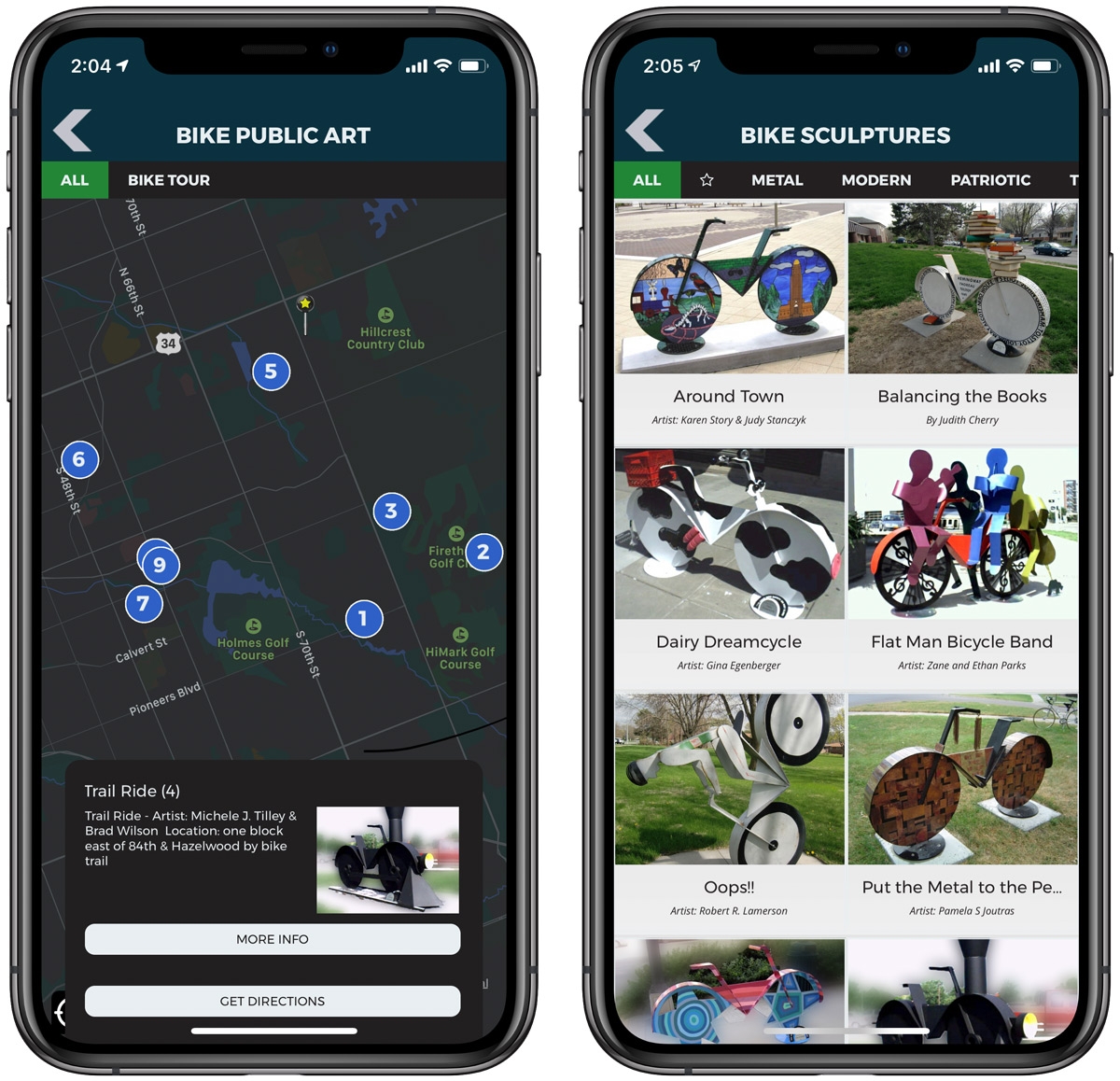
_1589904167.jpg)
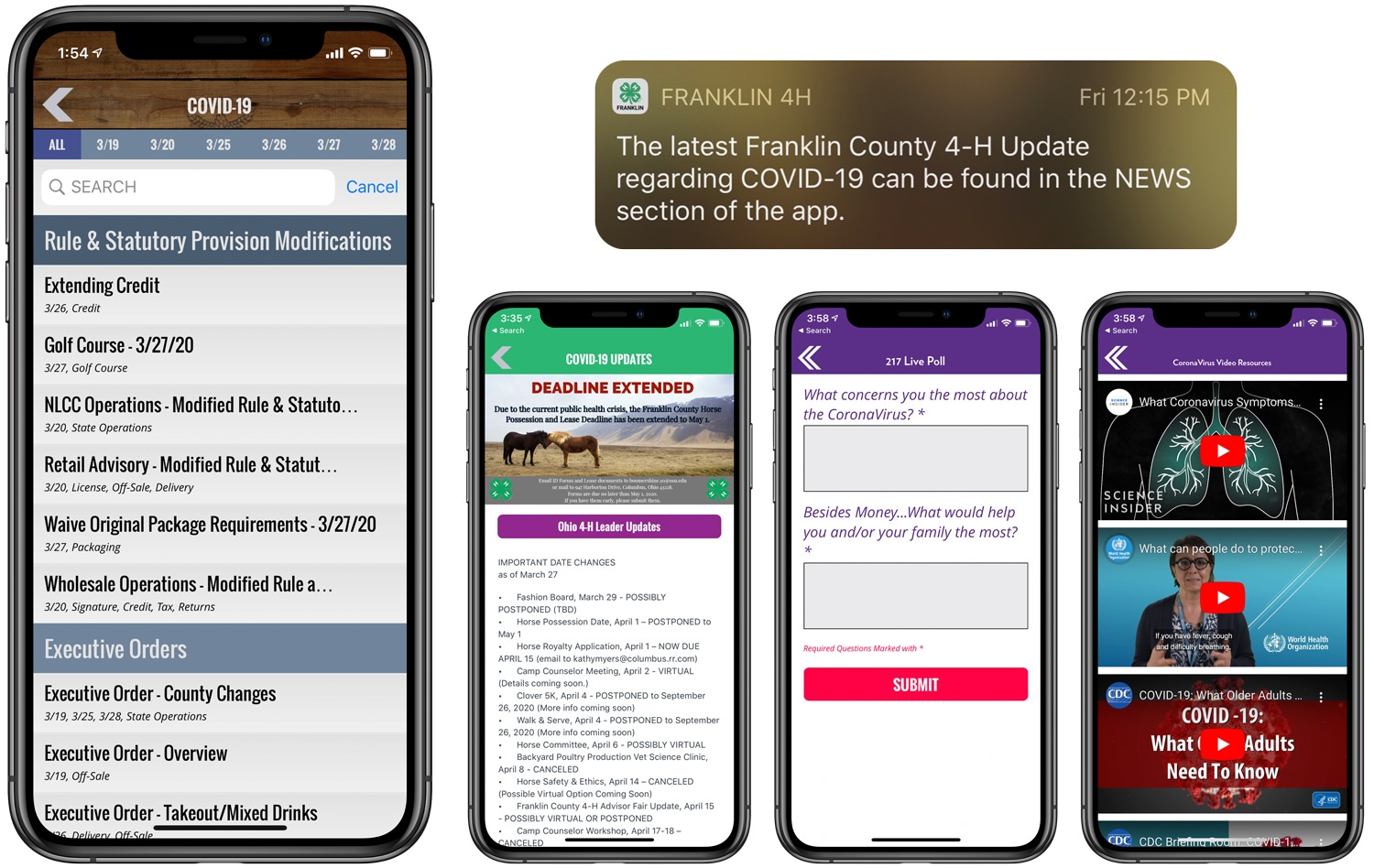
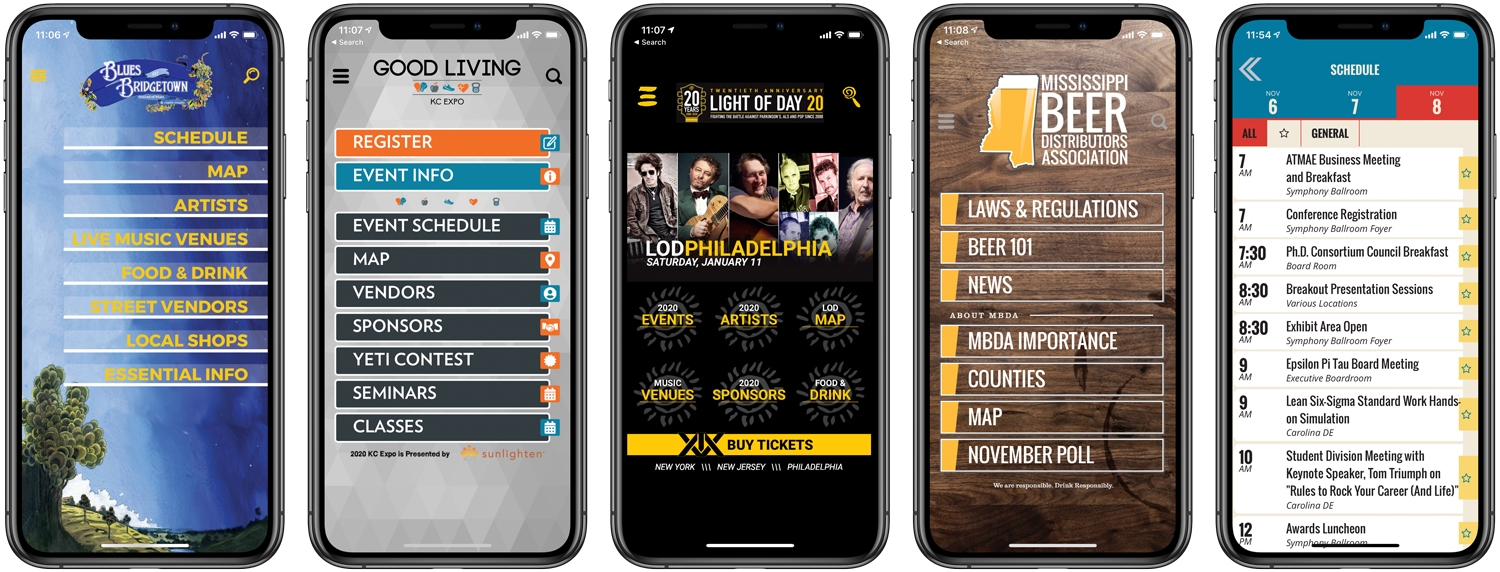
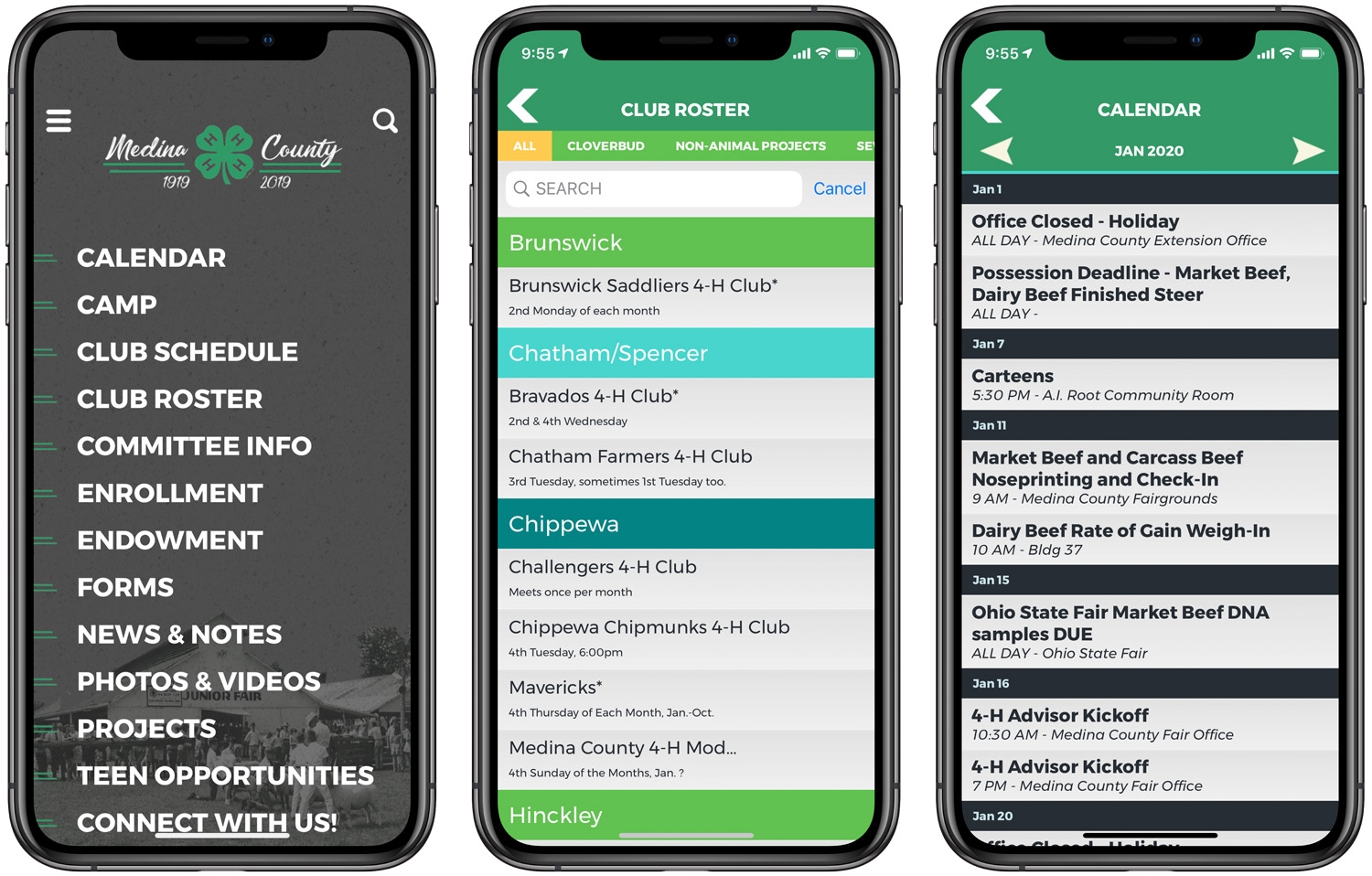
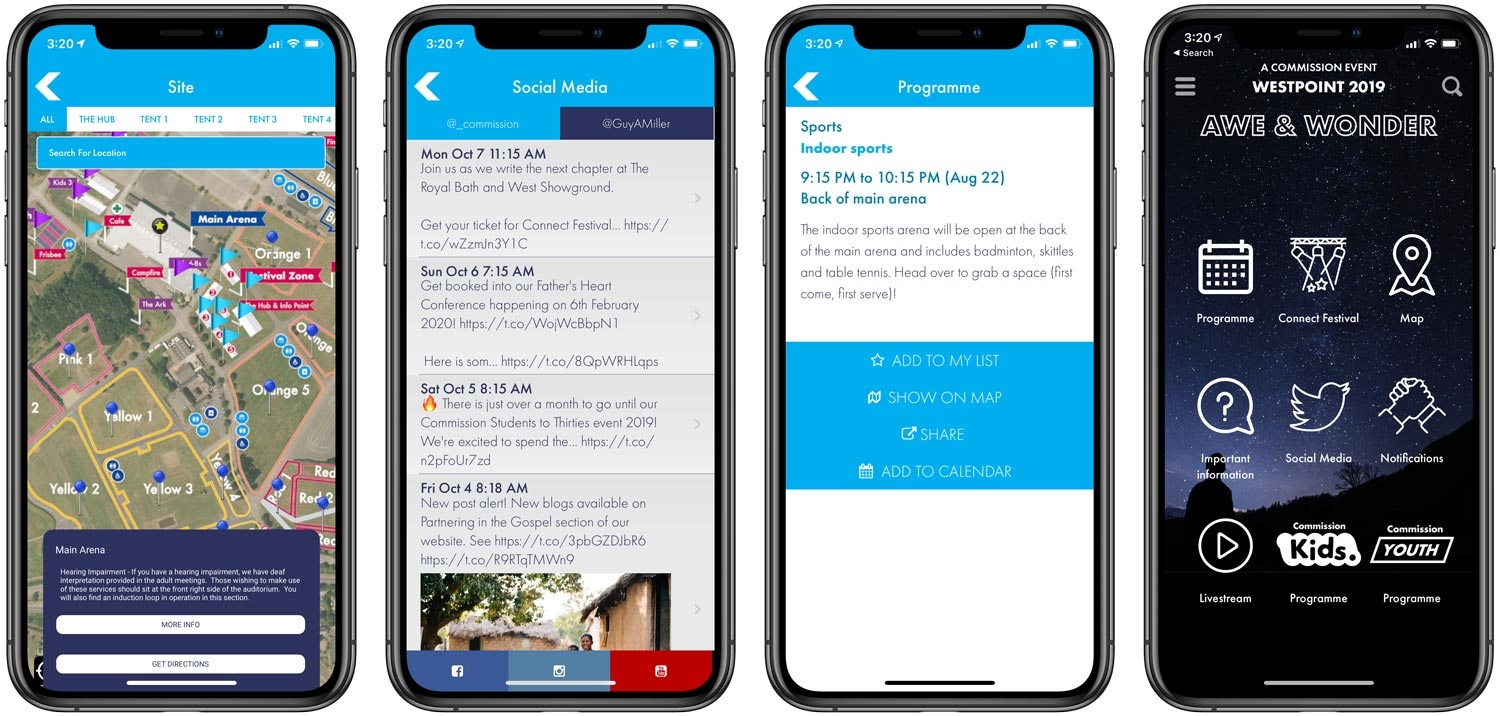
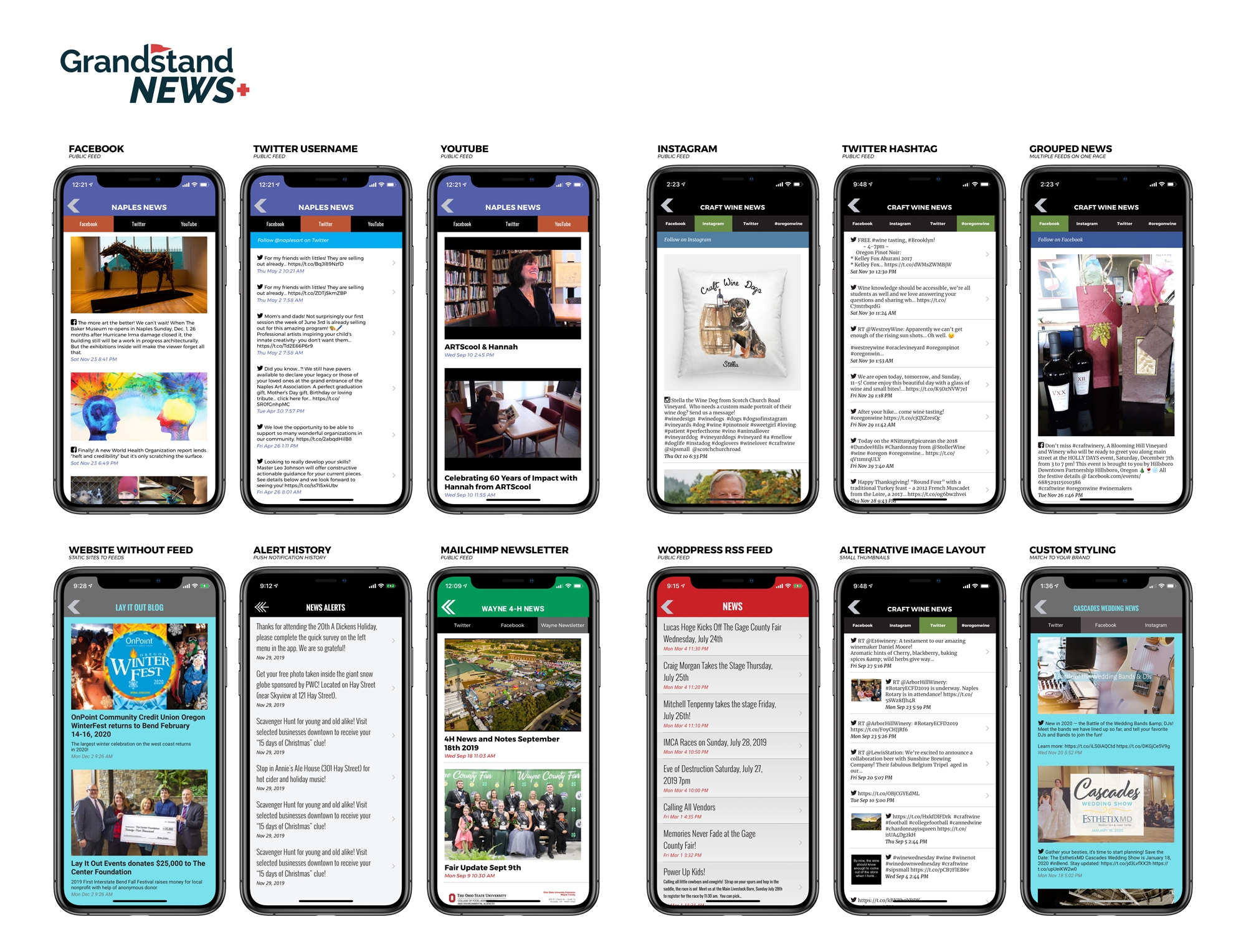
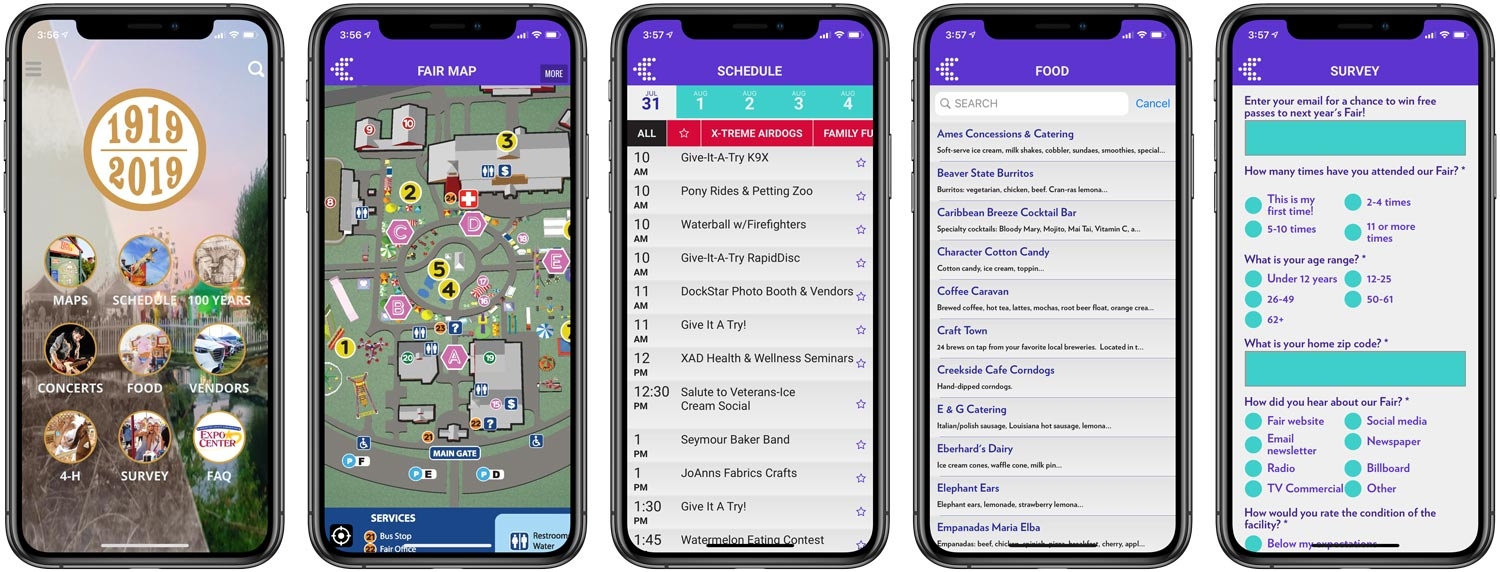
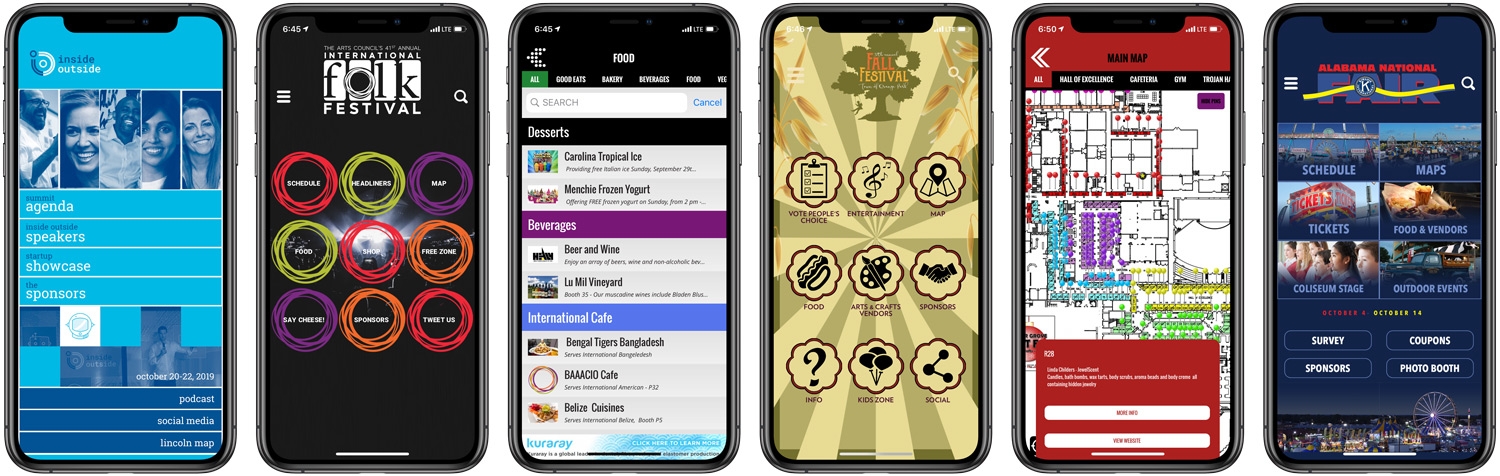
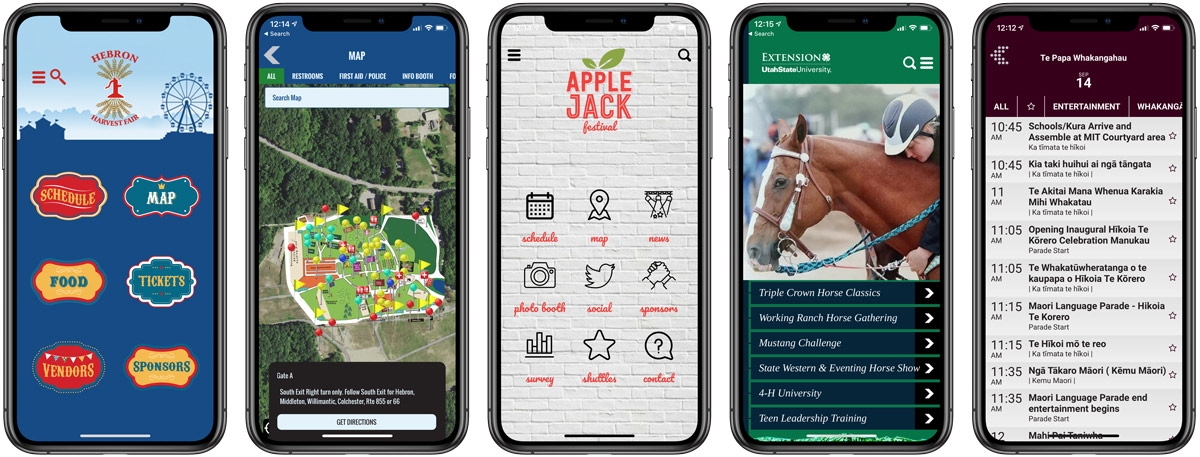
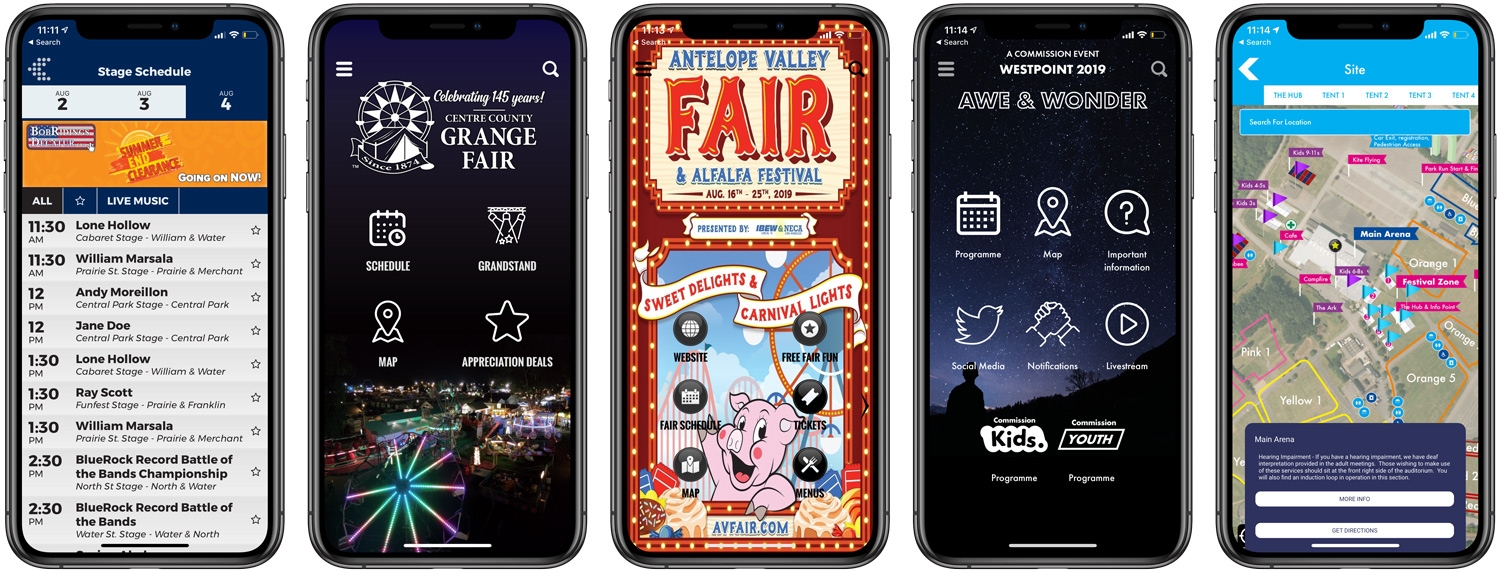
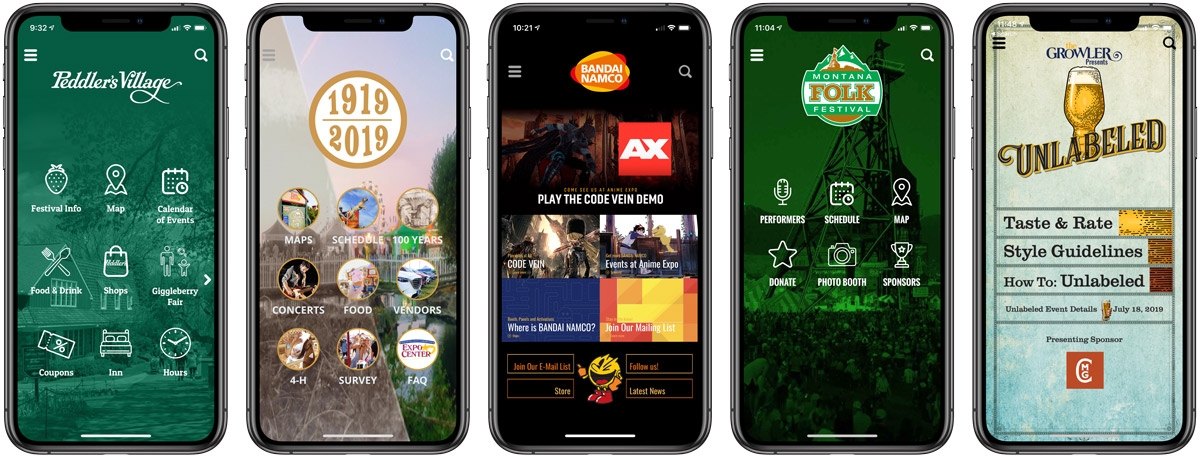
_1589908578.jpg)