This tutorial shows you how to Add a Button on a Custom Page that links to another page within your app or to a website.
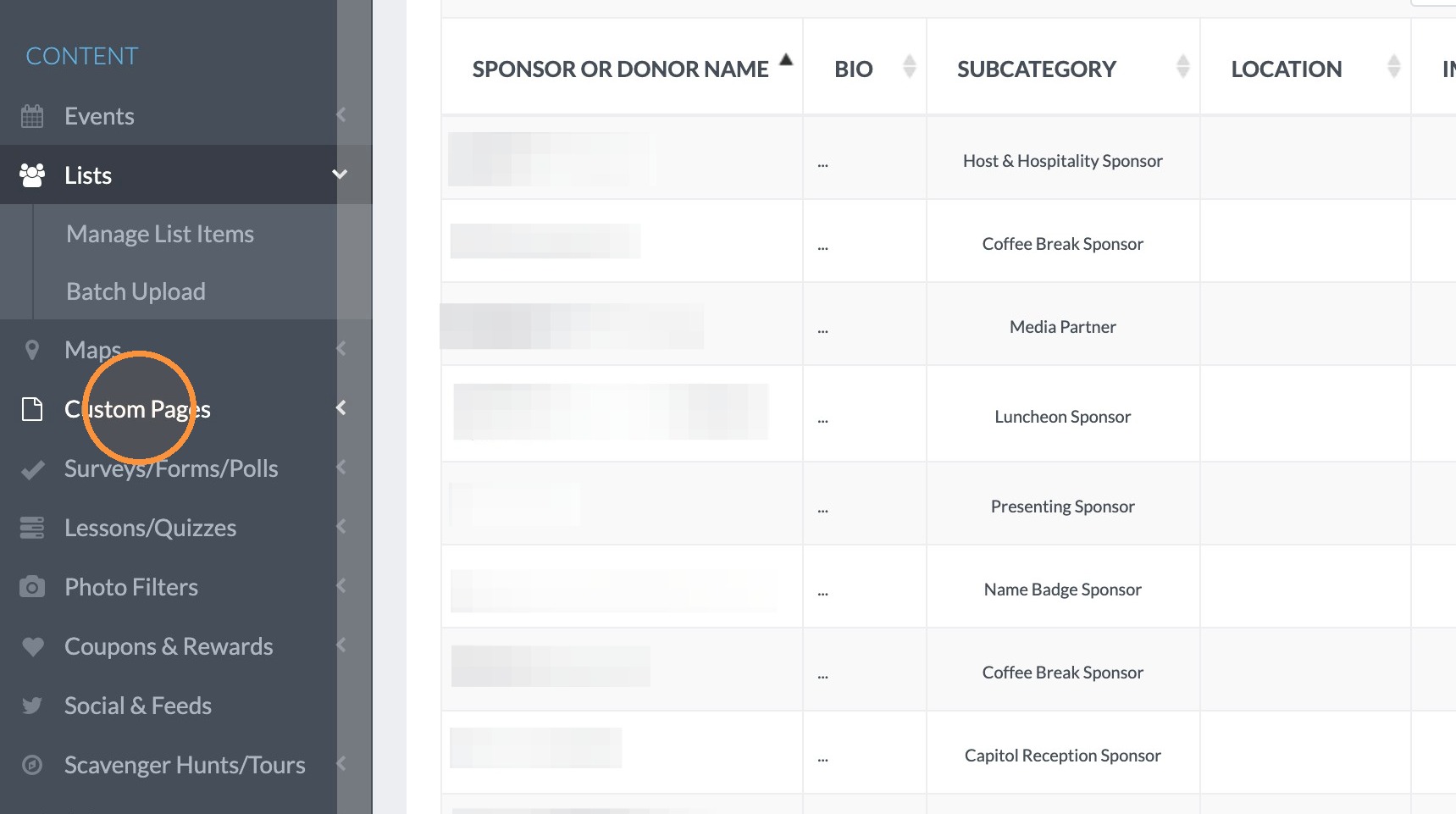
1. Click "Custom Pages"
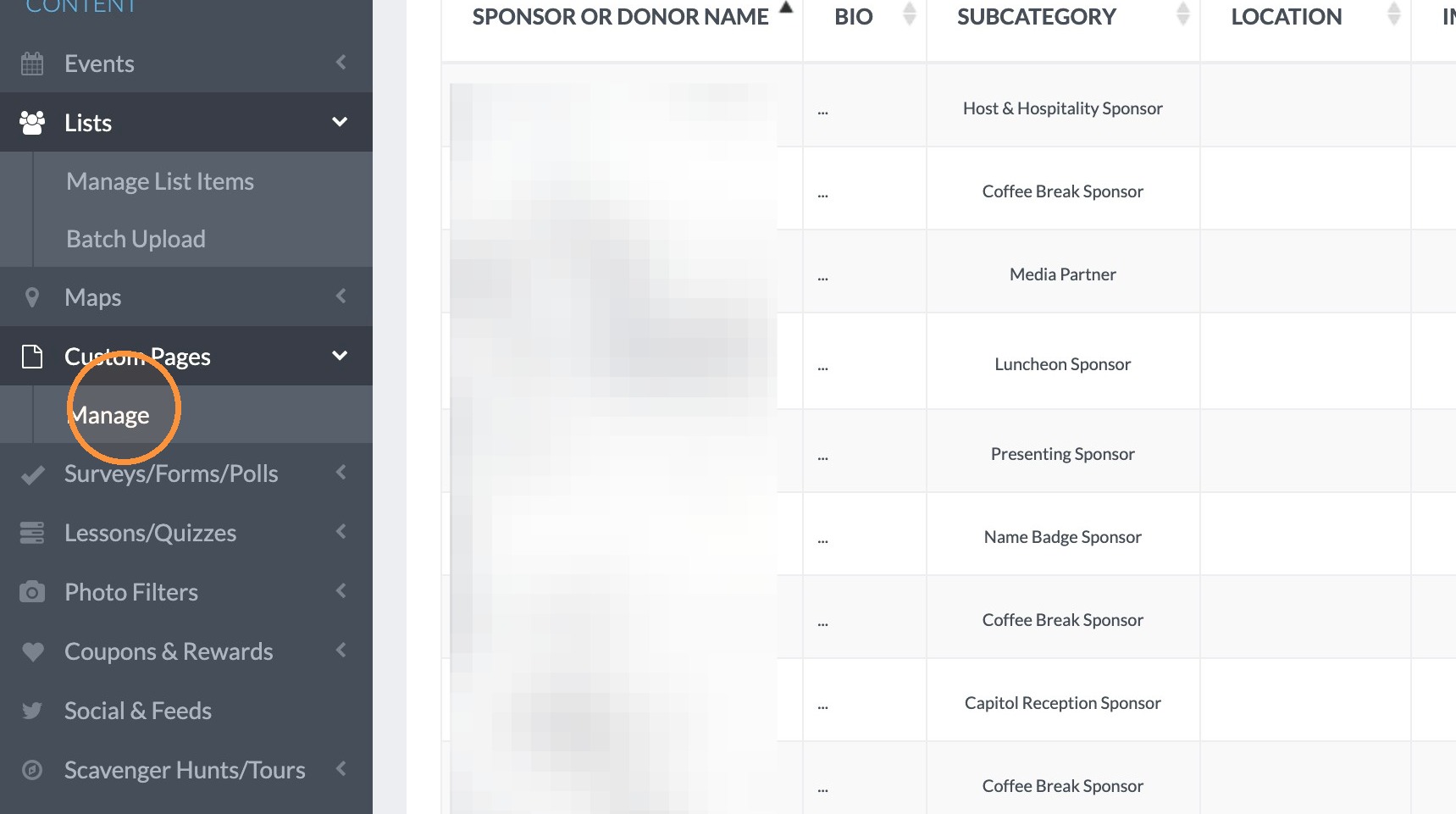
2. Click "Manage"
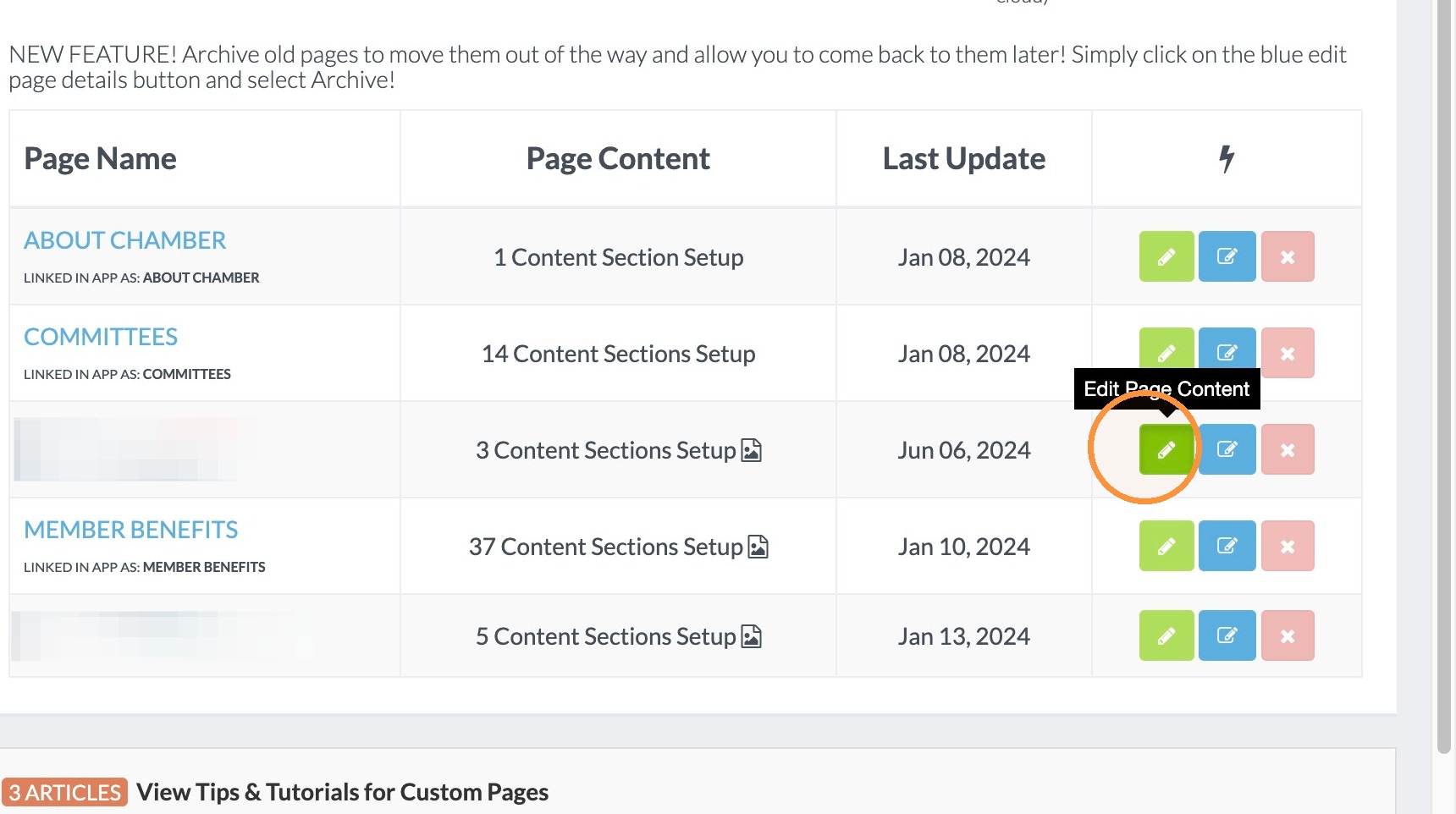
3. Click green edit button next to the page you would like to edit.
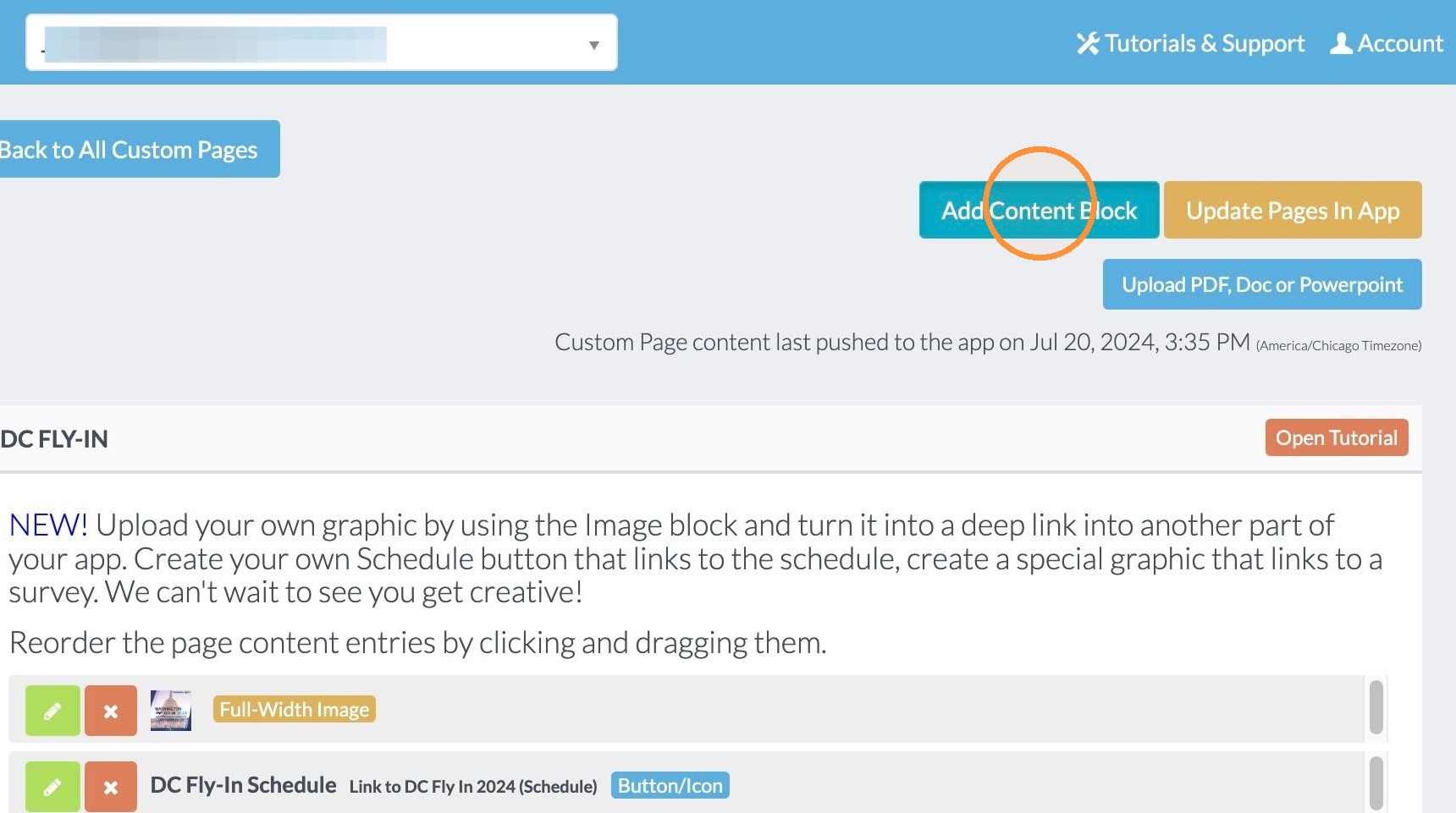
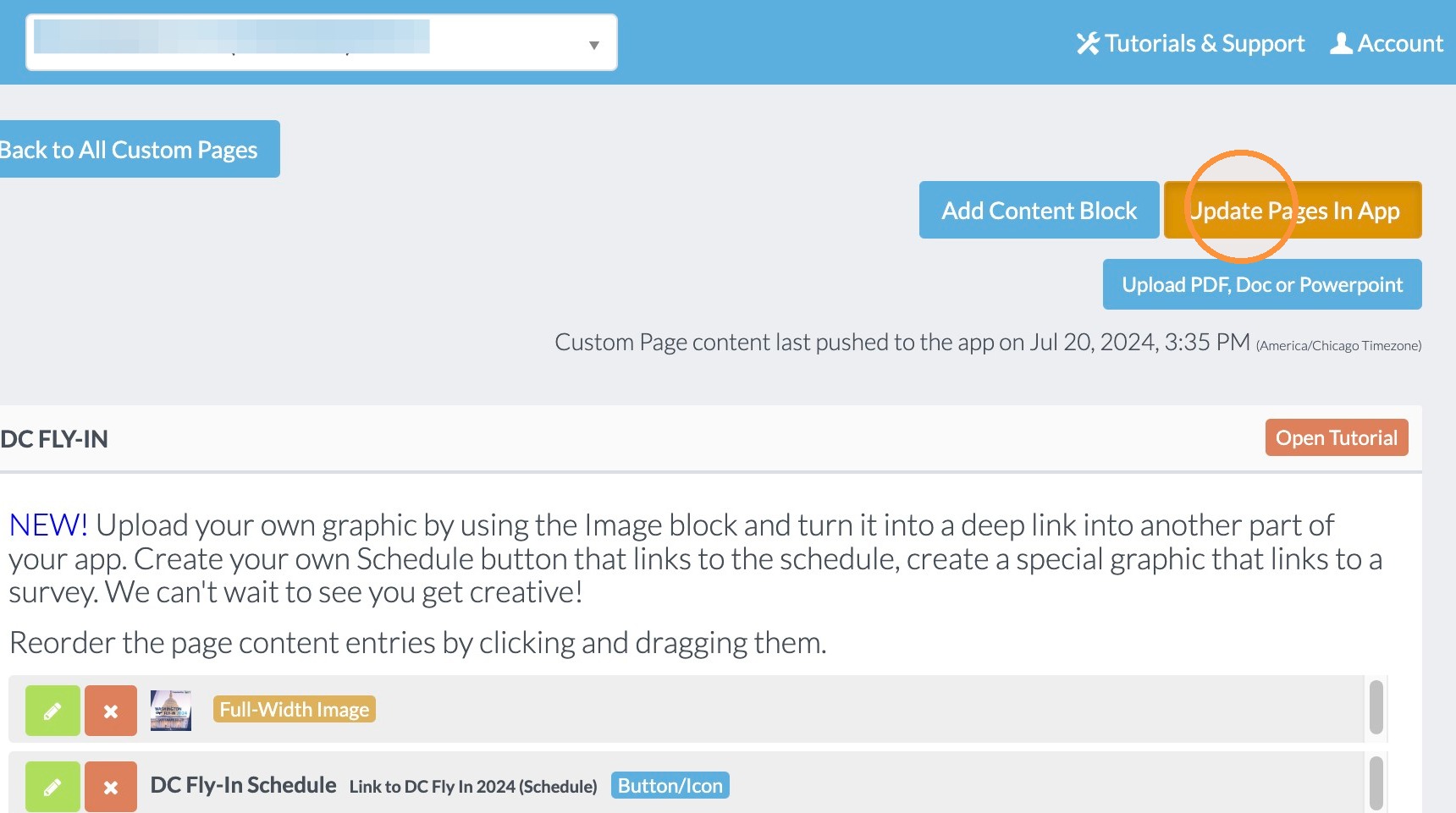
4. Click "Add Content Block"
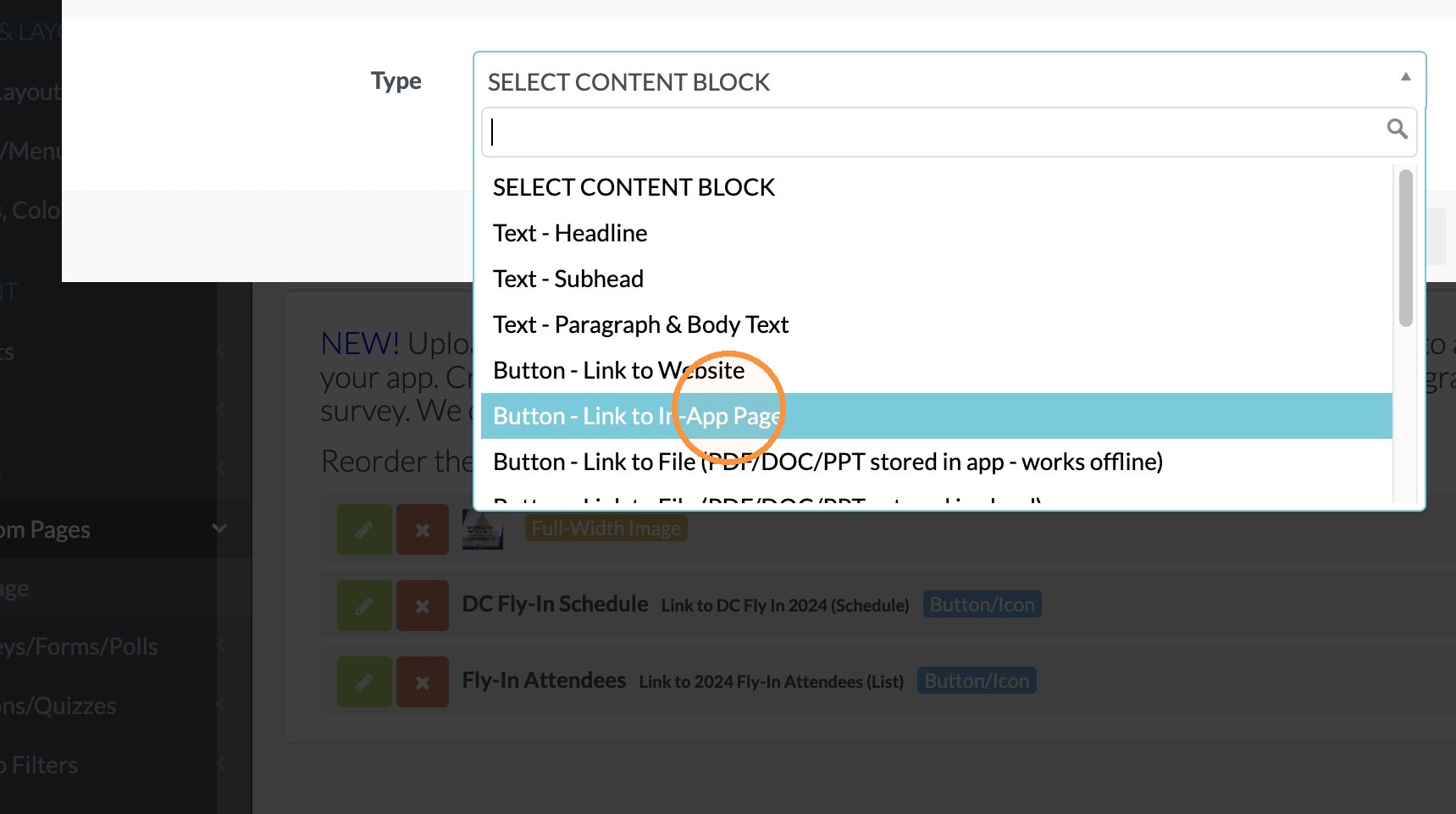
5. Select "Button - Link to In-App Page" from the dropdown for Type of Block.
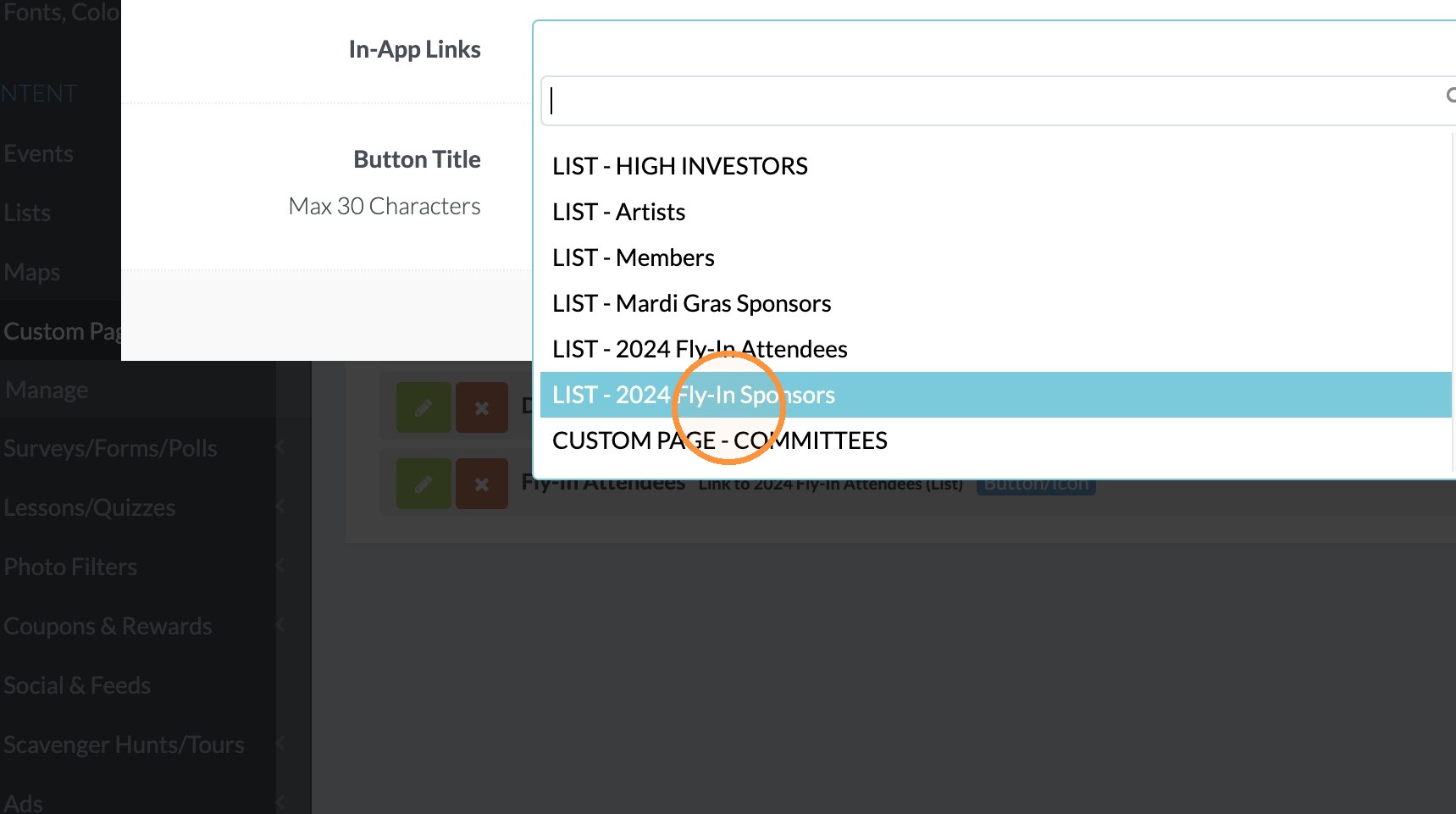
6. In the In-App Links Menu select the List you would like to connect to.
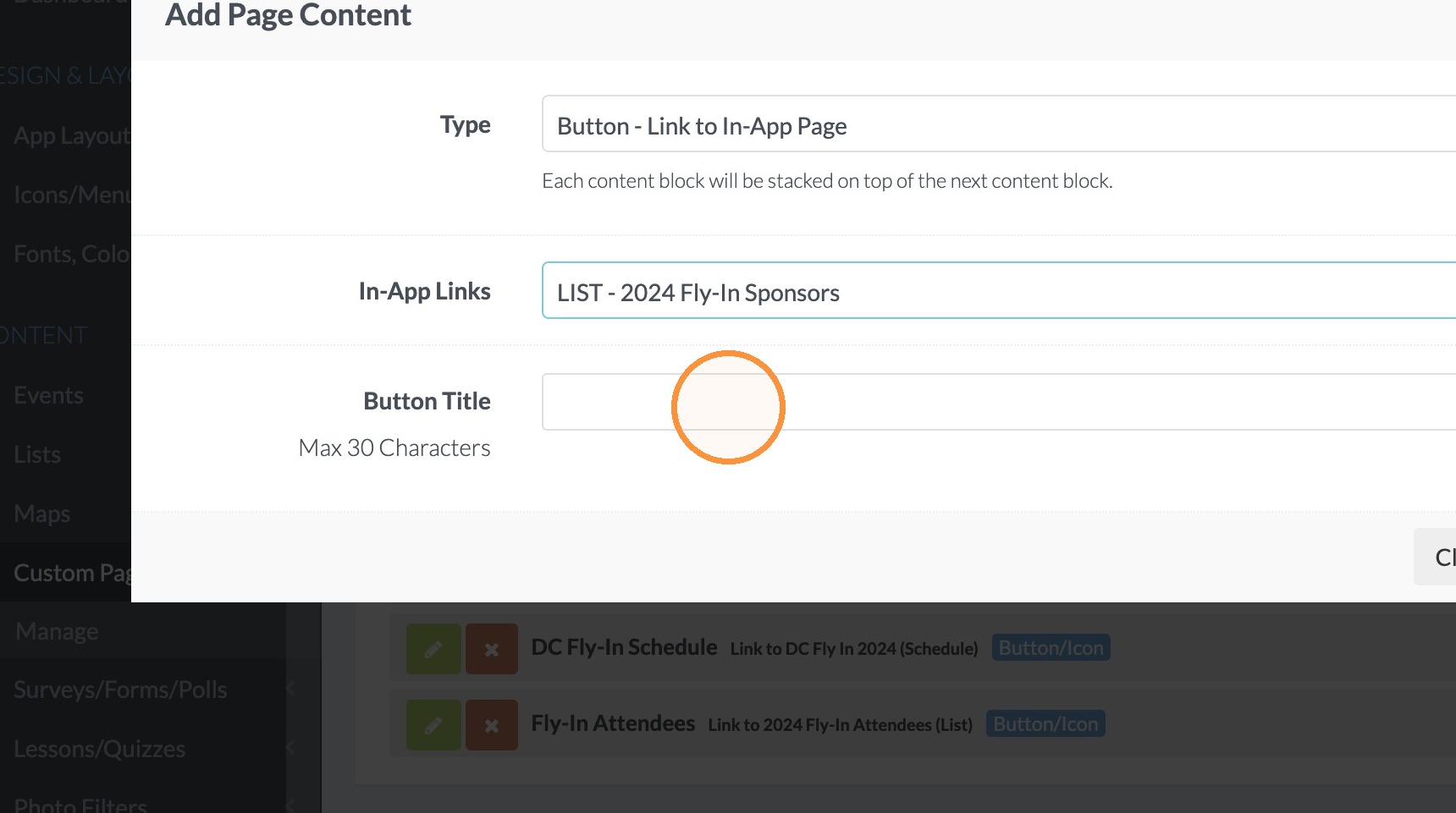
7. Enter the title you would like for the Button Title.
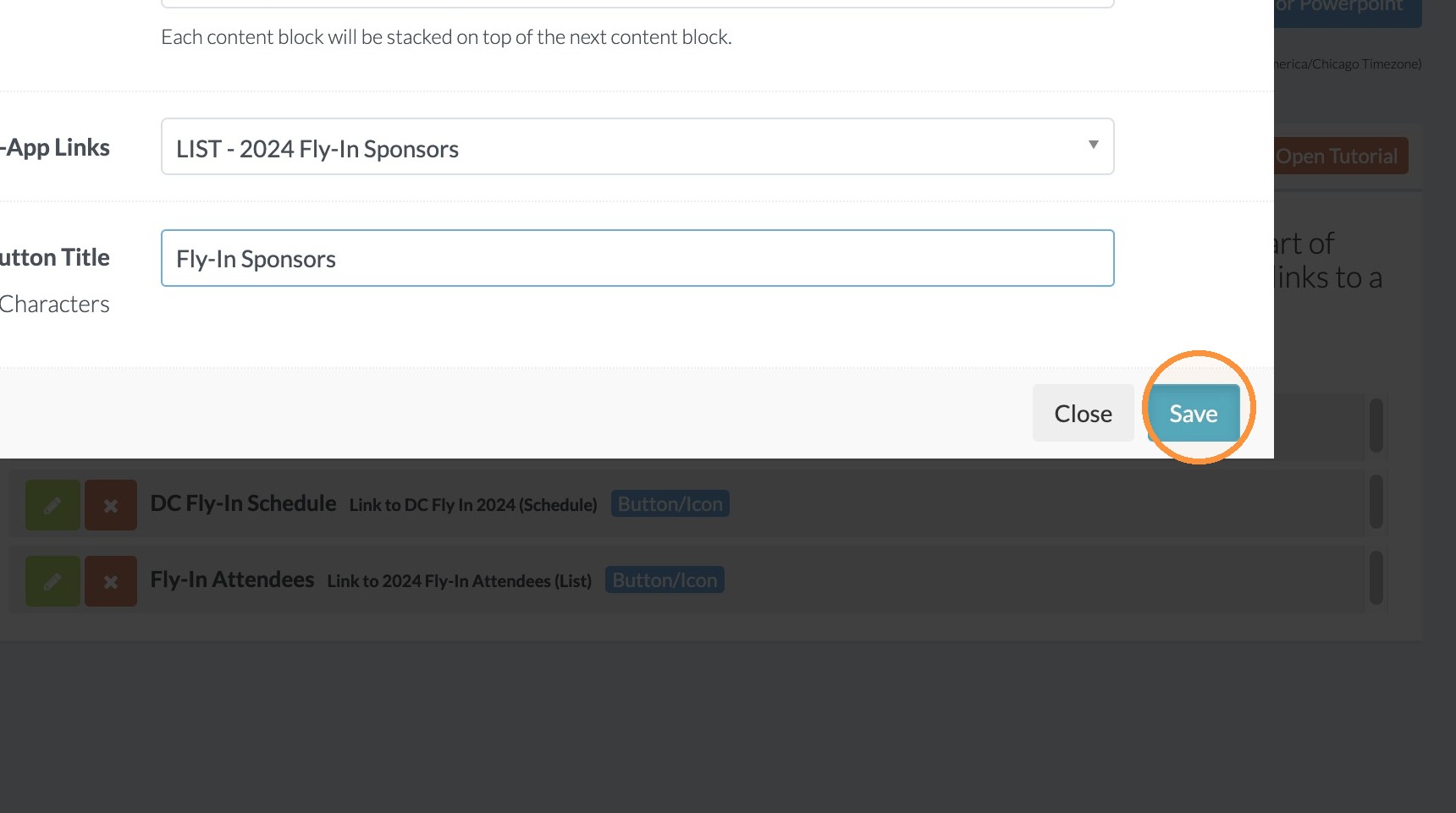
8. Click "Save"
9. Click "Update Pages In App"
Custom Page