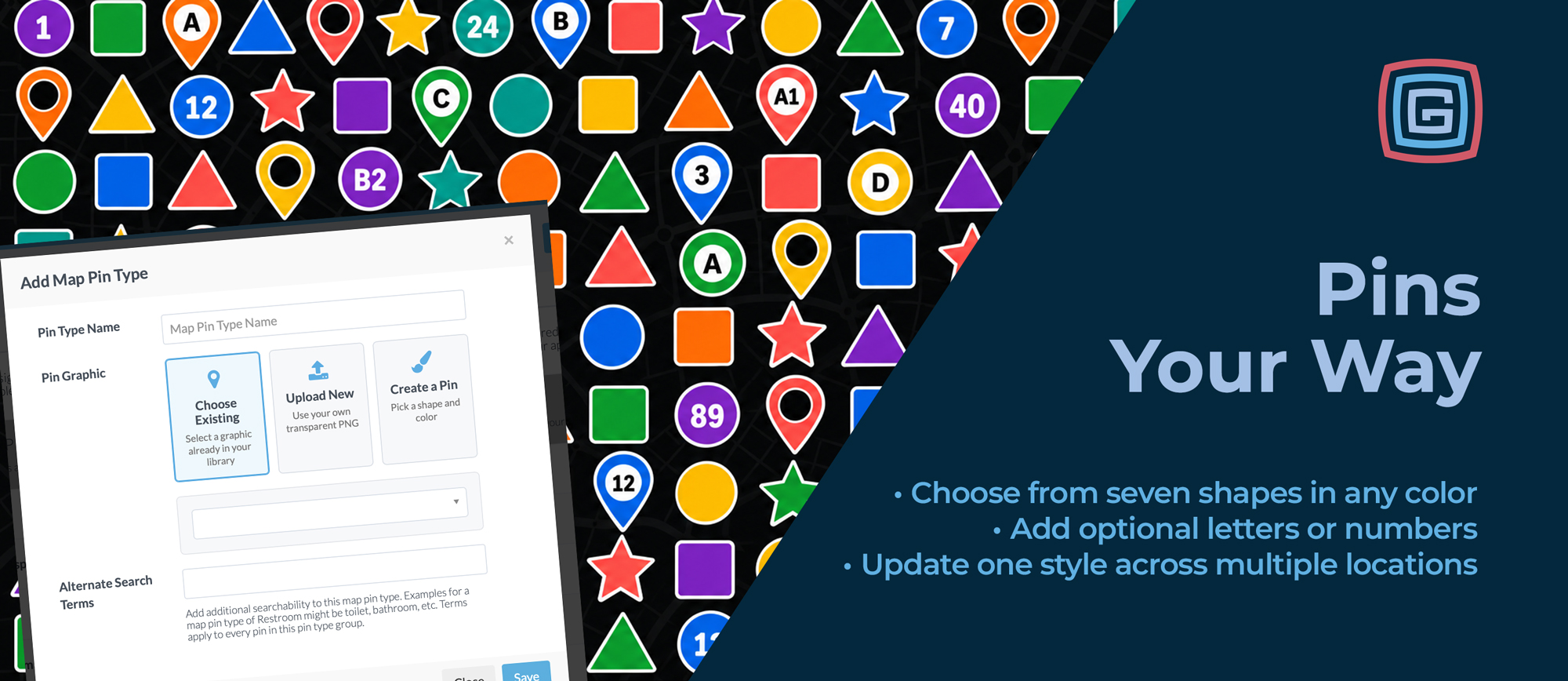
Sometimes the right map pin is simply a purple star. Or a circle in the exact green used throughout your event branding. Or a series of numbered markers that match the stops in your printed guide.
Grandstand’s Create a Pin option makes those choices easy. Choose from seven shapes, pick your color, and optionally add letters or numbers to individual locations—all directly in the admin.
There’s no need to create and upload a separate graphic for each variation. You can set up a consistent style, use it across your map, and give individual pins their own identifying text.
Available now at no additional charge for all Gold, Platinum, and Titanium clients, with no app update or resubmission required.
Start with a Shape and Make It Yours
A simple shape and a well-chosen color can go a long way toward making a map easier to browse.
Use stars to highlight attractions, circles for tour stops, or different colored traditional pins to distinguish groups of locations. Match your event’s branding or coordinate your app with the colors already used on signs and printed materials.
When adding a map pin type, select Create a Pin and choose from seven options:
- Circle
- Square
- Triangle
- Star
- Traditional pin
- Traditional pin with a black inner circle
- Traditional pin with a white inner circle
Choose any color using the color picker, or enter a hex code for a precise match. If your organization already has a specific purple, blue, or green, you can carry that color onto your map.
For pins that include text, you can also choose the shared text font and color for the pin type.
One Style, Individual Letters and Numbers
Once you’ve created a pin type, you can select it when adding or editing individual map locations.
Selecting that type reveals a Custom Icon Text field, where you can enter up to two characters to appear on that particular pin. That could be a number, a letter, or a combination such as “A1.”
The shape, color, and text styling stay consistent across the group, while each location can have its own label.
Text is optional, too. Some locations can display letters or numbers while others using the same pin type remain blank. If all you need is a set of purple stars, you can leave the text out entirely.
Put Your Printed Guide on the Map
Consider the bike public art map shown in our demo app. A series of blue circles gives the artwork locations a consistent appearance, while individual numbers distinguish each stop.
That approach could connect an app to an existing printed art guide. Someone looking at stop 24 in a brochure could find the matching number on the app’s map. For a suggested tour, numbered pins could reflect the order presented in an accompanying guide.
The same idea can work for historical walking tours, open studio events, garden tours, or other experiences where visitors move among several stops.
Organizers can carry familiar references from their printed materials into the app, helping visitors connect what they’re holding with what they’re seeing on the map.
And because the number is entered on each location, there’s no need to design a separate image for every stop.
Useful Even Without a Single Number
Letters and numbers add flexibility, but simple shapes and colors are useful on their own.
An organizer might want green pins that match the event’s visual identity, stars for featured destinations, or different shapes to distinguish groups of locations at a glance.
Create a Pin gives teams a quick way to make those everyday choices themselves. Pick the shape, set the color, and assign the pin type to the relevant locations.
These pins can also appear alongside existing library graphics and uploaded custom pins. You can use numbered circles for a tour while keeping familiar icons for parking, restrooms, and other amenities.
Update the Shared Design in One Place
A consistent design should also be easy to maintain.
If you decide to change a pin type’s shape, color, or text styling, that change applies to every location using it. Each location keeps its individual custom text.
For example, a numbered tour could switch from blue circles to purple squares without requiring you to recreate every numbered graphic or reenter each stop’s label.
That makes it easier to refine the appearance of a map as plans develop or branding changes.
Ready for Your Existing App
Create a Pin works across all Grandstand map types, including native maps, custom graphical maps, and hybrid overlay maps. Attendees tap these pins just as they would any other map pin.
For organizers, it’s a simpler way to get the look they need: a familiar shape, the right color, and optional text that helps identify each location.
All Gold, Platinum, and Titanium clients can start using Create a Pin now, at no additional charge and without an app update or resubmission.